> ## Documentation Index
> Fetch the complete documentation index at: https://developers.kajabi.com/llms.txt
> Use this file to discover all available pages before exploring further.
# View video stats
> Track plays, play rate, and engagement for a video from the Media Library, or jump to its stats from a Page, Funnel page, or Course lesson.
**Video stats** show what people actually did with a video you uploaded to Kajabi — how many pressed play, how far they watched, and where they dropped off.
Your [Media Library ](/articles/media-library/media-library-overview)is the home for this data. Every video you upload lives there, and its stats cover every place the video is embedded, so you can measure one video across your whole site in a single view.
## View video stats using the Media Library
1. From the Dashboard, click **Media Library**.
2. Click a video **Title.**
3. On the **Analytics** card, choose the stats you want to see using three filters. The filters read as a sentence — a metric across a location in a time span, i.e. ***Total plays*** across ***All locations*** in ***Last 30 days***.
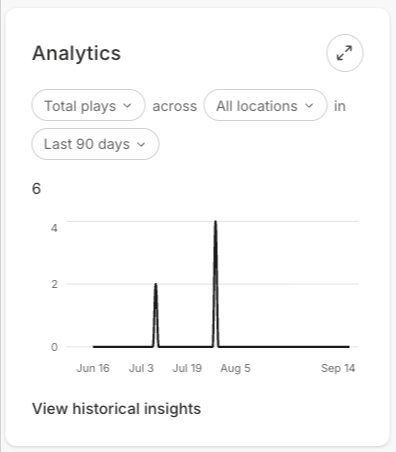 * **Metric** — Total plays, Unique plays, Unique viewers, Play rate, Engagement rate, or Hours watched
* **Location** — All locations, or a single Page or lesson the video is embedded on
* **Time span** — Last 7 days, Last 30 days, or Last 90 days
The number and the chart below the filters update with each change.
## View historical insights
Click **View historical insights** within the Analytics chart to open a detailed window covering the life of the video:
* **Metric** — Total plays, Unique plays, Unique viewers, Play rate, Engagement rate, or Hours watched
* **Location** — All locations, or a single Page or lesson the video is embedded on
* **Time span** — Last 7 days, Last 30 days, or Last 90 days
The number and the chart below the filters update with each change.
## View historical insights
Click **View historical insights** within the Analytics chart to open a detailed window covering the life of the video:
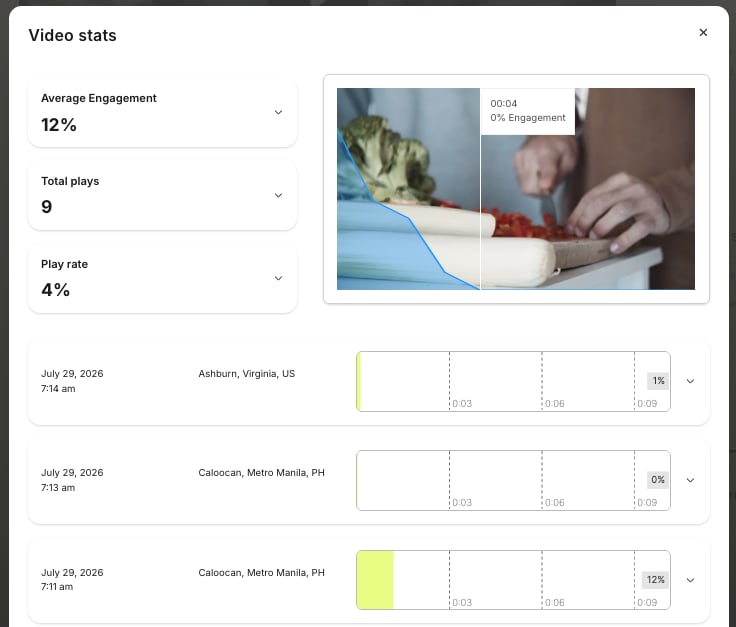 * **Summary stats** — **Average Engagement**, **Total plays**, and **Play rate**, each expandable for the definition and the calculation behind it
* **Engagement graph** — an interactive preview of the video; hover across it to find the exact second viewers lost interest
* **Individual sessions** — one entry per viewing session with location, device, and a heat map of what that viewer watched
Click **Load More** at the bottom of the session list to page back through older sessions.
[Learn more with the Media Stats overview](/articles/analytics/media-stats-overview).
## Reach video stats from a Page or lesson
You can also reach video stats from an individual Website Page, Landing Page, or Funnel page, as well as within a Course lesson.
#### To view stats for a video on a Website Page or Landing Page:
* **Summary stats** — **Average Engagement**, **Total plays**, and **Play rate**, each expandable for the definition and the calculation behind it
* **Engagement graph** — an interactive preview of the video; hover across it to find the exact second viewers lost interest
* **Individual sessions** — one entry per viewing session with location, device, and a heat map of what that viewer watched
Click **Load More** at the bottom of the session list to page back through older sessions.
[Learn more with the Media Stats overview](/articles/analytics/media-stats-overview).
## Reach video stats from a Page or lesson
You can also reach video stats from an individual Website Page, Landing Page, or Funnel page, as well as within a Course lesson.
#### To view stats for a video on a Website Page or Landing Page:
 1. From the Dashboard, go to **Website** > **Website Pages** or **Landing Pages**.
2. Open the page containing your video, and click **Customize** to open the [page editor](/articles/website/pages/how-to-get-to-the-page-editor).
3. In the sidebar, click the **section**, then click the **block** that contains your video.
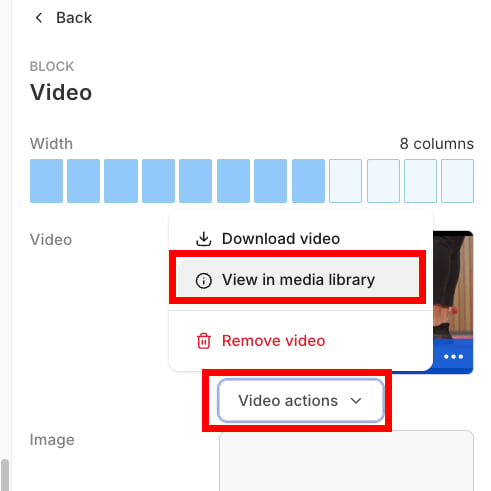
4. Click **Video actions** beneath the video preview.
5. Select **View in Media Library**.
6. Filter stats on the **Analytics** card.
#### To view stats for a video on a Funnel page:
1. From the Dashboard, go to **Marketing** > **Funnels**.
2. Click the **Funnel**, then select the page containing the video.
3. If the page is a Landing Page, in the sidebar, click the **section**, then click the **block** that contains your video. If the page is a Checkout Page, you must first click **Edit checkout**, then the section and block.
4. Click **Video actions** beneath the video preview.
5. Select **View in Media Library**.
6. Filter stats on the **Analytics** card.
#### To view stats for a video in a lesson:
1. From the Dashboard, go to **Website** > **Website Pages** or **Landing Pages**.
2. Open the page containing your video, and click **Customize** to open the [page editor](/articles/website/pages/how-to-get-to-the-page-editor).
3. In the sidebar, click the **section**, then click the **block** that contains your video.
4. Click **Video actions** beneath the video preview.
5. Select **View in Media Library**.
6. Filter stats on the **Analytics** card.
#### To view stats for a video on a Funnel page:
1. From the Dashboard, go to **Marketing** > **Funnels**.
2. Click the **Funnel**, then select the page containing the video.
3. If the page is a Landing Page, in the sidebar, click the **section**, then click the **block** that contains your video. If the page is a Checkout Page, you must first click **Edit checkout**, then the section and block.
4. Click **Video actions** beneath the video preview.
5. Select **View in Media Library**.
6. Filter stats on the **Analytics** card.
#### To view stats for a video in a lesson:
 1. From the Dashboard, go to **Products** > **Courses**.
2. Click a Course **Title** and select the lesson containing the video.
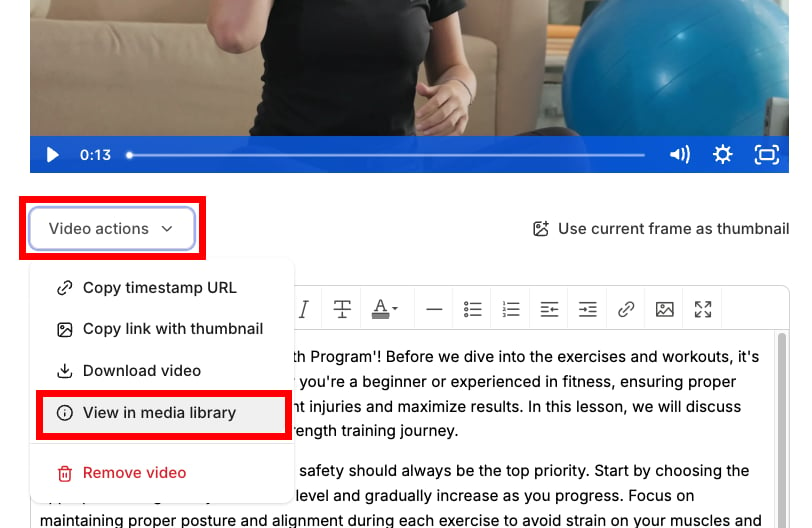
3. Click **Video actions** beneath the video.
4. Select **View in Media Library**.
5. Filter stats on the **Analytics** card.
## What Video stats shows
**Video stats** opens in three parts:
* **Summary stats** — **Average Engagement**, **Total plays**, and **Play rate**, each expandable for the definition and the calculation behind it
* **Engagement graph** — An interactive preview of the video; hover across it to find the exact second viewers lost interest
* **Individual sessions** — One entry per viewing session with location, device, and a heat map of what that viewer watched
Click **Load More** at the bottom of the session list to see older sessions.
[Learn more with the Media Stats overview](/articles/analytics/media-stats-overview).
## FAQs
### Why does my Video actions menu show 'Video stats' instead of View in Media Library?
That is the standard behavior for any video stored in your Media Library. **Video stats** indicates the older stats window, and only appears for videos that were uploaded before the Media Library existed.
### Where do I find stats for an entire Funnel instead of one video?
Open the Funnel and click the **View Stats** button at the top of the page for conversion rate, revenue, page views, and Email Sequence performance. See [View page and email stats in Funnels](/articles/marketing/funnels/how-to-view-page-and-email-stats-in-funnels).
### Can I see the same stats for audio?
Yes. Audio files use an **Audio actions** menu with an **Audio stats** option. See [View audio stats](/articles/analytics/how-to-view-audio-stats).
1. From the Dashboard, go to **Products** > **Courses**.
2. Click a Course **Title** and select the lesson containing the video.
3. Click **Video actions** beneath the video.
4. Select **View in Media Library**.
5. Filter stats on the **Analytics** card.
## What Video stats shows
**Video stats** opens in three parts:
* **Summary stats** — **Average Engagement**, **Total plays**, and **Play rate**, each expandable for the definition and the calculation behind it
* **Engagement graph** — An interactive preview of the video; hover across it to find the exact second viewers lost interest
* **Individual sessions** — One entry per viewing session with location, device, and a heat map of what that viewer watched
Click **Load More** at the bottom of the session list to see older sessions.
[Learn more with the Media Stats overview](/articles/analytics/media-stats-overview).
## FAQs
### Why does my Video actions menu show 'Video stats' instead of View in Media Library?
That is the standard behavior for any video stored in your Media Library. **Video stats** indicates the older stats window, and only appears for videos that were uploaded before the Media Library existed.
### Where do I find stats for an entire Funnel instead of one video?
Open the Funnel and click the **View Stats** button at the top of the page for conversion rate, revenue, page views, and Email Sequence performance. See [View page and email stats in Funnels](/articles/marketing/funnels/how-to-view-page-and-email-stats-in-funnels).
### Can I see the same stats for audio?
Yes. Audio files use an **Audio actions** menu with an **Audio stats** option. See [View audio stats](/articles/analytics/how-to-view-audio-stats).