> ## Documentation Index
> Fetch the complete documentation index at: https://developers.kajabi.com/llms.txt
> Use this file to discover all available pages before exploring further.
# Explore the Contacts tab
> Tell contacts, Customers, and Subscribers apart, and organize your list with Segments, Filters, and Tags in the Contacts tab.
The **Contacts** tab is a built-in Customer Relationship Management System (CRM). All of your contacts are added to a single list to easily view, access, and manage their accounts. Within the Contacts tab you can manage existing contacts with Segments and Filters and add contacts to your site.
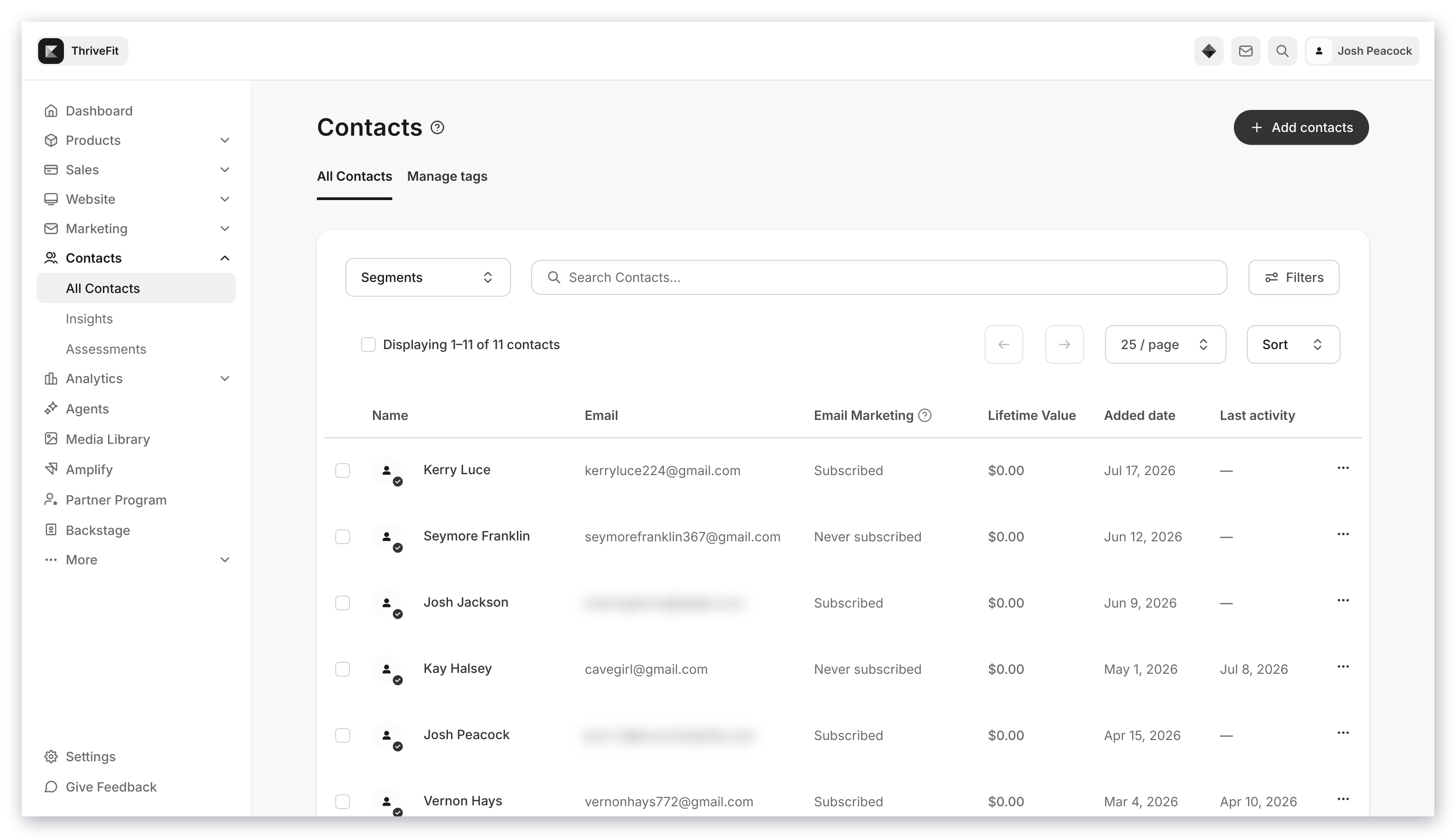 **Note:** Looking to add contacts to your site? [Learn to import contacts](../../contacts/manage-your-contacts/how-to-import-contacts-into-kajabi).
## Contacts, Customers, and Subscribers
Three terms describe the people in your Contacts tab, and they overlap. Knowing which is which helps you target your marketing and understand who receives your emails.
### Contacts
**Contacts** include any person in your Contacts tab. This may include contacts that have subscribed, unsubscribed, purchased an Offer, or have been granted an Offer.
For each contact added to your site, you can learn more by clicking into their [Contact Profile](../../contacts/manage-your-contacts/how-to-manage-your-contacts-profiles).
Your list opens with a set of [default Segments](../../contacts/manage-your-contacts/segment-your-contacts#default-segments) that split your contacts into common views:
* **All Contacts:** Every contact on your site, including Customers, Subscribers, and contacts who unsubscribed or never subscribed
* **Customers:** Contacts who have purchased or been granted an Offer
* **Subscribed:** Contacts who have consented to receive your marketing emails
* **Inactive:** Subscribed contacts who have not opened or clicked an email recently
* **Hard Bounced:** Contacts whose email address returned a permanent delivery failure
### Customers
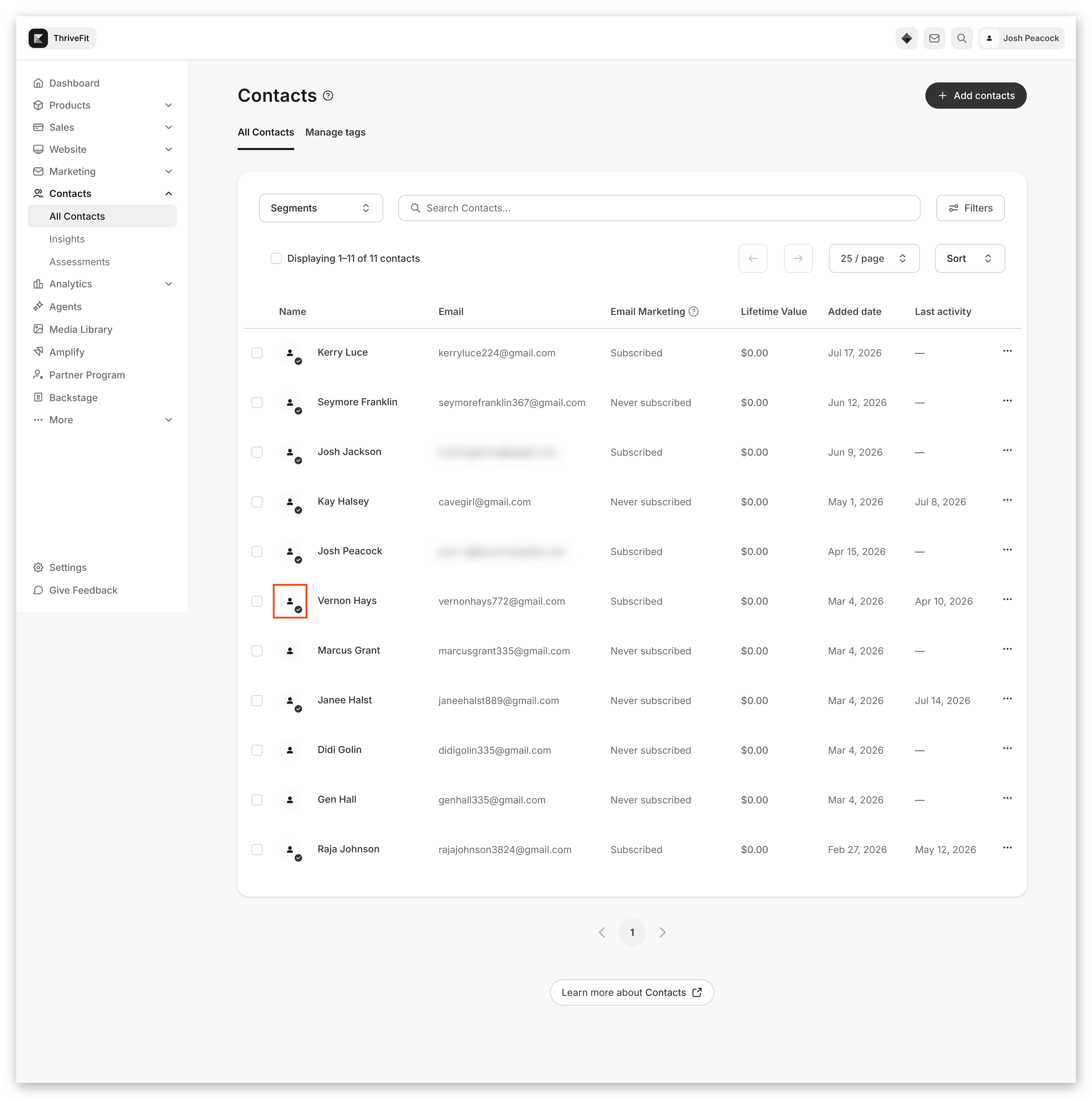
A **Customer** is a contact who has completed a purchase or been granted an Offer on your site.
Customers are marked with a badge on their avatar in the Contacts tab:
**Note:** Looking to add contacts to your site? [Learn to import contacts](../../contacts/manage-your-contacts/how-to-import-contacts-into-kajabi).
## Contacts, Customers, and Subscribers
Three terms describe the people in your Contacts tab, and they overlap. Knowing which is which helps you target your marketing and understand who receives your emails.
### Contacts
**Contacts** include any person in your Contacts tab. This may include contacts that have subscribed, unsubscribed, purchased an Offer, or have been granted an Offer.
For each contact added to your site, you can learn more by clicking into their [Contact Profile](../../contacts/manage-your-contacts/how-to-manage-your-contacts-profiles).
Your list opens with a set of [default Segments](../../contacts/manage-your-contacts/segment-your-contacts#default-segments) that split your contacts into common views:
* **All Contacts:** Every contact on your site, including Customers, Subscribers, and contacts who unsubscribed or never subscribed
* **Customers:** Contacts who have purchased or been granted an Offer
* **Subscribed:** Contacts who have consented to receive your marketing emails
* **Inactive:** Subscribed contacts who have not opened or clicked an email recently
* **Hard Bounced:** Contacts whose email address returned a permanent delivery failure
### Customers
A **Customer** is a contact who has completed a purchase or been granted an Offer on your site.
Customers are marked with a badge on their avatar in the Contacts tab:
 How a Customer received access determines which automated emails they get:
* **Purchased an Offer:** The Customer receives the Offer Purchase Confirmation email, which contains a congratulatory message and a link to your site's Login Page. Review the [purchase flow of a customer](../../sales/offers/what-happens-when-a-customer-purchases-my-offer)
* **Granted an Offer:** The Customer receives the Offer Grant Confirmation email, plus the Member Welcome Email containing their login credentials. If you grant an Offer to an existing Customer, only the Offer Grant Confirmation email sends. [Edit the automated emails sent by your site](../../account-settings/notifications/edit-automated-email-notifications)
**Note:** Your Customer may receive additional emails if configured in the [Offer After Purchase Settings](../../sales/offers/how-to-include-additional-settings-for-your-offer).
### Subscribers
A **Subscriber** is a contact who has given consent to receive your [marketing emails](../../marketing/email-campaigns/what-are-marketing-and-transactional-emails). Subscribers are added to your site through a [Form submission](../../marketing/forms/create-and-build-your-form) or [imported onto your site](../../contacts/manage-your-contacts/how-to-import-contacts-into-kajabi).
This is where your contacts overlap. A Customer may also be a Subscriber if they are subscribed to receive your marketing emails, and a Subscriber may be a Customer if they have access to your Offers. Subscribers are not required to be Customers to receive marketing emails — as long as a contact has given permission, they are a Subscriber.
Not every contact in your Contacts tab is a Subscriber. A contact is not a Subscriber if they:
* [Manually unsubscribed](../../contacts/manage-your-contacts/how-auto-unsubscribe-helps-you-maintain-a-healthy-mailing-list#subscription-status) from your emails
* Returned a [hard bounced email](../../contacts/manage-your-contacts/how-auto-unsubscribe-helps-you-maintain-a-healthy-mailing-list)
* Did not confirm a [Double Opt-In Form](../../marketing/forms/how-to-set-up-a-form-with-double-opt-in)
* Were imported without **Subscribe to marketing emails** selected
A contact in any of these states will not receive your marketing emails.
A status of **Not confirmed** means the contact submitted a Form with Double Opt-In enabled but has not yet clicked the confirmation link in their email. That status cannot be changed to **Subscribed** manually. To prompt a new confirmation email, submit a Double Opt-In Form on their behalf. [Learn how to resubscribe a contact](../../contacts/manage-your-contacts/can-i-resubscribe-a-contact-if-i-accidentally-unsubscribe-them).
Check a contact's subscription status directly from the Contacts tab:
How a Customer received access determines which automated emails they get:
* **Purchased an Offer:** The Customer receives the Offer Purchase Confirmation email, which contains a congratulatory message and a link to your site's Login Page. Review the [purchase flow of a customer](../../sales/offers/what-happens-when-a-customer-purchases-my-offer)
* **Granted an Offer:** The Customer receives the Offer Grant Confirmation email, plus the Member Welcome Email containing their login credentials. If you grant an Offer to an existing Customer, only the Offer Grant Confirmation email sends. [Edit the automated emails sent by your site](../../account-settings/notifications/edit-automated-email-notifications)
**Note:** Your Customer may receive additional emails if configured in the [Offer After Purchase Settings](../../sales/offers/how-to-include-additional-settings-for-your-offer).
### Subscribers
A **Subscriber** is a contact who has given consent to receive your [marketing emails](../../marketing/email-campaigns/what-are-marketing-and-transactional-emails). Subscribers are added to your site through a [Form submission](../../marketing/forms/create-and-build-your-form) or [imported onto your site](../../contacts/manage-your-contacts/how-to-import-contacts-into-kajabi).
This is where your contacts overlap. A Customer may also be a Subscriber if they are subscribed to receive your marketing emails, and a Subscriber may be a Customer if they have access to your Offers. Subscribers are not required to be Customers to receive marketing emails — as long as a contact has given permission, they are a Subscriber.
Not every contact in your Contacts tab is a Subscriber. A contact is not a Subscriber if they:
* [Manually unsubscribed](../../contacts/manage-your-contacts/how-auto-unsubscribe-helps-you-maintain-a-healthy-mailing-list#subscription-status) from your emails
* Returned a [hard bounced email](../../contacts/manage-your-contacts/how-auto-unsubscribe-helps-you-maintain-a-healthy-mailing-list)
* Did not confirm a [Double Opt-In Form](../../marketing/forms/how-to-set-up-a-form-with-double-opt-in)
* Were imported without **Subscribe to marketing emails** selected
A contact in any of these states will not receive your marketing emails.
A status of **Not confirmed** means the contact submitted a Form with Double Opt-In enabled but has not yet clicked the confirmation link in their email. That status cannot be changed to **Subscribed** manually. To prompt a new confirmation email, submit a Double Opt-In Form on their behalf. [Learn how to resubscribe a contact](../../contacts/manage-your-contacts/can-i-resubscribe-a-contact-if-i-accidentally-unsubscribe-them).
Check a contact's subscription status directly from the Contacts tab:
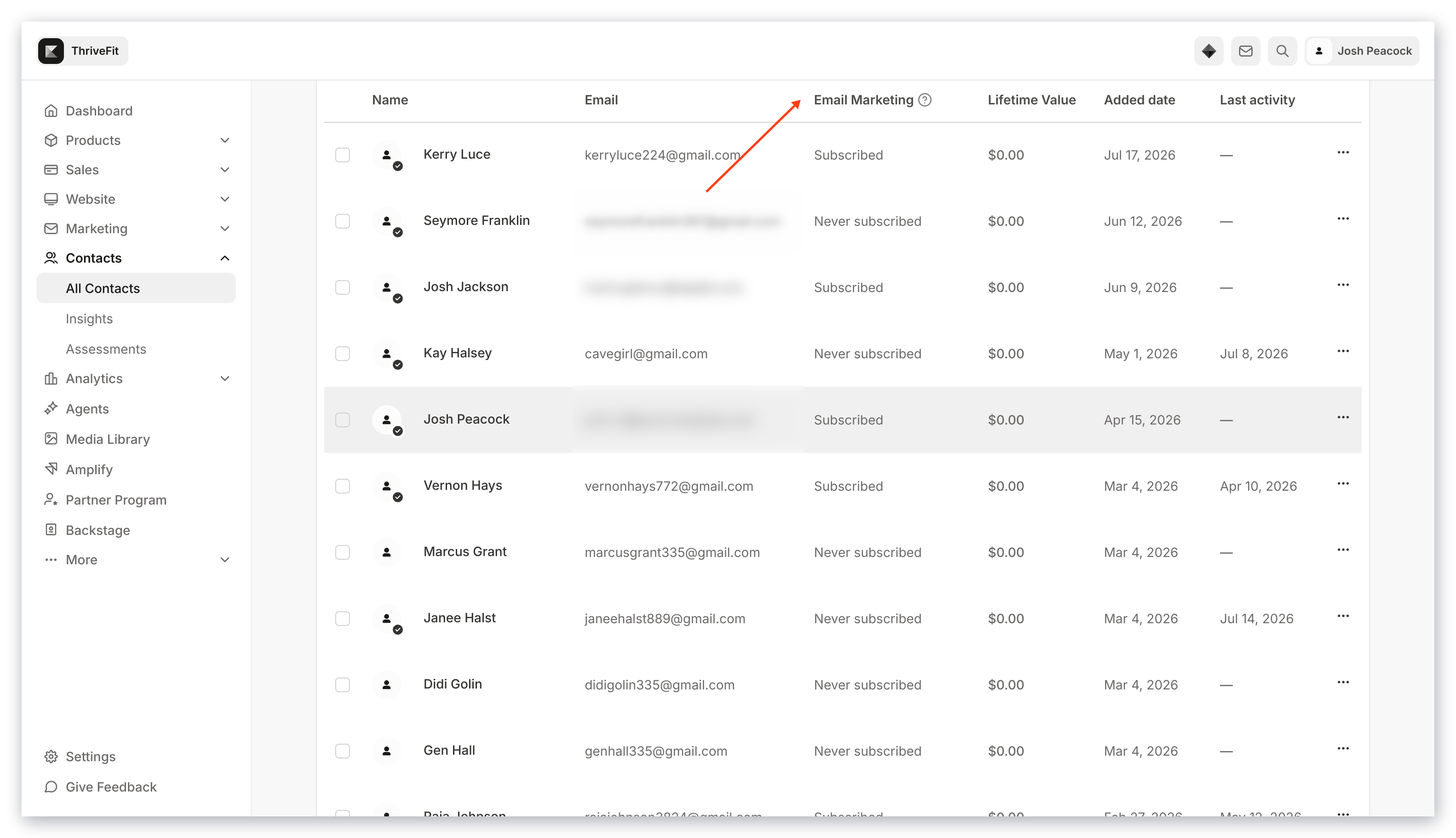 **Tip:** The Unsubscribed status also shows the action that triggered the unsubscribe. Review the [Subscription Status](../../contacts/manage-your-contacts/what-does-the-subscription-status-mean) for details.
## Segments
**Segments** allow you to design personalized marketing and efficiently manage your list.
Customize your Segments with Filters to best fit your business with a variety of Filter combinations.
[Learn more about Segmenting](../../contacts/manage-your-contacts/segment-your-contacts).
## Filters
Use **Filters** to build Segments and narrow your list.
Kajabi gives you a library of filter categories — covering everything from a contact's default and custom fields to their Offers, Products, Forms, Tags, and email activity — so you can organize your list by a contact's information or their activity on your site. Open your Contacts tab and click **Filters** to begin filtering your list.
[Learn how to apply filters to the Contacts tab](/articles/contacts/manage-your-contacts/apply-filters-to-your-contacts-tab).
## Bulk actions
**Bulk actions** help you perform various actions to multiple contacts to help streamline your processes.
This list of bulk actions include actions from applying a tag to subscribing to an email sequence.
[Learn more about bulk actions](../../contacts/manage-your-contacts/perform-bulk-actions-in-the-contacts-tab).
## Manage Tags
Your Contacts tab houses all the **Tags** you have created on your site and allows you to create additional tags:
**Tip:** The Unsubscribed status also shows the action that triggered the unsubscribe. Review the [Subscription Status](../../contacts/manage-your-contacts/what-does-the-subscription-status-mean) for details.
## Segments
**Segments** allow you to design personalized marketing and efficiently manage your list.
Customize your Segments with Filters to best fit your business with a variety of Filter combinations.
[Learn more about Segmenting](../../contacts/manage-your-contacts/segment-your-contacts).
## Filters
Use **Filters** to build Segments and narrow your list.
Kajabi gives you a library of filter categories — covering everything from a contact's default and custom fields to their Offers, Products, Forms, Tags, and email activity — so you can organize your list by a contact's information or their activity on your site. Open your Contacts tab and click **Filters** to begin filtering your list.
[Learn how to apply filters to the Contacts tab](/articles/contacts/manage-your-contacts/apply-filters-to-your-contacts-tab).
## Bulk actions
**Bulk actions** help you perform various actions to multiple contacts to help streamline your processes.
This list of bulk actions include actions from applying a tag to subscribing to an email sequence.
[Learn more about bulk actions](../../contacts/manage-your-contacts/perform-bulk-actions-in-the-contacts-tab).
## Manage Tags
Your Contacts tab houses all the **Tags** you have created on your site and allows you to create additional tags:
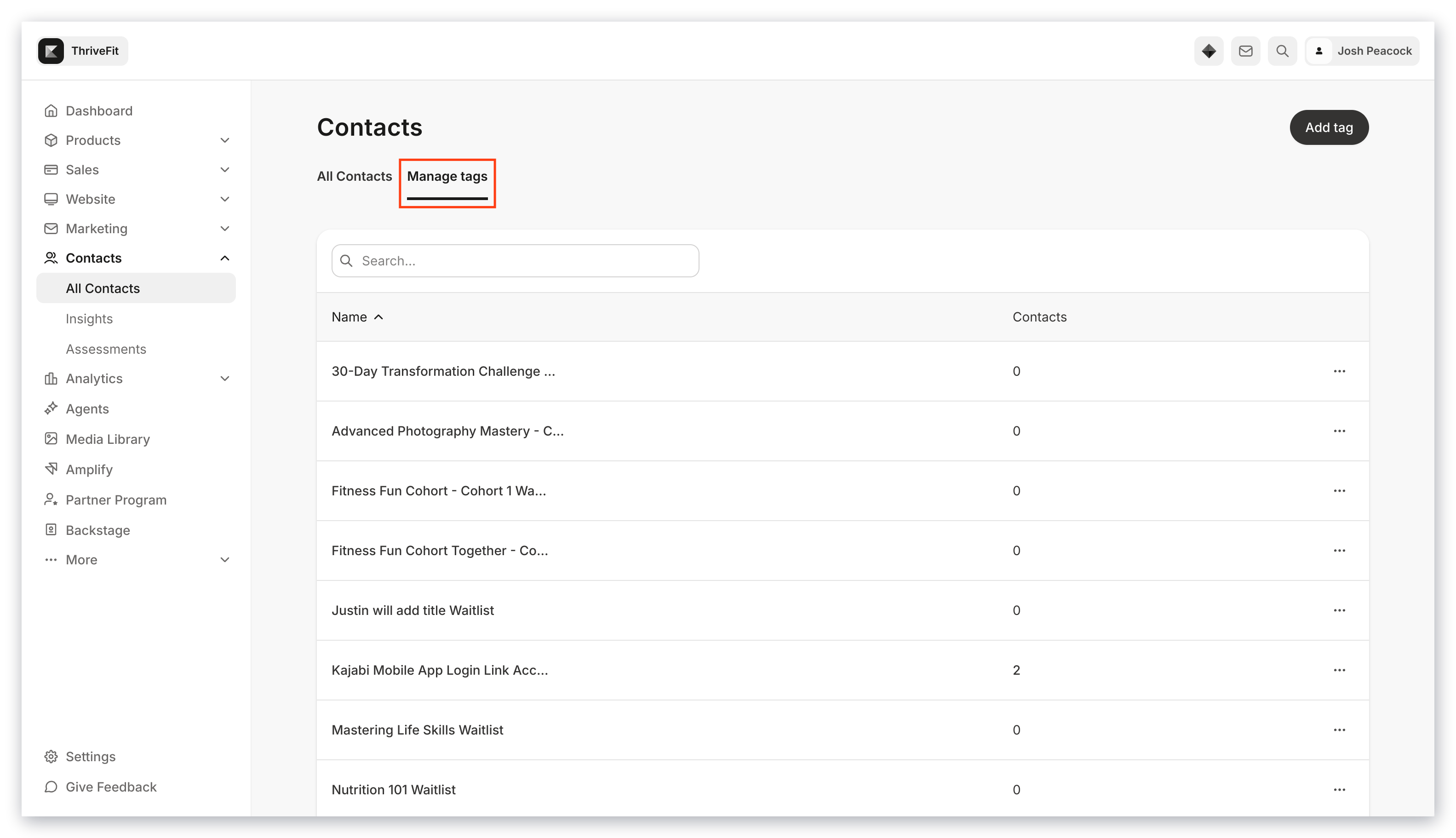 Notice a pattern in the Contacts tab? Just as filters and segments help you organize your list, Tags are a powerful tool for efficiently managing your contacts.
[Learn to utilize Tags to organize and categorize your list](../../contacts/manage-your-contacts/tags-overview).
## FAQs
### What is the difference between a contact, a Customer, and a Subscriber?
Every person in your Contacts tab is a contact. A Customer is a contact who has purchased or been granted an Offer. A Subscriber is a contact who has consented to receive your marketing emails. A single contact can be both a Customer and a Subscriber, or neither.
### Can a contact be both a Customer and a Subscriber?
Yes. Buying an Offer and subscribing to marketing emails are independent. A Customer who opted in to your marketing emails is both, and a Subscriber who later purchases an Offer becomes both.
### Why isn't a Customer receiving my marketing emails?
Purchasing an Offer does not automatically subscribe a contact to marketing emails. Check the contact's subscription status in the Contacts tab — if it reads anything other than **Subscribed**, they will only receive transactional emails such as their purchase confirmation.
Notice a pattern in the Contacts tab? Just as filters and segments help you organize your list, Tags are a powerful tool for efficiently managing your contacts.
[Learn to utilize Tags to organize and categorize your list](../../contacts/manage-your-contacts/tags-overview).
## FAQs
### What is the difference between a contact, a Customer, and a Subscriber?
Every person in your Contacts tab is a contact. A Customer is a contact who has purchased or been granted an Offer. A Subscriber is a contact who has consented to receive your marketing emails. A single contact can be both a Customer and a Subscriber, or neither.
### Can a contact be both a Customer and a Subscriber?
Yes. Buying an Offer and subscribing to marketing emails are independent. A Customer who opted in to your marketing emails is both, and a Subscriber who later purchases an Offer becomes both.
### Why isn't a Customer receiving my marketing emails?
Purchasing an Offer does not automatically subscribe a contact to marketing emails. Check the contact's subscription status in the Contacts tab — if it reads anything other than **Subscribed**, they will only receive transactional emails such as their purchase confirmation.