> ## Documentation Index
> Fetch the complete documentation index at: https://developers.kajabi.com/llms.txt
> Use this file to discover all available pages before exploring further.
# Understand Automation components
> Get to know the building blocks of Automations, including triggers, actions, and conditional filters.
**Automations** are powerful tools in Kajabi that use **conditional logic** to help you streamline processes by automating actions for your business.
Each Automation is built around two required parts — what starts it **(When)** and what happens as a result **(Then)** — with an optional conditional filter you can add to narrow down when it applies **(Only if)**.
**Basic plan**: Only single-step automations (one When trigger → one Then action) are available. The visual Automation builder, multi-step flows, and per-step Draft/Published controls require a Growth or Pro plan. Wait nodes are moving to every plan, and that change is reaching accounts gradually, so **Wait** may still carry a **Premium** label on yours. If you are on Basic and see features described in this article that aren't available in your account, upgrading your plan will unlock them.
[Learn more about the difference between Basic Automations and Advanced Automations](/articles/marketing/automations/basic-vs-advanced-automations)
## When triggers - What starts an Automation
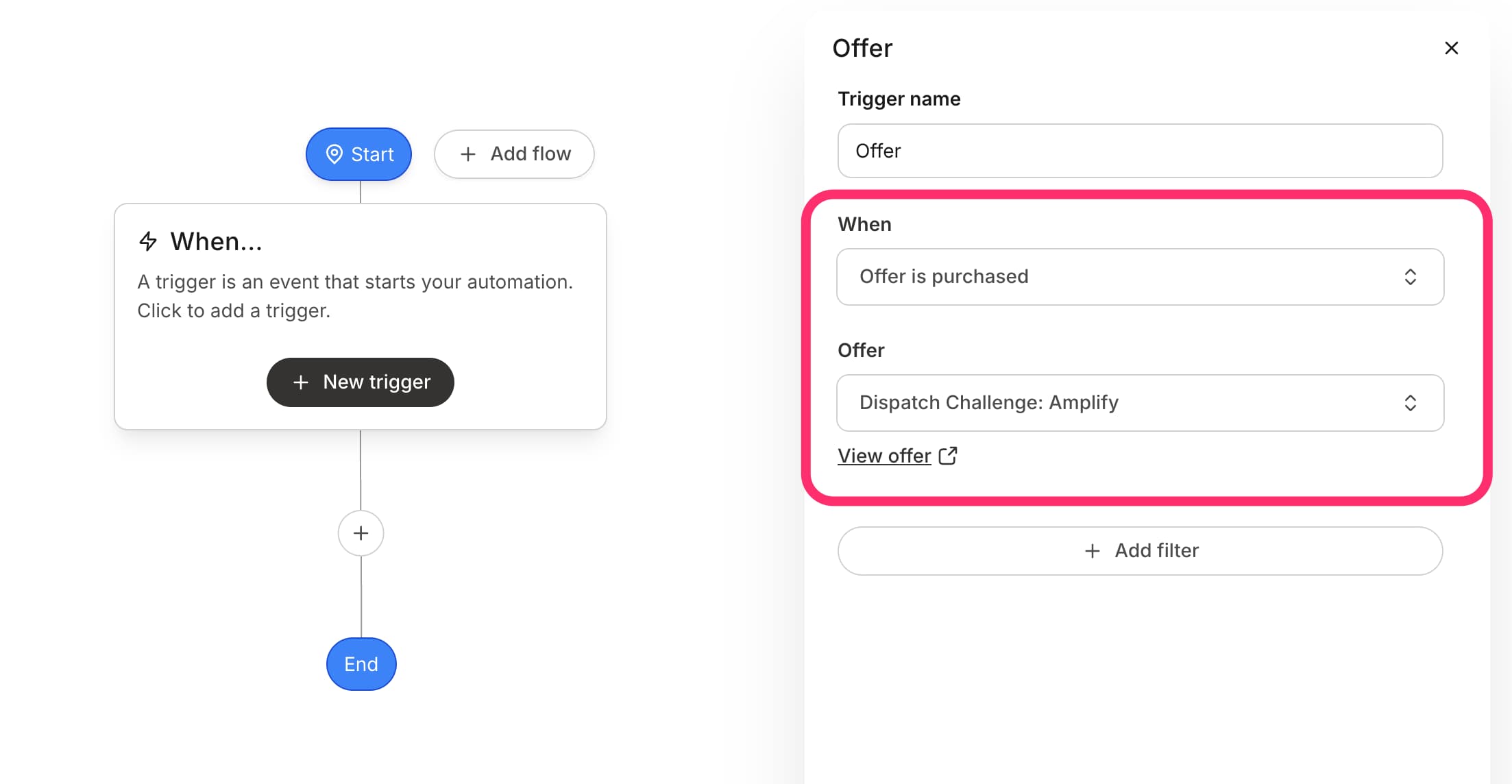
**When** components are **triggers** that kick off Automations. **When** logic specifies that an event must occur to start an action (the **Then** component).
 ## When trigger components
### Offers
* **Offer is purchased** - Trigger an Automation after a customer purchases your specified Offer
* **Offer is purchased as a gift** - Trigger an Automation after a customer purchases your specified Offer as a gift. [Learn how to create and manage gift Offers](../../sales/offers/how-to-create-and-manage-gift-offers)
* **Gift is redeemed** - Trigger an Automation when a customer redeems a gifted Offer
* **Offer is granted** - Trigger an Automation when an Offer is granted. [Learn how to grant an Offer](../../sales/offers/how-to-grant-an-offer)
**Note:** Granting an Offer is similar, but not the same as, a [Free Offer](../../sales/offers/how-to-create-a-free-offer) purchase. If the Automation is set to start after the purchase of a Free Offer, granting that Offer does not trigger it, because a Free Offer requires the customer to go through the [checkout process](../../sales/offers/what-happens-when-a-customer-purchases-my-offer).
* **Recurring payments cancelation initiated/completed** - Trigger an Automation anytime a subscription or payment plan cancelation is initiated or completed (by you or your customer), or when all payments of a plan have been paid
**Note:** This trigger was previously named "Offer is deactivated."
### Assessments
* **Assessment is completed** - When an Assessment is completed, its final Question (when it is attached to a Lesson) or Contact information (when it is an [Assessment embedded on a page](../../website/pages/how-to-add-an-assessment-block)) must be submitted
### Certificate
* **Certificate is sent** - Trigger an Automation when a Certificate of Completion is sent to a Course customer
[Learn about Certificates of Completion](../../products/courses/course-completion-certificates)
### Tags
* **Tag is added** - Trigger an Automation when a Tag is added to a Contact (manually or by another Automation)
* **Tag is removed** - Trigger an Automation when a Tag is removed from a Contact (manually or by another Automation)
[Learn about using Tags](../../contacts/manage-your-contacts/tags-overview)
### Email Broadcasts
* **Email broadcast is opened** - Trigger an Automation when a broadcast email is opened by a recipient
* **Link in email broadcast is clicked** - Trigger an Automation when a recipient clicks a link from the selected Email Broadcast
[Learn about Email Broadcasts](../../marketing/email-campaigns/email-campaigns-overview)
**Note:** The **View in web browser** and **Unsubscribe** buttons within an Email Broadcast are not recognized as links for the **Link in email broadcast is clicked** trigger.
### Email Sequences
* **Email sequence is completed** - Trigger an Automation after the final email in your Email Sequence is sent
[Learn about Email Sequences](../../marketing/email-campaigns/email-campaigns-overview#email-sequence)
### Email Sequence Emails
* **Email sequence email is sent** - Trigger an Automation when a specific email in an Email Sequence is sent to recipients
* **Email sequence email is opened** - Trigger an Automation when a specific email in an Email Sequence is opened by a recipient
* **Email sequence email is clicked** - Trigger an Automation when a recipient clicks a link in a specific email in an Email Sequence
### Events
* **Event is registered** - Trigger an Automation when a Contact registers for a specified Event on Kajabi
[Learn about Events](../../marketing/events/event-overview)
### Forms
* **Form is submitted** - Trigger an Automation to complete an action after the selected Form is submitted
[Learn about Forms](../../marketing/forms/create-and-build-your-form)
### Activity
Trigger an Automation based on activity:
* **Person has been inactive for 7 days**
* **Person has been inactive for 30 days**
* **Person has been inactive for 60 days**
* **Person has been inactive for 90 days**
[Learn how to define customer activity](../../contacts/manage-your-contacts/how-to-define-customer-activity)
### Lessons
* **Lesson is completed** - Trigger an Automation after a Course Lesson is marked as complete
### Quizzes
Trigger Automations that kick off **Then** actions after a Quiz is completed or graded:
* **Quiz is completed**
* **Quiz is failed**
* **Quiz is passed**
[Learn about Quizzes](../../products/courses/course-quizzes)
### Social Media
Trigger an Automation after a comment is received on a Facebook or Instagram post or any comment is received on those social media accounts:
* **Instagram comment is received**
* **Any Instagram comment received**
* **Facebook comment received**
* **Any Facebook comment received**
[Learn how to set up Comment-to-DM Automations](../../marketing/comment-to-dm/comment-to-dm)
### Coaching
* **Coaching session completed** - Trigger an Automation after a Coaching session is completed by a customer
* **All coaching sessions completed** - Trigger an Automation after all Coaching sessions are completed by a customer
* **Coaching sessions remaining** - Trigger an Automation when a specific number of Coaching sessions are remaining for a customer
* **Additional coaching sessions purchased** - Trigger an Automation when additional Coaching sessions are purchased by a customer
* **Coaching upcoming invoice due date** - Trigger an Automation to send something ahead of a Coaching customer's invoice due date
* **Coaching invoice overdue** - Trigger an Automation when a customer's Coaching invoice payment is overdue
[Learn more about Coaching](../../products/coaching/coaching-product-overview)
## Then actions - What an Automation does
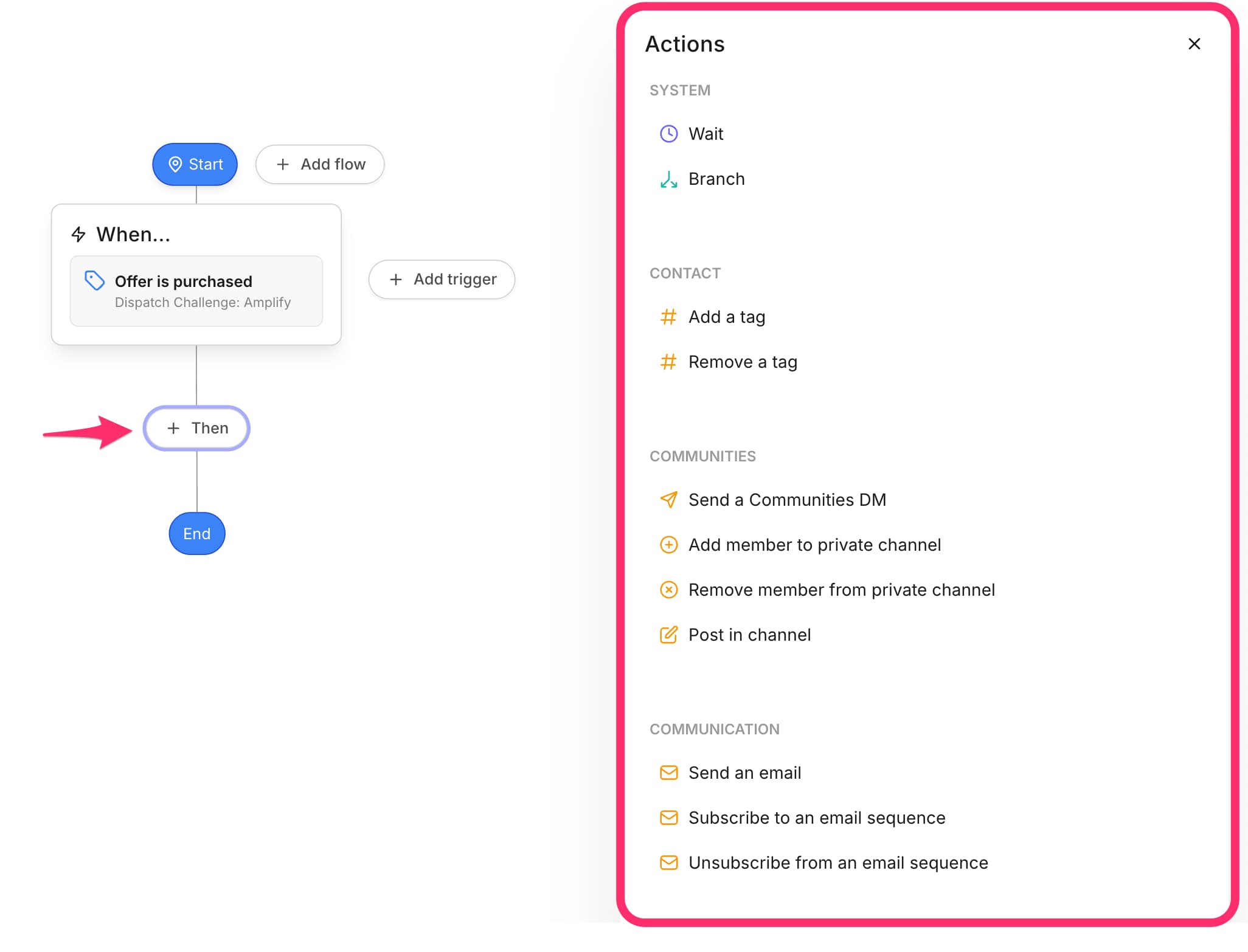
**Then** components define the action to occur in response to a **When** event trigger.
## When trigger components
### Offers
* **Offer is purchased** - Trigger an Automation after a customer purchases your specified Offer
* **Offer is purchased as a gift** - Trigger an Automation after a customer purchases your specified Offer as a gift. [Learn how to create and manage gift Offers](../../sales/offers/how-to-create-and-manage-gift-offers)
* **Gift is redeemed** - Trigger an Automation when a customer redeems a gifted Offer
* **Offer is granted** - Trigger an Automation when an Offer is granted. [Learn how to grant an Offer](../../sales/offers/how-to-grant-an-offer)
**Note:** Granting an Offer is similar, but not the same as, a [Free Offer](../../sales/offers/how-to-create-a-free-offer) purchase. If the Automation is set to start after the purchase of a Free Offer, granting that Offer does not trigger it, because a Free Offer requires the customer to go through the [checkout process](../../sales/offers/what-happens-when-a-customer-purchases-my-offer).
* **Recurring payments cancelation initiated/completed** - Trigger an Automation anytime a subscription or payment plan cancelation is initiated or completed (by you or your customer), or when all payments of a plan have been paid
**Note:** This trigger was previously named "Offer is deactivated."
### Assessments
* **Assessment is completed** - When an Assessment is completed, its final Question (when it is attached to a Lesson) or Contact information (when it is an [Assessment embedded on a page](../../website/pages/how-to-add-an-assessment-block)) must be submitted
### Certificate
* **Certificate is sent** - Trigger an Automation when a Certificate of Completion is sent to a Course customer
[Learn about Certificates of Completion](../../products/courses/course-completion-certificates)
### Tags
* **Tag is added** - Trigger an Automation when a Tag is added to a Contact (manually or by another Automation)
* **Tag is removed** - Trigger an Automation when a Tag is removed from a Contact (manually or by another Automation)
[Learn about using Tags](../../contacts/manage-your-contacts/tags-overview)
### Email Broadcasts
* **Email broadcast is opened** - Trigger an Automation when a broadcast email is opened by a recipient
* **Link in email broadcast is clicked** - Trigger an Automation when a recipient clicks a link from the selected Email Broadcast
[Learn about Email Broadcasts](../../marketing/email-campaigns/email-campaigns-overview)
**Note:** The **View in web browser** and **Unsubscribe** buttons within an Email Broadcast are not recognized as links for the **Link in email broadcast is clicked** trigger.
### Email Sequences
* **Email sequence is completed** - Trigger an Automation after the final email in your Email Sequence is sent
[Learn about Email Sequences](../../marketing/email-campaigns/email-campaigns-overview#email-sequence)
### Email Sequence Emails
* **Email sequence email is sent** - Trigger an Automation when a specific email in an Email Sequence is sent to recipients
* **Email sequence email is opened** - Trigger an Automation when a specific email in an Email Sequence is opened by a recipient
* **Email sequence email is clicked** - Trigger an Automation when a recipient clicks a link in a specific email in an Email Sequence
### Events
* **Event is registered** - Trigger an Automation when a Contact registers for a specified Event on Kajabi
[Learn about Events](../../marketing/events/event-overview)
### Forms
* **Form is submitted** - Trigger an Automation to complete an action after the selected Form is submitted
[Learn about Forms](../../marketing/forms/create-and-build-your-form)
### Activity
Trigger an Automation based on activity:
* **Person has been inactive for 7 days**
* **Person has been inactive for 30 days**
* **Person has been inactive for 60 days**
* **Person has been inactive for 90 days**
[Learn how to define customer activity](../../contacts/manage-your-contacts/how-to-define-customer-activity)
### Lessons
* **Lesson is completed** - Trigger an Automation after a Course Lesson is marked as complete
### Quizzes
Trigger Automations that kick off **Then** actions after a Quiz is completed or graded:
* **Quiz is completed**
* **Quiz is failed**
* **Quiz is passed**
[Learn about Quizzes](../../products/courses/course-quizzes)
### Social Media
Trigger an Automation after a comment is received on a Facebook or Instagram post or any comment is received on those social media accounts:
* **Instagram comment is received**
* **Any Instagram comment received**
* **Facebook comment received**
* **Any Facebook comment received**
[Learn how to set up Comment-to-DM Automations](../../marketing/comment-to-dm/comment-to-dm)
### Coaching
* **Coaching session completed** - Trigger an Automation after a Coaching session is completed by a customer
* **All coaching sessions completed** - Trigger an Automation after all Coaching sessions are completed by a customer
* **Coaching sessions remaining** - Trigger an Automation when a specific number of Coaching sessions are remaining for a customer
* **Additional coaching sessions purchased** - Trigger an Automation when additional Coaching sessions are purchased by a customer
* **Coaching upcoming invoice due date** - Trigger an Automation to send something ahead of a Coaching customer's invoice due date
* **Coaching invoice overdue** - Trigger an Automation when a customer's Coaching invoice payment is overdue
[Learn more about Coaching](../../products/coaching/coaching-product-overview)
## Then actions - What an Automation does
**Then** components define the action to occur in response to a **When** event trigger.
 ### Offers
* **Grant an offer** - An Automation that grants a specific Offer after a triggered event occurs
* **Revoke an offer** - An Automation that revokes access for a specific Offer after a triggered event occurs
* **Deactivate from offer** (discontinues payment and access) - An Automation that revokes access to a specific Offer and stops future payments after a triggered event occurs
* **Send an offer** - An Automation that sends an Offer to specific Contacts
* **Action by pricing option** - An Automation that performs an action based on which **Pricing option** is purchased, including:
* Revoke an offer
* Deactivate from offer
### Offers
* **Grant an offer** - An Automation that grants a specific Offer after a triggered event occurs
* **Revoke an offer** - An Automation that revokes access for a specific Offer after a triggered event occurs
* **Deactivate from offer** (discontinues payment and access) - An Automation that revokes access to a specific Offer and stops future payments after a triggered event occurs
* **Send an offer** - An Automation that sends an Offer to specific Contacts
* **Action by pricing option** - An Automation that performs an action based on which **Pricing option** is purchased, including:
* Revoke an offer
* Deactivate from offer
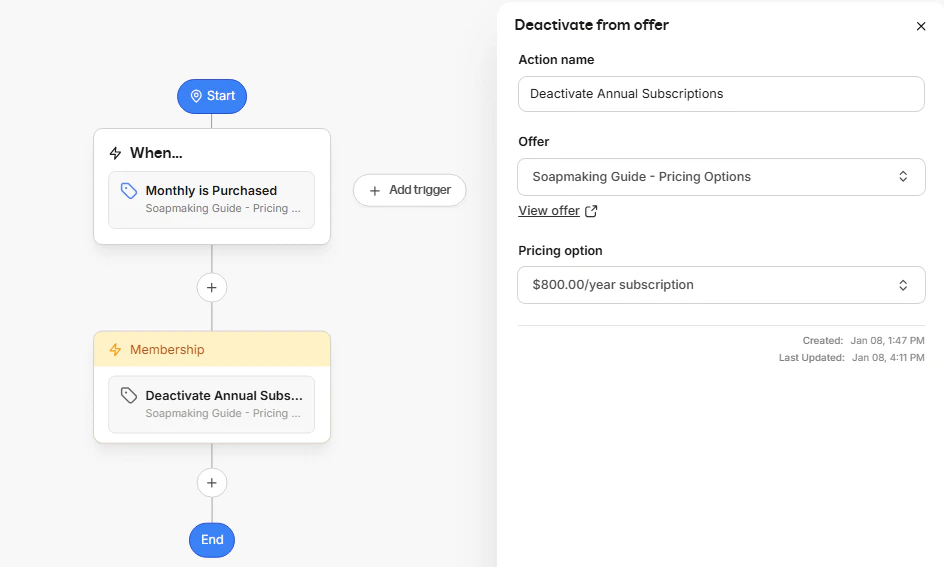 **Tip:** You can use Automations to manage billing changes between **Pricing options**. For example, trigger an Automation to deactivate an annual subscription when a customer purchases the monthly Pricing option for the same Offer.
### Email Sequences
An Automation that subscribes or unsubscribes Contacts from a specific Email Sequence after a triggered event occurs:
* **Subscribe to an email sequence**
* **Unsubscribe from an email sequence**
[Learn about Email Sequences](../../marketing/email-campaigns/email-campaigns-overview#email-sequence)
### Events
Automations that register or deregister Contacts to or from an Event after a trigger occurs:
* **Register to an event**
* **Deregister from an event**
[Learn about Events](../../marketing/events/event-overview)
### Tags
Automations that add or remove a Tag after a triggered event occurs:
* **Add a tag**
* **Remove a tag**
[Learn to use Tags](../../contacts/manage-your-contacts/tags-overview)
### Emails
Send a custom [transactional email](../../marketing/email-campaigns/what-are-marketing-and-transactional-emails#transactional-emails) to a Contact or your team after a triggered event occurs:
* **Send an email**
These reach your Contacts regardless of their subscription status. Only Contacts who explicitly opted out, by using an unsubscribe link or changing their own email preferences, are skipped. Emails addressed to your own team are always sent.
If your account uses [Email marketing categories](../../marketing/email-campaigns/manage-email-marketing-categories), these emails follow your Contacts' category preferences instead. Automation emails are always assigned to the **General Marketing** category, so Contacts who are unsubscribed, or who opted out of that category, do not receive them.
#### Choose the Simple or Designed Email body
The **Email body** section of a **Send an email** action holds two versions of your email, and you pick which one sends:
* **Simple** - Write your email in the built-in text editor. This is the default.
* **Designed** - Build a branded email from a template using the full email editor.
**Tip:** You can use Automations to manage billing changes between **Pricing options**. For example, trigger an Automation to deactivate an annual subscription when a customer purchases the monthly Pricing option for the same Offer.
### Email Sequences
An Automation that subscribes or unsubscribes Contacts from a specific Email Sequence after a triggered event occurs:
* **Subscribe to an email sequence**
* **Unsubscribe from an email sequence**
[Learn about Email Sequences](../../marketing/email-campaigns/email-campaigns-overview#email-sequence)
### Events
Automations that register or deregister Contacts to or from an Event after a trigger occurs:
* **Register to an event**
* **Deregister from an event**
[Learn about Events](../../marketing/events/event-overview)
### Tags
Automations that add or remove a Tag after a triggered event occurs:
* **Add a tag**
* **Remove a tag**
[Learn to use Tags](../../contacts/manage-your-contacts/tags-overview)
### Emails
Send a custom [transactional email](../../marketing/email-campaigns/what-are-marketing-and-transactional-emails#transactional-emails) to a Contact or your team after a triggered event occurs:
* **Send an email**
These reach your Contacts regardless of their subscription status. Only Contacts who explicitly opted out, by using an unsubscribe link or changing their own email preferences, are skipped. Emails addressed to your own team are always sent.
If your account uses [Email marketing categories](../../marketing/email-campaigns/manage-email-marketing-categories), these emails follow your Contacts' category preferences instead. Automation emails are always assigned to the **General Marketing** category, so Contacts who are unsubscribed, or who opted out of that category, do not receive them.
#### Choose the Simple or Designed Email body
The **Email body** section of a **Send an email** action holds two versions of your email, and you pick which one sends:
* **Simple** - Write your email in the built-in text editor. This is the default.
* **Designed** - Build a branded email from a template using the full email editor.
 Once the step is published, the version you selected carries a **Will send** label. Kajabi saves both versions separately, so switching between them does not erase either one. Click **Preview** to see whichever version is currently selected.
**Note:** The **Designed** email option and per-step Draft and Published statuses require [upgrading to the visual Automation Builder](/articles/marketing/automations/whats-new-with-kajabi-automations#what%E2%80%99s-changing), and they are also rolling out gradually on top of it. If you have upgraded but your **Send an email** action shows a single body editor instead of the **Simple** and **Designed** cards, they are not available on your account yet.
#### Build a Designed Email
1. Select the **Designed** card, then click **Choose a template**.
2. In **Select a template**, pick a design from **Saved Custom Templates** or **Kajabi Templates**.
Once the step is published, the version you selected carries a **Will send** label. Kajabi saves both versions separately, so switching between them does not erase either one. Click **Preview** to see whichever version is currently selected.
**Note:** The **Designed** email option and per-step Draft and Published statuses require [upgrading to the visual Automation Builder](/articles/marketing/automations/whats-new-with-kajabi-automations#what%E2%80%99s-changing), and they are also rolling out gradually on top of it. If you have upgraded but your **Send an email** action shows a single body editor instead of the **Simple** and **Designed** cards, they are not available on your account yet.
#### Build a Designed Email
1. Select the **Designed** card, then click **Choose a template**.
2. In **Select a template**, pick a design from **Saved Custom Templates** or **Kajabi Templates**.
 3. Design your email in the editor, then return to your Automation.
4. (Optional) Click **Save as template** to add your finished design to **Saved Custom Templates** so you can reuse it.
Applying a new template replaces the current design, so Kajabi asks you to confirm before opening the gallery again.
#### Publish or draft an email step
Every **Send an email** step carries its own status, separate from whether the Automation itself is Draft, Published, or Paused:
* **Published** - The step sends its email.
* **Draft** - Contacts who reach the step skip the email and continue through the rest of the Automation.
A Draft step is highlighted on the canvas with a **Won't send** heading and a **Draft** label, and it warns you that Contacts who reach the step will skip it.
3. Design your email in the editor, then return to your Automation.
4. (Optional) Click **Save as template** to add your finished design to **Saved Custom Templates** so you can reuse it.
Applying a new template replaces the current design, so Kajabi asks you to confirm before opening the gallery again.
#### Publish or draft an email step
Every **Send an email** step carries its own status, separate from whether the Automation itself is Draft, Published, or Paused:
* **Published** - The step sends its email.
* **Draft** - Contacts who reach the step skip the email and continue through the rest of the Automation.
A Draft step is highlighted on the canvas with a **Won't send** heading and a **Draft** label, and it warns you that Contacts who reach the step will skip it.
 Use **Publish** on the step to start sending, or **Switch to draft** to stop. Publishing is not retroactive, so Contacts who already moved past the step while it was a Draft do not receive the email afterward.
New email steps start as Drafts, which keeps a half-finished email from sending the moment you save your Automation.
**Warning:** A new **Simple** Email body starts with the placeholder text below. Update it before you publish the step, or your recipients receive the placeholder. A **Designed** Email starts from the template you choose instead.
**Subject:** `Subject`
**Email body:**
```text wrap theme={null}
Hello {{ first_name }},
Use this action to congratulate a user on reaching a milestone, send a quick product update, or leave a notification for your users.
Include images or links to create a fun, personal message for your recipients.
Thanks,
Kajabi Product Team
```
### Coupons
Send a unique, single-use **Coupon code** with a custom email after a triggered event occurs:
* **Send a single-use coupon**
[Learn about single-use Coupon codes](../../sales/coupons/how-to-use-single-use-coupon-automations)
### Certificates
Send a customer a customized Certificate of Completion for a Course after a triggered event occurs:
* **Send a certificate**
[Learn about Course Certificates of Completion](../../products/courses/course-completion-certificates)
### Social Media
Send a Contact an Instagram or Facebook message or reply after a triggered event occurs:
* **Send an Instagram direct message**
* **Send an Instagram reply**
* **Send a Facebook direct message**
* **Send a Facebook reply**
[Learn how to set up Comment-to-DM Automations](../../marketing/comment-to-dm/comment-to-dm)
### Coaching
* **Cancel coaching sessions** - Cancel a single Coaching session or all upcoming Coaching sessions after a specific triggered event occurs
* **Remove coaching sessions** - Remove all upcoming Coaching sessions for customers with an unpaid invoice
* **Send coaching invoice reminder** - Send a reminder to specific customers that they have an unpaid or overdue invoice for Coaching
* **Send coaching session survey** - Send a survey to customers after a Coaching session concludes
* **Send coaching program survey** - Send a survey to customers after a Coaching program concludes
[Learn about Coaching](../../products/coaching/coaching-product-overview)
### Community
* **Send Community DM** - Send a direct message to a specific member or a group of members of your Community after a triggered event occurs
* **Add a member to a private channel** - Add a member to a private channel in your Community after a triggered event occurs
* **Remove a member from private channel** - Remove a member from a private channel in your Community after a triggered event occurs
* **Post in channel** - Add a post in a specific Channel in your Community after a triggered event occurs
[Learn about Communities](../../products/community/build-kajabi-communities)
## Only if filters - Conditional logic
Filters let you create an Automation that subscribes Contacts to an Email Sequence after they've completed a Quiz, and then registers them for a specific Event:
**Note:** The **Only if** filter must match the collected data. A specific value is based on "contains" rather than an "exact match."
### Contact filters
* **Is subscribed** - Add a condition that says the customer must be subscribed to receive your marketing emails
* **Is a Customer** - Add a condition that says the Contact must be a customer of your site. [Learn about customers, Contacts, and subscribers](../../contacts/manage-your-contacts/contacts-tab-overview)
* **Is hidden** - Add a condition that says the Contact must be hidden in your list. [Learn about hiding Contacts](../../contacts/manage-your-contacts/hiding-your-contacts)
* **Has a hard-bounced delivery** - Add a condition that says the Contact's email address has hard-bounced. [Learn about hard-bounced Contacts](../../marketing/email-campaigns/email-metrics-overview#bounced)
* **Excluded from mailing** - Add a condition that says the Contact must be excluded from your mailing list for being high-risk inactive and not engaging with 25 or more emails
### Contact activity filters
* **Contact added in the last** - Add a condition that says the Contact was added to your site during a specific time period
* **Contact added before the last** - Add a condition that says the Contact was added to your site before a specific time period
[Learn about customers, Contacts, and subscribers](../../contacts/manage-your-contacts/contacts-tab-overview)
### Customer activity filters
* **Customer joined in the last** - Add a condition that says the customer joined your site during a specific time period
* **Customer visited a page on your site in the last** - Add a condition that says the customer visited a specific page on your site during a specific time period
* **Customer has not visited a page on your site in the last** - Add a condition that says the customer did not visit a specific page on your site during a specific time period
[Learn about customers, Contacts, and subscribers](../../contacts/manage-your-contacts/contacts-tab-overview)
### Email engagement filters
* **Healthy contacts (engaged 0-90 days ago)** - Add a condition that says the Contact engaged with your marketing emails within the past 90 days
* **Passive contacts (engaged 91-180 days ago)** - Add a condition that says the Contact engaged with your marketing emails between 91 and 180 days ago
* **Unengaged contacts (engaged 181-270 days ago)** - Add a condition that says the Contact engaged with your marketing emails between 181 and 270 days ago
* **Inactive contacts (engaged 270+ days ago)** - Add a condition that says the Contact last engaged with your marketing emails more than 270 days ago
[Learn about Email Campaigns](../../marketing/email-campaigns/email-campaigns-overview)
### Email activity filters
* **Delivered an email in last** - Add a condition that says the Contact received a marketing email from your site during a specific time period
* **Hasn't been delivered an email in last** - Add a condition that says the Contact did not receive a marketing email from your site during a specific time period
* **Opened an email in last** - Add a condition that says the Contact opened a marketing email from your site during a specific time period
* **Hasn't opened an email in last** - Add a condition that says the Contact has not opened a marketing email from your site during a specific time period
* **Hasn't clicked an email in last** - Add a condition that says the Contact has not clicked a link in a marketing email from your site during a specific time period
* **Clicked an email in last** - Add a condition that says the Contact clicked a link in a marketing email from your site during a specific time period
[Learn about Email Metrics](../../marketing/email-campaigns/email-metrics-overview)
### Form filters
* **Submitted any of these form(s)** - Add a condition that says the Contact has submitted a specific Form or Forms (multiple Forms can be selected)
* **Has not submitted form(s)** - Add a condition that says the Contact has not submitted a specific Form or Forms (multiple Forms can be selected)
[Learn about Forms](../../marketing/forms/create-and-build-your-form)
### Assessment filters
* **Completed any of these assessment(s)** - Add a condition that says the Contact has completed a specific Assessment or Assessments (multiple Assessments can be selected)
* **Passed any of these assessment(s)** - Add a condition that says the Contact has passed a specific Assessment or Assessments (multiple Assessments can be selected)
* **Failed any of these assessment(s)** - Add a condition that says the Contact has failed a specific Assessment or Assessments (multiple Assessments can be selected)
[Learn about Assessments](../../contacts/create-manage-and-share-assessments/create-and-customize-assessments)
### Product filters
* **Owns any of these product(s)** - Add a condition that says the customer has a specific Product or Products (multiple Products can be selected)
* **Does not own product(s)** - Add a condition that says the customer does not have a specific Product or Products (multiple Products can be selected)
* **Previously owned product(s)** - Add a condition that says the customer used to own a specific Product or Products (multiple Products can be selected)
[Learn about Products](../../products/courses/courses-overview)
### Offer filters
* **Has any of these offer(s)** - Add a condition that says the customer must have a specific Offer or Offers (multiple Offers can be selected)
* **Does not have offer(s)** - Add a condition that says the customer does not have a specific Offer or Offers (multiple Offers can be selected)
* **Previously owned offer(s)** - Add a condition that says the customer used to have a specific Offer or Offers (multiple Offers can be selected)
* **Canceling offer(s)** - Add a condition that says the customer has begun the cancellation process for a subscription Offer (multiple Offers can be selected)
[Learn about Offers on Kajabi](../../sales/offers/offers-overview)
### Coupon filters
* **Used any of these coupon code(s)** - Add a condition that says the customer used a specific Coupon code or codes (multiple Coupon codes can be selected)
[Learn about Coupons on Kajabi](../../sales/coupons/how-to-create-a-coupon)
### Email Broadcast filters
* **Sent email broadcast** - Add a condition that says the Contact was sent a specific Email Broadcast
* **Was not sent email broadcast** - Add a condition that says the Contact was not sent a specific Email Broadcast
* **Opened email broadcast** - Add a condition that says the Contact opened a specific Email Broadcast
* **Has not opened email broadcast** - Add a condition that says the Contact has not opened a specific Email Broadcast
* **Clicked email broadcast** - Add a condition that says the Contact clicked a link in a specific Email Broadcast
* **Has not clicked email broadcast** - Add a condition that says the Contact has not clicked a link in a specific Email Broadcast
* **Email broadcast bounced** - Add a condition that says the delivery of a specific Email Broadcast to the Contact bounced (was refused by the recipient's email server)
* **Email broadcast did not bounce** - Add a condition that says the delivery of a specific Email Broadcast to the Contact did not bounce
* **Email broadcast dropped** - Add a condition that says the delivery of a specific Email Broadcast to the Contact was dropped (not sent due to a reason such as previous bounces or the Contact unsubscribed)
* **Email broadcast was not dropped** - Add a condition that says the delivery of a specific Email Broadcast to the Contact was not dropped
[Learn about Email Broadcasts](../../marketing/email-campaigns/email-campaigns-overview)
### Email Sequence filters
* **Subscribed to email sequence** - Add a condition that says a Contact must be subscribed to a specific Email Sequence
* **Is not subscribed to email sequence** - Add a condition that says a Contact must not be subscribed to your specific Email Sequence
[Learn about Email Sequences](../../marketing/email-campaigns/create-an-email-sequence)
### Event filters
* **Registered to event** - Add a condition that says a Contact must be registered for a specific Event
* **Is not registered to event** - Add a condition that says a Contact must not be registered for a specific Event
[Learn about Events on Kajabi](../../marketing/events/event-overview)
### Tag filters
* **Has any of these tag(s)** - Add a condition that says a Contact must have any of the specified Tags (multiple Tags can be selected)
* **Has all of these tag(s)** - Add a condition that says a Contact must have all of the specified Tags (multiple Tags can be selected)
* **Does not have tag(s)** - Add a condition that says a Contact does not have any of the specified Tags (multiple Tags can be selected)
[Learn to use Tags](../../contacts/manage-your-contacts/tags-overview)
### Default field filters
* **Name contains** - Add a condition that says a Contact's Name must contain a specific value
* **Email contains** - Add a condition that says a Contact's Email must contain a specific value
* **Phone Number contains** - Add a condition that says a Contact's Phone Number must contain a specific value
* **Address contains** - Add a condition that says a Contact's Address must contain a specific value
* **Address Line 2 contains** - Add a condition that says a Contact's Address Line 2 must contain a specific value
* **City contains** - Add a condition that says a Contact's City must contain a specific value
* **State contains** - Add a condition that says a Contact's State must contain a specific value
* **Country contains** - Add a condition that says a Contact's Country must contain a specific value
* **Zip Code contains** - Add a condition that says a Contact's Zip Code must contain a specific value
* **Business Number contains** - Add a condition that says a Contact's Business Number must contain a specific value
[Learn to add and edit Contacts](../../contacts/manage-your-contacts/how-to-edit-your-contacts-information)
### Custom field filters
Add a condition that applies to one of the custom fields you've created for your Forms. Which ones appear are unique to your site.
[Learn to add and edit Form fields](../../marketing/forms/how-to-add-and-edit-fields-on-a-form)
## Remove a step with Contacts on it
Deleting a step can strand Contacts who are sitting on it or waiting to run it, so Kajabi shows you who is affected before the step goes.
When you delete a step that has Contacts on it, **Remove step with contacts on it?** names each affected step and what happens to the Contacts on it:
* They continue to the next step on their existing schedule. Their timers are unchanged, so nobody receives anything early
* They exit the Automation when removing the step leaves them with nowhere to go
Contacts held by a pause and Contacts with errors are called out separately, so you can see how each group is treated.
When any Contact will exit, select the checkbox confirming how many before **Remove step** becomes available. Removing a branch works the same way, under **Remove branch with contacts on it?** and **Remove branch**.
Contacts move when you save the Automation, not when you confirm, and that cannot be undone once saved.
If Kajabi cannot work out where the Contacts should go, the step is kept and **This step can't be removed right now** explains why.
**Note:** This warning is rolling out, so you may not see it on your account yet. It also does not appear when removing a step leaves every Contact on it somewhere to continue.
## Exit conditions - Stop an Automation early
**Exit conditions** end a Contact's run before their next step when they no longer need the rest of the flow, so someone who buys on email two does not receive emails three through six. Without them, a Contact stays enrolled until they reach an **End**.
Exit conditions apply to the whole Automation rather than to a single step, and they reach Contacts who are already enrolled, not just new ones.
### Set exit conditions
1. Open the Automation and click the gear icon (**Automation settings**) in the canvas header. The gear shows a count when the Automation already has exit conditions.
2. Under **Exit conditions**, click **Add**.
3. Choose a filter and the resource it applies to.
4. Add more filters to the same condition if a Contact must match all of them to exit, or add a separate condition for an alternative way out.
5. Click **Done**, then save the Automation.
Enrolled Contacts exit early if they match any of the conditions you set. Within a single condition, a Contact must match every filter in it.
Before you save, the drawer shows how many of the Contacts enrolled right now would exit the moment you save, so you can see the impact of a change before it lands.
### Exit condition filters
* **has tag** and **does not have tag** - Exit on a Tag the Contact has or is missing
* **has purchased** - Exit when the Contact has bought a specific Offer
* **previously owned** - Exit when the Contact used to have an Offer
* **is canceling** - Exit when the Contact is canceling an Offer
* **has access to** - Exit when the Contact has access to a Product
* **completed assessment** and **passed assessment** - Exit on an Assessment the Contact finished or passed
* **registered for event** - Exit when the Contact registered for an Event
* **submitted form** - Exit when the Contact submitted a Form
* **used coupon** - Exit when the Contact redeemed a Coupon
Kajabi flags some sets of conditions that cannot work as written. Conditions that would catch every Contact are called out, because an Automation that exits everyone can never keep anyone, and so are filters that contradict each other, because no Contact can match them all at once. These checks are deliberately cautious, so they do not catch every unworkable combination.
**Note:** Exit conditions are rolling out. If you do not see **Automation settings** on your canvas, they are not available on your account yet. They are read-only in **Analytics** mode, and in an Automation that uses features your plan does not include.
## Limitations
Automations are powerful, but there are a few things the builder cannot do. Knowing these up front saves you from building a flow that quietly does nothing.
#### Automations are not retroactive
An Automation only runs for Contacts who trigger it *after* the Automation is published. Contacts who already completed the trigger event — purchased the Offer, submitted the Form, earned the Tag — are not enrolled retroactively, and **Total Enrolled** does not backfill historical data.
The same applies at the step level: publishing a **Send an email** step does not send it to Contacts who already moved past it while it was a Draft.
**Workaround:** apply the action to your existing Contacts manually.
1. From the Dashboard, go to **Contacts** > **All Contacts**.
2. Filter to the Contacts you want.
3. Select them, then use the bulk action menu to apply the Tag, grant the Offer, or subscribe them to the Email Sequence.
#### There is no abandoned checkout trigger
Kajabi has no native **When** trigger for a customer who starts checkout but does not finish. No combination of triggers and **Only if** filters reproduces it, because the Contact never completes the event the trigger listens for.
**Workaround:** connect Kajabi to a third-party tool such as Zapier and build the abandoned checkout logic there.
Use **Publish** on the step to start sending, or **Switch to draft** to stop. Publishing is not retroactive, so Contacts who already moved past the step while it was a Draft do not receive the email afterward.
New email steps start as Drafts, which keeps a half-finished email from sending the moment you save your Automation.
**Warning:** A new **Simple** Email body starts with the placeholder text below. Update it before you publish the step, or your recipients receive the placeholder. A **Designed** Email starts from the template you choose instead.
**Subject:** `Subject`
**Email body:**
```text wrap theme={null}
Hello {{ first_name }},
Use this action to congratulate a user on reaching a milestone, send a quick product update, or leave a notification for your users.
Include images or links to create a fun, personal message for your recipients.
Thanks,
Kajabi Product Team
```
### Coupons
Send a unique, single-use **Coupon code** with a custom email after a triggered event occurs:
* **Send a single-use coupon**
[Learn about single-use Coupon codes](../../sales/coupons/how-to-use-single-use-coupon-automations)
### Certificates
Send a customer a customized Certificate of Completion for a Course after a triggered event occurs:
* **Send a certificate**
[Learn about Course Certificates of Completion](../../products/courses/course-completion-certificates)
### Social Media
Send a Contact an Instagram or Facebook message or reply after a triggered event occurs:
* **Send an Instagram direct message**
* **Send an Instagram reply**
* **Send a Facebook direct message**
* **Send a Facebook reply**
[Learn how to set up Comment-to-DM Automations](../../marketing/comment-to-dm/comment-to-dm)
### Coaching
* **Cancel coaching sessions** - Cancel a single Coaching session or all upcoming Coaching sessions after a specific triggered event occurs
* **Remove coaching sessions** - Remove all upcoming Coaching sessions for customers with an unpaid invoice
* **Send coaching invoice reminder** - Send a reminder to specific customers that they have an unpaid or overdue invoice for Coaching
* **Send coaching session survey** - Send a survey to customers after a Coaching session concludes
* **Send coaching program survey** - Send a survey to customers after a Coaching program concludes
[Learn about Coaching](../../products/coaching/coaching-product-overview)
### Community
* **Send Community DM** - Send a direct message to a specific member or a group of members of your Community after a triggered event occurs
* **Add a member to a private channel** - Add a member to a private channel in your Community after a triggered event occurs
* **Remove a member from private channel** - Remove a member from a private channel in your Community after a triggered event occurs
* **Post in channel** - Add a post in a specific Channel in your Community after a triggered event occurs
[Learn about Communities](../../products/community/build-kajabi-communities)
## Only if filters - Conditional logic
Filters let you create an Automation that subscribes Contacts to an Email Sequence after they've completed a Quiz, and then registers them for a specific Event:
**Note:** The **Only if** filter must match the collected data. A specific value is based on "contains" rather than an "exact match."
### Contact filters
* **Is subscribed** - Add a condition that says the customer must be subscribed to receive your marketing emails
* **Is a Customer** - Add a condition that says the Contact must be a customer of your site. [Learn about customers, Contacts, and subscribers](../../contacts/manage-your-contacts/contacts-tab-overview)
* **Is hidden** - Add a condition that says the Contact must be hidden in your list. [Learn about hiding Contacts](../../contacts/manage-your-contacts/hiding-your-contacts)
* **Has a hard-bounced delivery** - Add a condition that says the Contact's email address has hard-bounced. [Learn about hard-bounced Contacts](../../marketing/email-campaigns/email-metrics-overview#bounced)
* **Excluded from mailing** - Add a condition that says the Contact must be excluded from your mailing list for being high-risk inactive and not engaging with 25 or more emails
### Contact activity filters
* **Contact added in the last** - Add a condition that says the Contact was added to your site during a specific time period
* **Contact added before the last** - Add a condition that says the Contact was added to your site before a specific time period
[Learn about customers, Contacts, and subscribers](../../contacts/manage-your-contacts/contacts-tab-overview)
### Customer activity filters
* **Customer joined in the last** - Add a condition that says the customer joined your site during a specific time period
* **Customer visited a page on your site in the last** - Add a condition that says the customer visited a specific page on your site during a specific time period
* **Customer has not visited a page on your site in the last** - Add a condition that says the customer did not visit a specific page on your site during a specific time period
[Learn about customers, Contacts, and subscribers](../../contacts/manage-your-contacts/contacts-tab-overview)
### Email engagement filters
* **Healthy contacts (engaged 0-90 days ago)** - Add a condition that says the Contact engaged with your marketing emails within the past 90 days
* **Passive contacts (engaged 91-180 days ago)** - Add a condition that says the Contact engaged with your marketing emails between 91 and 180 days ago
* **Unengaged contacts (engaged 181-270 days ago)** - Add a condition that says the Contact engaged with your marketing emails between 181 and 270 days ago
* **Inactive contacts (engaged 270+ days ago)** - Add a condition that says the Contact last engaged with your marketing emails more than 270 days ago
[Learn about Email Campaigns](../../marketing/email-campaigns/email-campaigns-overview)
### Email activity filters
* **Delivered an email in last** - Add a condition that says the Contact received a marketing email from your site during a specific time period
* **Hasn't been delivered an email in last** - Add a condition that says the Contact did not receive a marketing email from your site during a specific time period
* **Opened an email in last** - Add a condition that says the Contact opened a marketing email from your site during a specific time period
* **Hasn't opened an email in last** - Add a condition that says the Contact has not opened a marketing email from your site during a specific time period
* **Hasn't clicked an email in last** - Add a condition that says the Contact has not clicked a link in a marketing email from your site during a specific time period
* **Clicked an email in last** - Add a condition that says the Contact clicked a link in a marketing email from your site during a specific time period
[Learn about Email Metrics](../../marketing/email-campaigns/email-metrics-overview)
### Form filters
* **Submitted any of these form(s)** - Add a condition that says the Contact has submitted a specific Form or Forms (multiple Forms can be selected)
* **Has not submitted form(s)** - Add a condition that says the Contact has not submitted a specific Form or Forms (multiple Forms can be selected)
[Learn about Forms](../../marketing/forms/create-and-build-your-form)
### Assessment filters
* **Completed any of these assessment(s)** - Add a condition that says the Contact has completed a specific Assessment or Assessments (multiple Assessments can be selected)
* **Passed any of these assessment(s)** - Add a condition that says the Contact has passed a specific Assessment or Assessments (multiple Assessments can be selected)
* **Failed any of these assessment(s)** - Add a condition that says the Contact has failed a specific Assessment or Assessments (multiple Assessments can be selected)
[Learn about Assessments](../../contacts/create-manage-and-share-assessments/create-and-customize-assessments)
### Product filters
* **Owns any of these product(s)** - Add a condition that says the customer has a specific Product or Products (multiple Products can be selected)
* **Does not own product(s)** - Add a condition that says the customer does not have a specific Product or Products (multiple Products can be selected)
* **Previously owned product(s)** - Add a condition that says the customer used to own a specific Product or Products (multiple Products can be selected)
[Learn about Products](../../products/courses/courses-overview)
### Offer filters
* **Has any of these offer(s)** - Add a condition that says the customer must have a specific Offer or Offers (multiple Offers can be selected)
* **Does not have offer(s)** - Add a condition that says the customer does not have a specific Offer or Offers (multiple Offers can be selected)
* **Previously owned offer(s)** - Add a condition that says the customer used to have a specific Offer or Offers (multiple Offers can be selected)
* **Canceling offer(s)** - Add a condition that says the customer has begun the cancellation process for a subscription Offer (multiple Offers can be selected)
[Learn about Offers on Kajabi](../../sales/offers/offers-overview)
### Coupon filters
* **Used any of these coupon code(s)** - Add a condition that says the customer used a specific Coupon code or codes (multiple Coupon codes can be selected)
[Learn about Coupons on Kajabi](../../sales/coupons/how-to-create-a-coupon)
### Email Broadcast filters
* **Sent email broadcast** - Add a condition that says the Contact was sent a specific Email Broadcast
* **Was not sent email broadcast** - Add a condition that says the Contact was not sent a specific Email Broadcast
* **Opened email broadcast** - Add a condition that says the Contact opened a specific Email Broadcast
* **Has not opened email broadcast** - Add a condition that says the Contact has not opened a specific Email Broadcast
* **Clicked email broadcast** - Add a condition that says the Contact clicked a link in a specific Email Broadcast
* **Has not clicked email broadcast** - Add a condition that says the Contact has not clicked a link in a specific Email Broadcast
* **Email broadcast bounced** - Add a condition that says the delivery of a specific Email Broadcast to the Contact bounced (was refused by the recipient's email server)
* **Email broadcast did not bounce** - Add a condition that says the delivery of a specific Email Broadcast to the Contact did not bounce
* **Email broadcast dropped** - Add a condition that says the delivery of a specific Email Broadcast to the Contact was dropped (not sent due to a reason such as previous bounces or the Contact unsubscribed)
* **Email broadcast was not dropped** - Add a condition that says the delivery of a specific Email Broadcast to the Contact was not dropped
[Learn about Email Broadcasts](../../marketing/email-campaigns/email-campaigns-overview)
### Email Sequence filters
* **Subscribed to email sequence** - Add a condition that says a Contact must be subscribed to a specific Email Sequence
* **Is not subscribed to email sequence** - Add a condition that says a Contact must not be subscribed to your specific Email Sequence
[Learn about Email Sequences](../../marketing/email-campaigns/create-an-email-sequence)
### Event filters
* **Registered to event** - Add a condition that says a Contact must be registered for a specific Event
* **Is not registered to event** - Add a condition that says a Contact must not be registered for a specific Event
[Learn about Events on Kajabi](../../marketing/events/event-overview)
### Tag filters
* **Has any of these tag(s)** - Add a condition that says a Contact must have any of the specified Tags (multiple Tags can be selected)
* **Has all of these tag(s)** - Add a condition that says a Contact must have all of the specified Tags (multiple Tags can be selected)
* **Does not have tag(s)** - Add a condition that says a Contact does not have any of the specified Tags (multiple Tags can be selected)
[Learn to use Tags](../../contacts/manage-your-contacts/tags-overview)
### Default field filters
* **Name contains** - Add a condition that says a Contact's Name must contain a specific value
* **Email contains** - Add a condition that says a Contact's Email must contain a specific value
* **Phone Number contains** - Add a condition that says a Contact's Phone Number must contain a specific value
* **Address contains** - Add a condition that says a Contact's Address must contain a specific value
* **Address Line 2 contains** - Add a condition that says a Contact's Address Line 2 must contain a specific value
* **City contains** - Add a condition that says a Contact's City must contain a specific value
* **State contains** - Add a condition that says a Contact's State must contain a specific value
* **Country contains** - Add a condition that says a Contact's Country must contain a specific value
* **Zip Code contains** - Add a condition that says a Contact's Zip Code must contain a specific value
* **Business Number contains** - Add a condition that says a Contact's Business Number must contain a specific value
[Learn to add and edit Contacts](../../contacts/manage-your-contacts/how-to-edit-your-contacts-information)
### Custom field filters
Add a condition that applies to one of the custom fields you've created for your Forms. Which ones appear are unique to your site.
[Learn to add and edit Form fields](../../marketing/forms/how-to-add-and-edit-fields-on-a-form)
## Remove a step with Contacts on it
Deleting a step can strand Contacts who are sitting on it or waiting to run it, so Kajabi shows you who is affected before the step goes.
When you delete a step that has Contacts on it, **Remove step with contacts on it?** names each affected step and what happens to the Contacts on it:
* They continue to the next step on their existing schedule. Their timers are unchanged, so nobody receives anything early
* They exit the Automation when removing the step leaves them with nowhere to go
Contacts held by a pause and Contacts with errors are called out separately, so you can see how each group is treated.
When any Contact will exit, select the checkbox confirming how many before **Remove step** becomes available. Removing a branch works the same way, under **Remove branch with contacts on it?** and **Remove branch**.
Contacts move when you save the Automation, not when you confirm, and that cannot be undone once saved.
If Kajabi cannot work out where the Contacts should go, the step is kept and **This step can't be removed right now** explains why.
**Note:** This warning is rolling out, so you may not see it on your account yet. It also does not appear when removing a step leaves every Contact on it somewhere to continue.
## Exit conditions - Stop an Automation early
**Exit conditions** end a Contact's run before their next step when they no longer need the rest of the flow, so someone who buys on email two does not receive emails three through six. Without them, a Contact stays enrolled until they reach an **End**.
Exit conditions apply to the whole Automation rather than to a single step, and they reach Contacts who are already enrolled, not just new ones.
### Set exit conditions
1. Open the Automation and click the gear icon (**Automation settings**) in the canvas header. The gear shows a count when the Automation already has exit conditions.
2. Under **Exit conditions**, click **Add**.
3. Choose a filter and the resource it applies to.
4. Add more filters to the same condition if a Contact must match all of them to exit, or add a separate condition for an alternative way out.
5. Click **Done**, then save the Automation.
Enrolled Contacts exit early if they match any of the conditions you set. Within a single condition, a Contact must match every filter in it.
Before you save, the drawer shows how many of the Contacts enrolled right now would exit the moment you save, so you can see the impact of a change before it lands.
### Exit condition filters
* **has tag** and **does not have tag** - Exit on a Tag the Contact has or is missing
* **has purchased** - Exit when the Contact has bought a specific Offer
* **previously owned** - Exit when the Contact used to have an Offer
* **is canceling** - Exit when the Contact is canceling an Offer
* **has access to** - Exit when the Contact has access to a Product
* **completed assessment** and **passed assessment** - Exit on an Assessment the Contact finished or passed
* **registered for event** - Exit when the Contact registered for an Event
* **submitted form** - Exit when the Contact submitted a Form
* **used coupon** - Exit when the Contact redeemed a Coupon
Kajabi flags some sets of conditions that cannot work as written. Conditions that would catch every Contact are called out, because an Automation that exits everyone can never keep anyone, and so are filters that contradict each other, because no Contact can match them all at once. These checks are deliberately cautious, so they do not catch every unworkable combination.
**Note:** Exit conditions are rolling out. If you do not see **Automation settings** on your canvas, they are not available on your account yet. They are read-only in **Analytics** mode, and in an Automation that uses features your plan does not include.
## Limitations
Automations are powerful, but there are a few things the builder cannot do. Knowing these up front saves you from building a flow that quietly does nothing.
#### Automations are not retroactive
An Automation only runs for Contacts who trigger it *after* the Automation is published. Contacts who already completed the trigger event — purchased the Offer, submitted the Form, earned the Tag — are not enrolled retroactively, and **Total Enrolled** does not backfill historical data.
The same applies at the step level: publishing a **Send an email** step does not send it to Contacts who already moved past it while it was a Draft.
**Workaround:** apply the action to your existing Contacts manually.
1. From the Dashboard, go to **Contacts** > **All Contacts**.
2. Filter to the Contacts you want.
3. Select them, then use the bulk action menu to apply the Tag, grant the Offer, or subscribe them to the Email Sequence.
#### There is no abandoned checkout trigger
Kajabi has no native **When** trigger for a customer who starts checkout but does not finish. No combination of triggers and **Only if** filters reproduces it, because the Contact never completes the event the trigger listens for.
**Workaround:** connect Kajabi to a third-party tool such as Zapier and build the abandoned checkout logic there.