> ## Documentation Index
> Fetch the complete documentation index at: https://developers.kajabi.com/llms.txt
> Use this file to discover all available pages before exploring further.
# Add downloadable files to emails
> Share resources, flyers, and additional information with your email recipients.
## Overview
Include downloadable files in your Email Broadcasts and Email Sequences to share resources, flyers, and additional information with your recipients.
**Note:** The maximum file size for any downloadable attachment in an Email Campaign is 1GB. *Each file upload in Kajabi generates a new, unique download link. Duplicating and resending an email will therefore produce a different link than the original — there is currently no way to replace the file behind an existing URL.*
## Email Broadcast
Include a downloadable file in your **Email Broadcast** with both the **Classic Email Editor** and **Email Visual Editor**.
### Classic Editor
1. Create your [Email Broadcast](/articles/marketing/email-campaigns/create-an-email-broadcast).
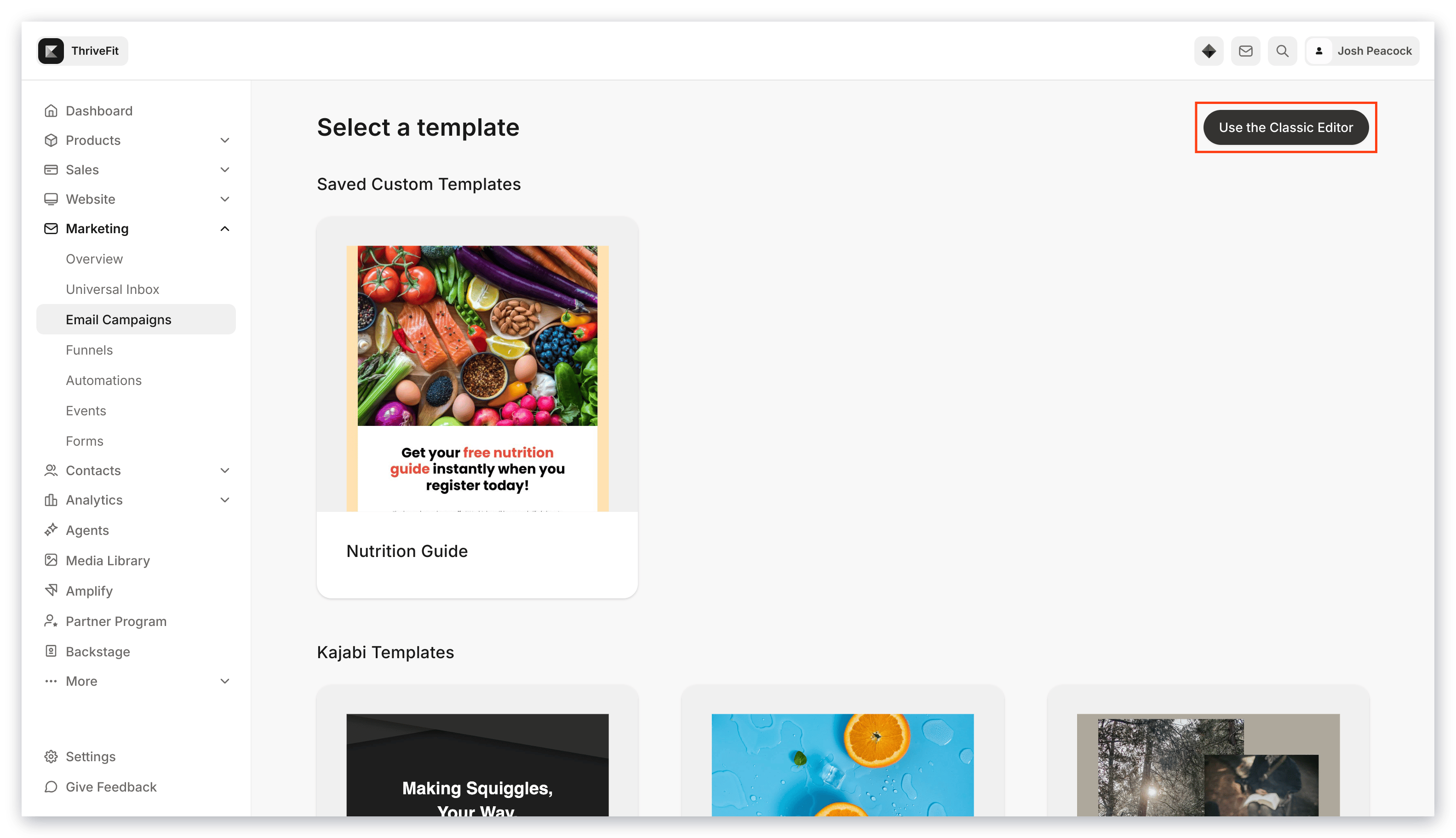
2. Select **Use the Classic Editor**:
 3. Enter an **Internal Title** for your Email Broadcast when prompted.
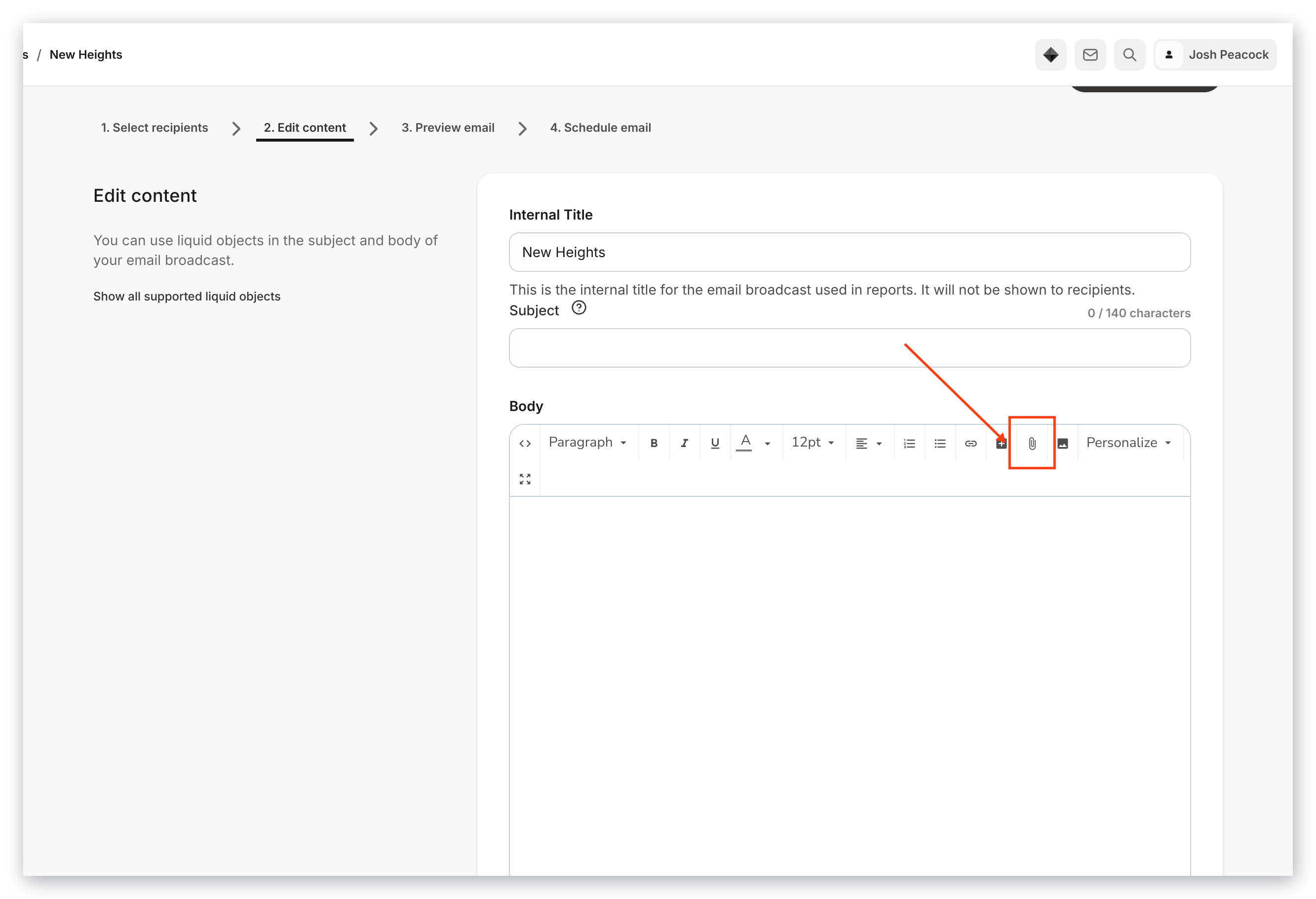
4. In Step 2 of your Email Broadcast, select the **paper clip icon**:
3. Enter an **Internal Title** for your Email Broadcast when prompted.
4. In Step 2 of your Email Broadcast, select the **paper clip icon**:
 5. Choose **File** from your computer or drag and drop.
6. Click **Open** to add your downloadable file to your Email Broadcast.
### Visual Editor
The [Email Visual Editor](/articles/marketing/email-campaigns/email-visual-editor-overview) gives you the flexibility and control to design your Email Broadcasts with your branding and design vision.
Add downloadable files within a variety of sections available with the Email Visual Editor:
* Add a Text Section
* Add a Button
* Add an Announcement
#### Add a Text Section to a broadcast
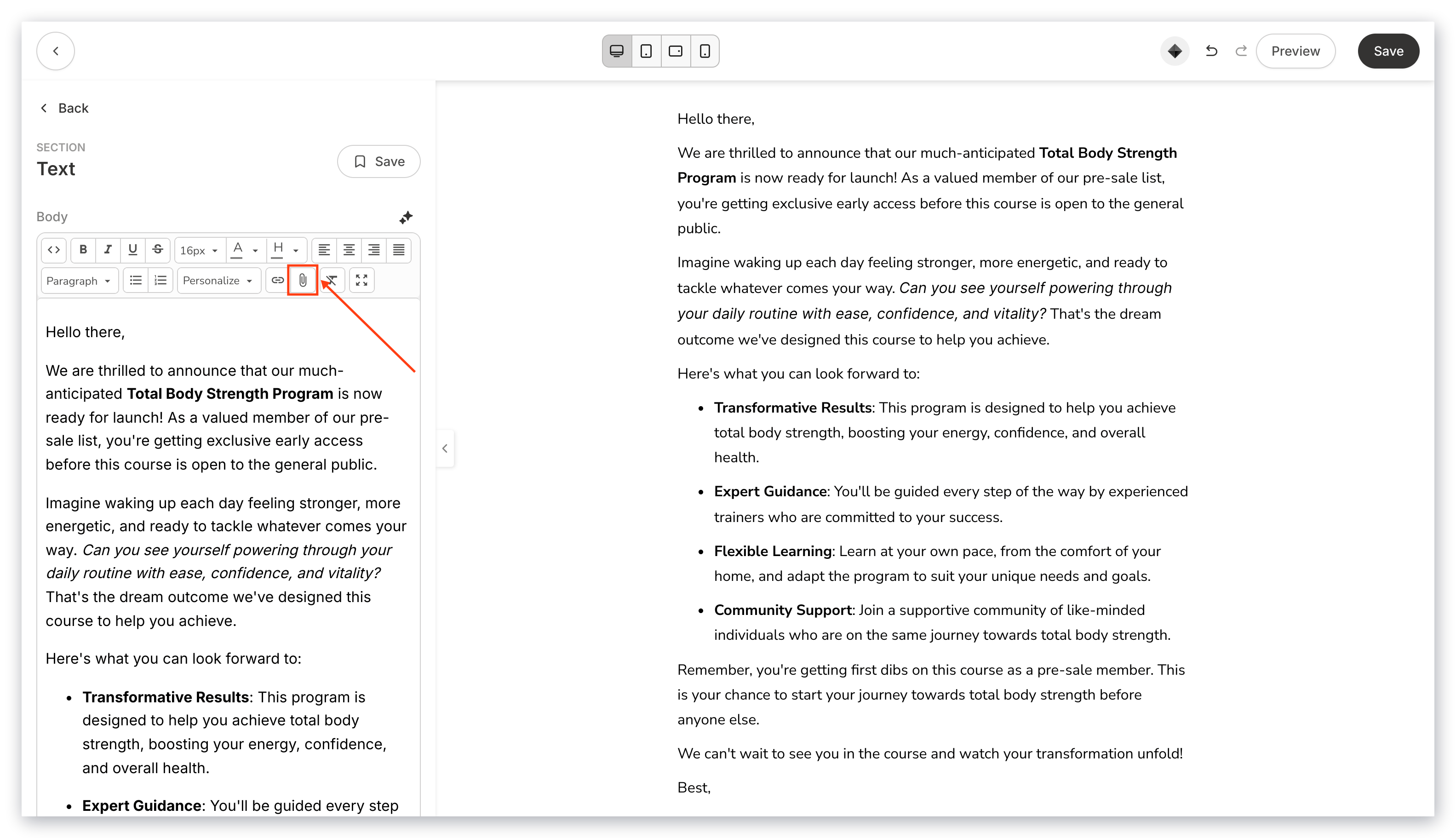
1. Click the **Paper Clip icon** to upload your file. This allows your recipients to select the text containing your file to download:
5. Choose **File** from your computer or drag and drop.
6. Click **Open** to add your downloadable file to your Email Broadcast.
### Visual Editor
The [Email Visual Editor](/articles/marketing/email-campaigns/email-visual-editor-overview) gives you the flexibility and control to design your Email Broadcasts with your branding and design vision.
Add downloadable files within a variety of sections available with the Email Visual Editor:
* Add a Text Section
* Add a Button
* Add an Announcement
#### Add a Text Section to a broadcast
1. Click the **Paper Clip icon** to upload your file. This allows your recipients to select the text containing your file to download:
 #### Add a Button to a broadcast
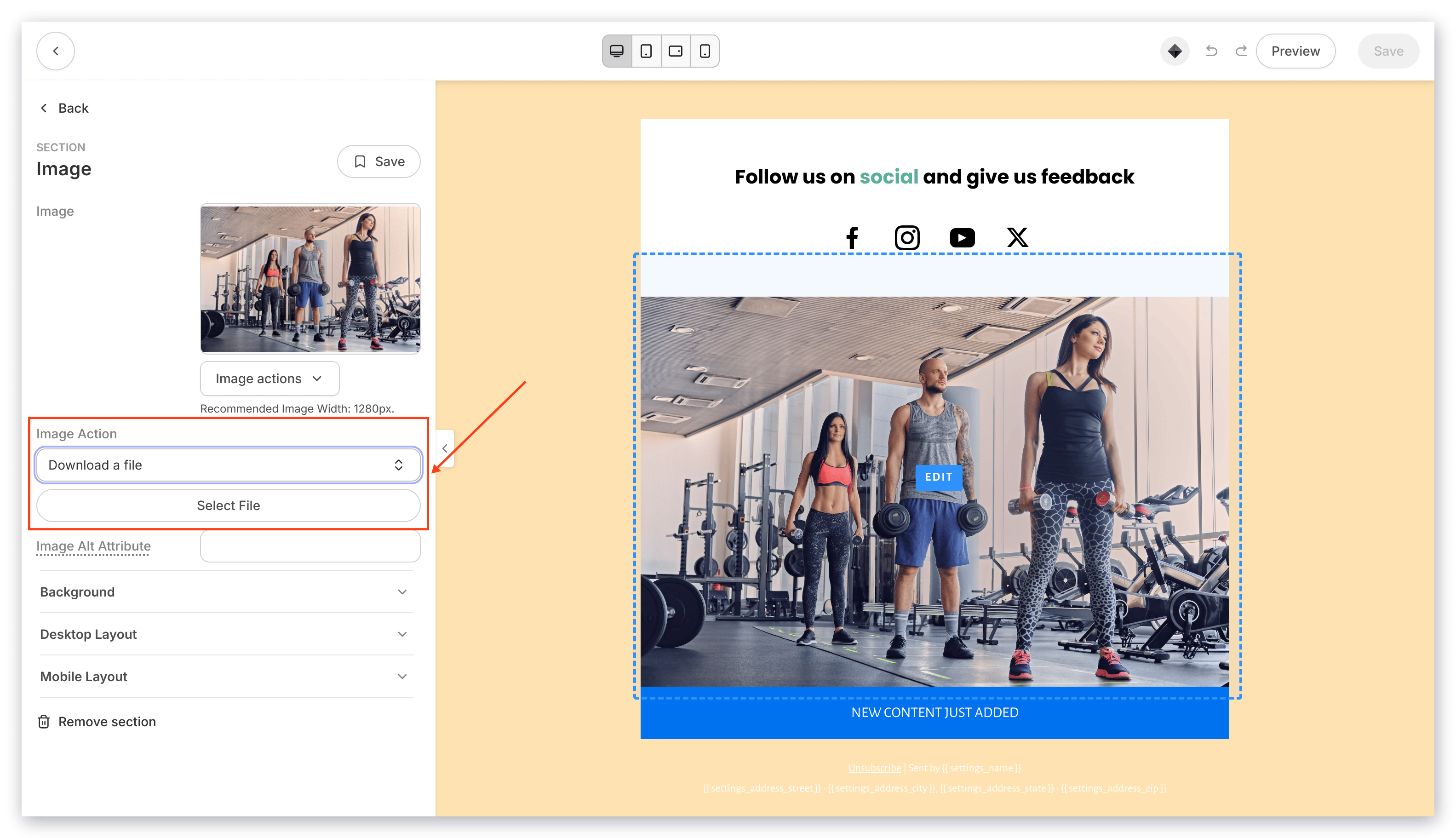
1. Open the **Link Action** dropdown menu and select **Download a file** to upload your file. This lets your recipients click a button to download your file:
#### Add a Button to a broadcast
1. Open the **Link Action** dropdown menu and select **Download a file** to upload your file. This lets your recipients click a button to download your file:
 #### Add an Announcement to a broadcast
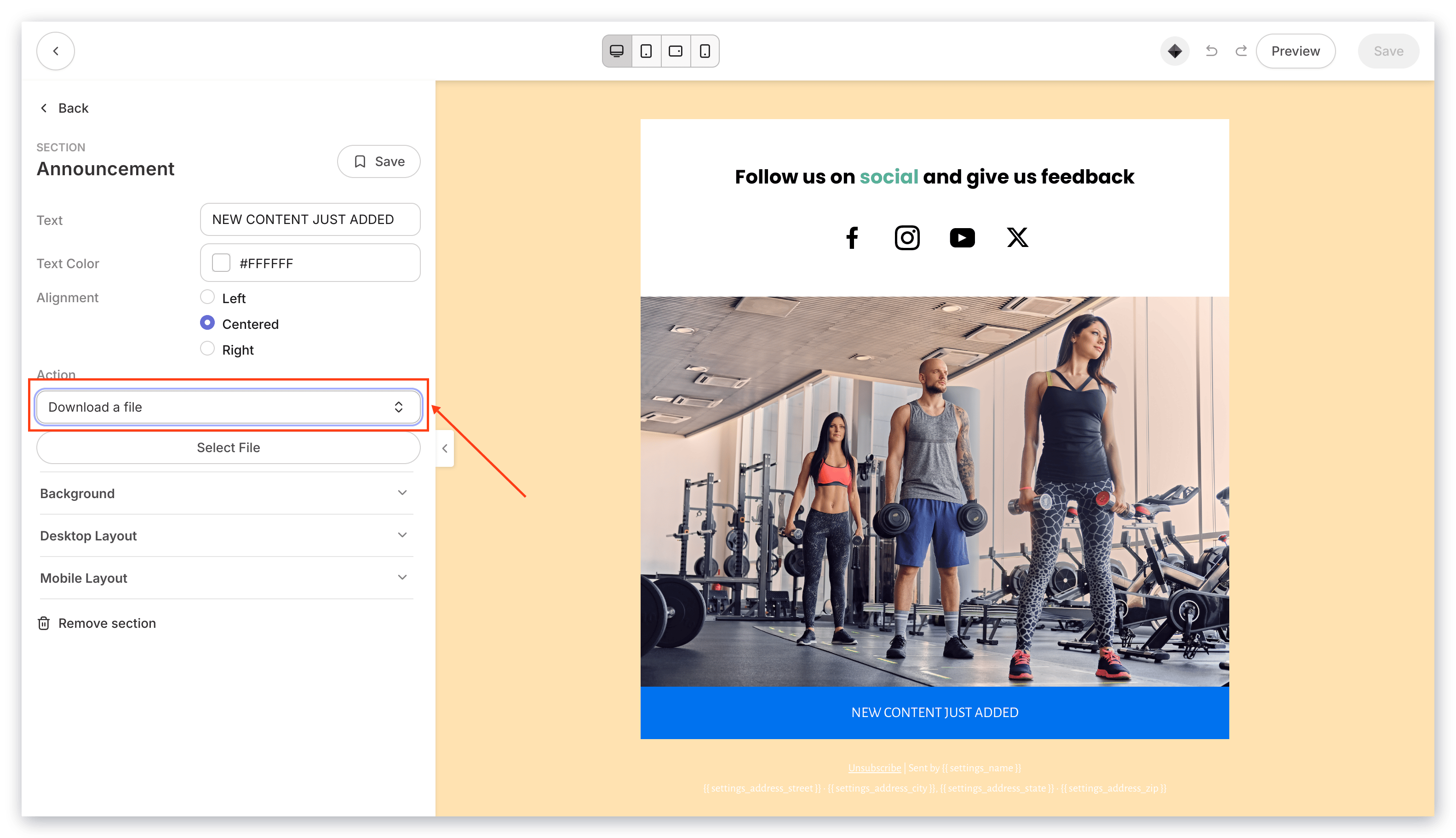
1. Open the **Action** dropdown menu and select **Download a file** to upload your file. This lets your recipients click on the Announcement to download your file:
#### Add an Announcement to a broadcast
1. Open the **Action** dropdown menu and select **Download a file** to upload your file. This lets your recipients click on the Announcement to download your file:
 ## Email Sequence
### Add a downloadable file to an email sequence
1. Create your Email Sequence or select an existing one. Read [Create an Email Sequence](/articles/marketing/email-campaigns/create-an-email-sequence) for details.
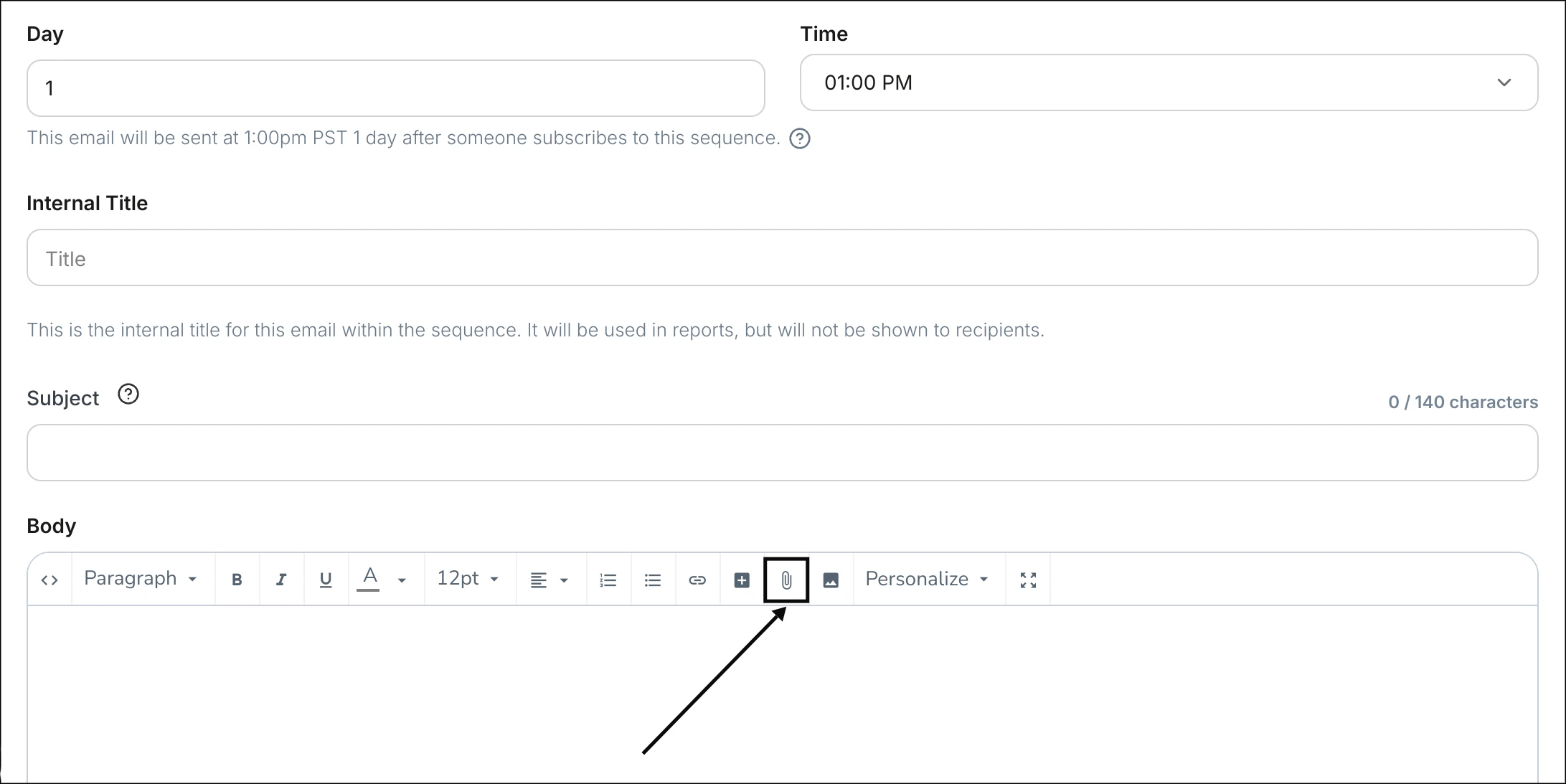
2. In the Email Editor for an individual email, select the paper clip icon:
## Email Sequence
### Add a downloadable file to an email sequence
1. Create your Email Sequence or select an existing one. Read [Create an Email Sequence](/articles/marketing/email-campaigns/create-an-email-sequence) for details.
2. In the Email Editor for an individual email, select the paper clip icon:
 3. Select **Choose File** from your computer or drag and drop your file into the file picker.
4. Click **Open** to add your downloadable file to your Email Sequence.
5. Edit **Text to display** in the **Insert Link** prompt.
6. Click **Ok** to apply your downloadable file to the email.
Your email recipients can now click the text you entered in the **Text to display** field to open your downloadable file.
### Display your download link as a Button
1. After adding your downloadable file, click on the newly created **Download** link.
2. Click the **+ insert/edit button** icon in the toolbar.
3. The download URL will automatically populate with the selected download link.
4. In the Insert Button prompt, customize the **Text to Display**, the **Title**, and the **Button Color**.
## **Workarounds for keeping a consistent download link**
If you need recipients to always access the latest version of a file at the same URL, consider one of these approaches before your next broadcast:
* **Link to a landing page or funnel page** with a Download button, rather than directly to the file. You can swap the file behind the button at any time without changing the page URL. You can also unpublish the page immediately to cut off access.
* **Use a Download product delivered through a Kajabi Offer.** This gives you full control over the file and a record of who has accessed it.
* **Host the file on Dropbox or Google Drive** and link from there. Both platforms support file versioning and link revocation, so you can update or remove the file without changing the shared URL.
3. Select **Choose File** from your computer or drag and drop your file into the file picker.
4. Click **Open** to add your downloadable file to your Email Sequence.
5. Edit **Text to display** in the **Insert Link** prompt.
6. Click **Ok** to apply your downloadable file to the email.
Your email recipients can now click the text you entered in the **Text to display** field to open your downloadable file.
### Display your download link as a Button
1. After adding your downloadable file, click on the newly created **Download** link.
2. Click the **+ insert/edit button** icon in the toolbar.
3. The download URL will automatically populate with the selected download link.
4. In the Insert Button prompt, customize the **Text to Display**, the **Title**, and the **Button Color**.
## **Workarounds for keeping a consistent download link**
If you need recipients to always access the latest version of a file at the same URL, consider one of these approaches before your next broadcast:
* **Link to a landing page or funnel page** with a Download button, rather than directly to the file. You can swap the file behind the button at any time without changing the page URL. You can also unpublish the page immediately to cut off access.
* **Use a Download product delivered through a Kajabi Offer.** This gives you full control over the file and a record of who has accessed it.
* **Host the file on Dropbox or Google Drive** and link from there. Both platforms support file versioning and link revocation, so you can update or remove the file without changing the shared URL.