> ## Documentation Index
> Fetch the complete documentation index at: https://developers.kajabi.com/llms.txt
> Use this file to discover all available pages before exploring further.
# Email Visual Editor overview
> Use the Visual Editor to create sophisticated, highly branded email campaigns.
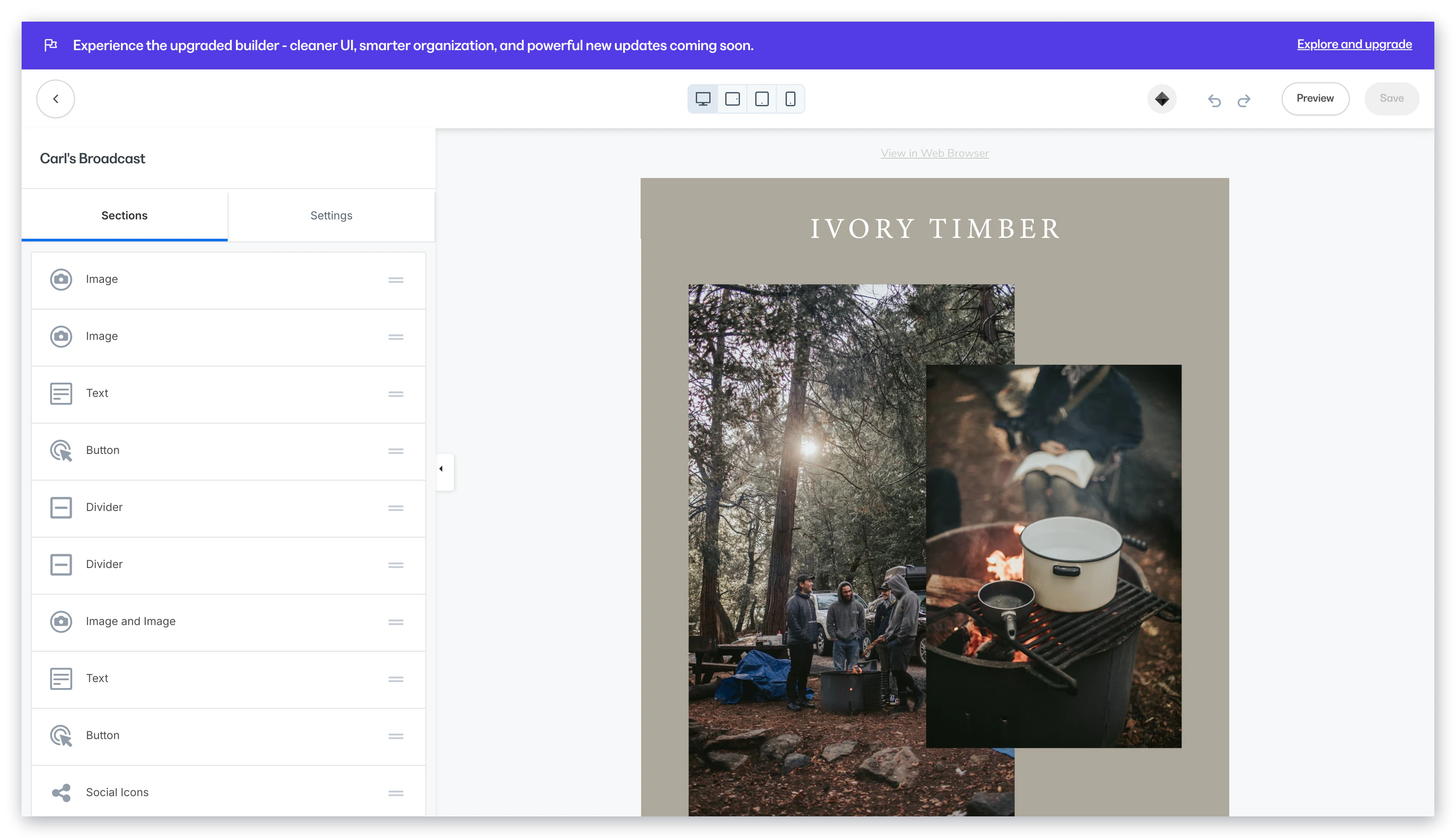
The **Visual Editor** lets you add rich design to your email campaigns, giving your audience a branded experience across Email Broadcasts, Email Sequences, and Event Emails.
## Email Visual Editor
### Templates
Choose from 15+ customizable templates or create your own to design your Email Broadcasts, Email Sequences, and Event Emails. Templates are available for every common email type, so you can focus on your content rather than starting from scratch.
**Tip:** Looking to edit an Email Sequence or apply a template to one? [Learn how to create and edit an Email Sequence](https://help.kajabi.com/articles/marketing/email-campaigns/create-an-email-sequence). To confirm a template was successfully applied, open the sequence email in the editor — the template's layout and design will appear in the visual editor canvas. [Learn how to manage Email Visual Editor templates](https://help.kajabi.com/articles/marketing/email-campaigns/email-visual-editor-templates).
### Customize
Customize color schemes, fonts, and layouts of images and text directly within your email campaigns, including Email Broadcasts, Email Sequences, and Event Emails. You can create professionally designed emails without writing any code.
 ### Personalize your emails with merge tags
Add personalized content to your emails using merge tags (Liquid variables), which automatically pull contact data when the email is sent.
**Available merge tags:**
| Tag | Inserts |
| :- | :- |
| \{\{first\_name}} | Contact's first name |
| \{\{last\_name}} | Contact's last name |
| \{\{full\_name}} | Contact's full name |
| \{\{email}} | Contact's email address |
| \{\{site\_name}} | Your Kajabi site name |
To use a merge tag, click into a Text block in the Email Visual Editor and type the tag exactly as shown, including both sets of curly braces. Merge tags are **case-sensitive** — \{\{First\_Name}} will not work.
**Setting a fallback value:** To display default text when a contact's field is empty, use the fallback syntax: \{\{first\_name | default: 'there'}} — shows *there* if no first name is on file, so "Hi there" instead of "Hi ."
**If your merge tag is showing as plain text instead of a name:**
* The contact record may not have a value for that field. Check their profile under Contacts > All Contacts.
* Test sends pull from your admin account, not a real contact — so merge tags (like a customer's name) may show up blank or wrong. To check that merge tags display correctly, send your test to an actual contact whose profile is fully filled out.
* Check for typos — wrong casing, missing braces \{\{ }}, or a space inside the braces will all prevent the tag from resolving.
### Mobile vs desktop layouts
In our responsive editor, you'll see how your emails automatically adjust for mobile.
This means every one of your subscribers can have a great experience, regardless of whether they are viewing your emails on a computer or on a mobile device.
Customize how sections look on desktop versus mobile, making it easier than ever to control how your emails look on any device:
### Personalize your emails with merge tags
Add personalized content to your emails using merge tags (Liquid variables), which automatically pull contact data when the email is sent.
**Available merge tags:**
| Tag | Inserts |
| :- | :- |
| \{\{first\_name}} | Contact's first name |
| \{\{last\_name}} | Contact's last name |
| \{\{full\_name}} | Contact's full name |
| \{\{email}} | Contact's email address |
| \{\{site\_name}} | Your Kajabi site name |
To use a merge tag, click into a Text block in the Email Visual Editor and type the tag exactly as shown, including both sets of curly braces. Merge tags are **case-sensitive** — \{\{First\_Name}} will not work.
**Setting a fallback value:** To display default text when a contact's field is empty, use the fallback syntax: \{\{first\_name | default: 'there'}} — shows *there* if no first name is on file, so "Hi there" instead of "Hi ."
**If your merge tag is showing as plain text instead of a name:**
* The contact record may not have a value for that field. Check their profile under Contacts > All Contacts.
* Test sends pull from your admin account, not a real contact — so merge tags (like a customer's name) may show up blank or wrong. To check that merge tags display correctly, send your test to an actual contact whose profile is fully filled out.
* Check for typos — wrong casing, missing braces \{\{ }}, or a space inside the braces will all prevent the tag from resolving.
### Mobile vs desktop layouts
In our responsive editor, you'll see how your emails automatically adjust for mobile.
This means every one of your subscribers can have a great experience, regardless of whether they are viewing your emails on a computer or on a mobile device.
Customize how sections look on desktop versus mobile, making it easier than ever to control how your emails look on any device:
## Section types within the Visual Editor
Build your email from twelve section types: Text, Image, Button, Logo, Video, Countdown, Social Icons, Divider, Announcement, and the three 2-column layouts — Text and Text, Image and Image, and Image and Text.
Read [Add and customize sections in Email Campaigns](/articles/marketing/email-campaigns/add-and-customize-sections-in-email-campaigns) for how to add, reorder, and configure each one.
Looking to change your email footer or the View in Browser button? [Learn to change the email footer language](/articles/marketing/email-campaigns/can-i-change-the-language-for-the-view-in-browser-button-and-address-in-the-footer-of-my-email).
## Supported email clients
The Email Visual Editor is designed to display your email to your recipients across a multitude of email clients. Read our list of [supported email clients](https://themes.kajabi.com/changelog/email-themes/encore#supported-email-clients) for details.
**Grades**
* A - Thoroughly tested. Email templates are fully supported in these email clients.
* B - Not thoroughly tested. Email templates are assumed to be functional in these email clients. Defects are investigated and fixed, if possible.
* F - Explicitly unsupported and untested email clients.