> ## Documentation Index
> Fetch the complete documentation index at: https://developers.kajabi.com/llms.txt
> Use this file to discover all available pages before exploring further.
# Use the Coaching client admin dashboard
> View client status, schedule sessions, and manage your Coaching program from the Client Admin Dashboard.
The **Coaching Client Dashboard** helps you manage your coaching clients efficiently. From the Client Admin Dashboard, you can view your Coaching clients and relevant information such as:
* Upcoming Coaching sessions
* Completed Coaching sessions
* Client status
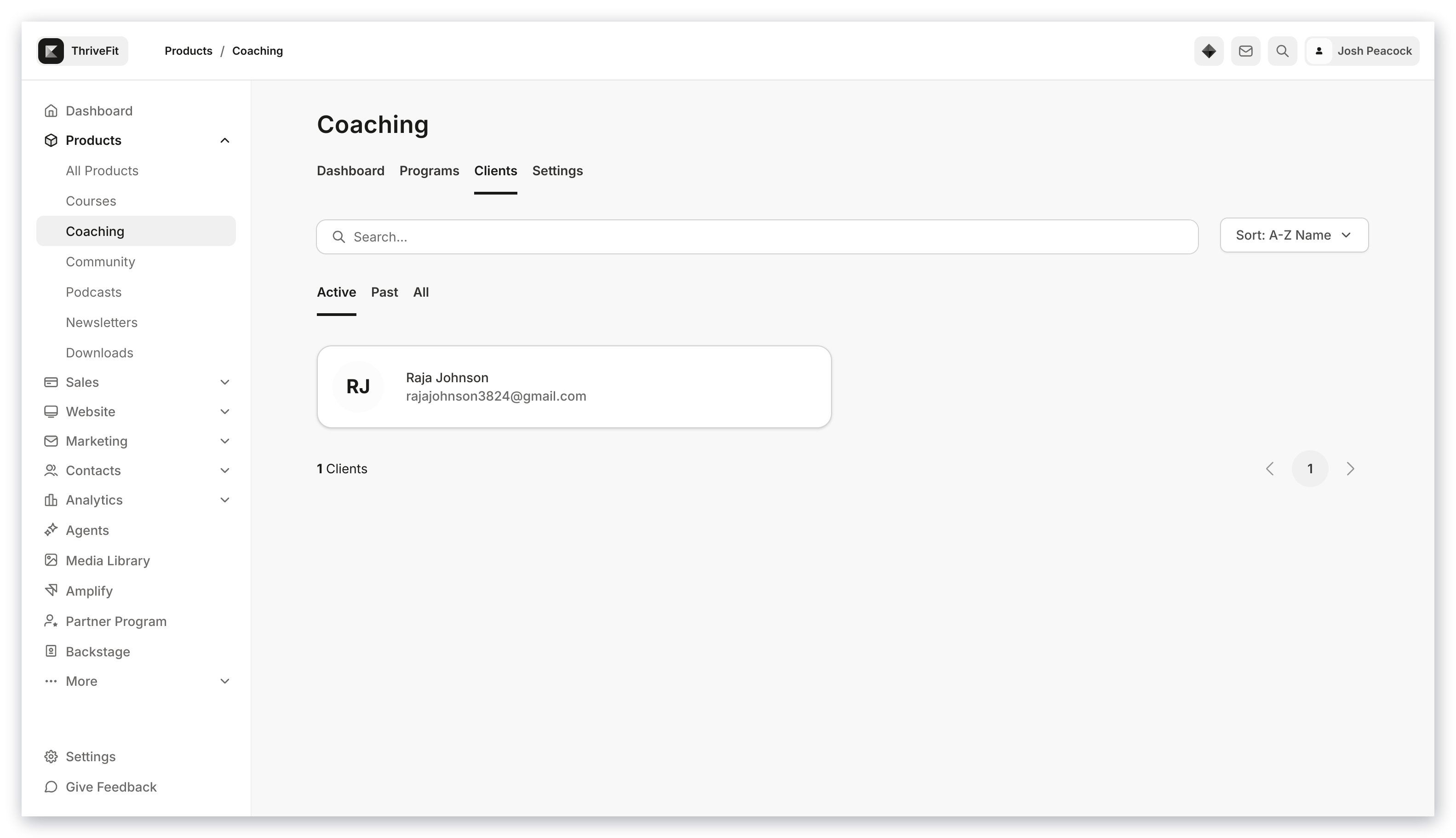 The **Client** button on the Coaching dashboard brings you to an Admin Dashboard with additional functions beyond the standard contacts view.
## Access the Coaching Client Admin Dashboard
1. Open **Products** from your Dashboard
2. Select **Coaching**
3. Click **Clients**
The **Client** button on the Coaching dashboard brings you to an Admin Dashboard with additional functions beyond the standard contacts view.
## Access the Coaching Client Admin Dashboard
1. Open **Products** from your Dashboard
2. Select **Coaching**
3. Click **Clients**
From the Coaching Client Admin Dashboard you can perform a variety of functions, as well as view the status of your coaching clients.
### View a client profile
1. From the Dashboard, select the **Client** you wish to view
2. Select **Visit Profile**
### Schedule a session
1. Select the **Client** you wish to schedule a Coaching session with
2. Click into the **Coaching Product**
3. Press the **Schedule session** button
4. Fill out the session details, then press **Save** to finish scheduling the Coaching session
**Note:**
Kajabi Scheduler only allows booking up to 2 weeks in advance.
## View client status
The Coaching Client Admin Dashboard makes it easy to view your clients' status.
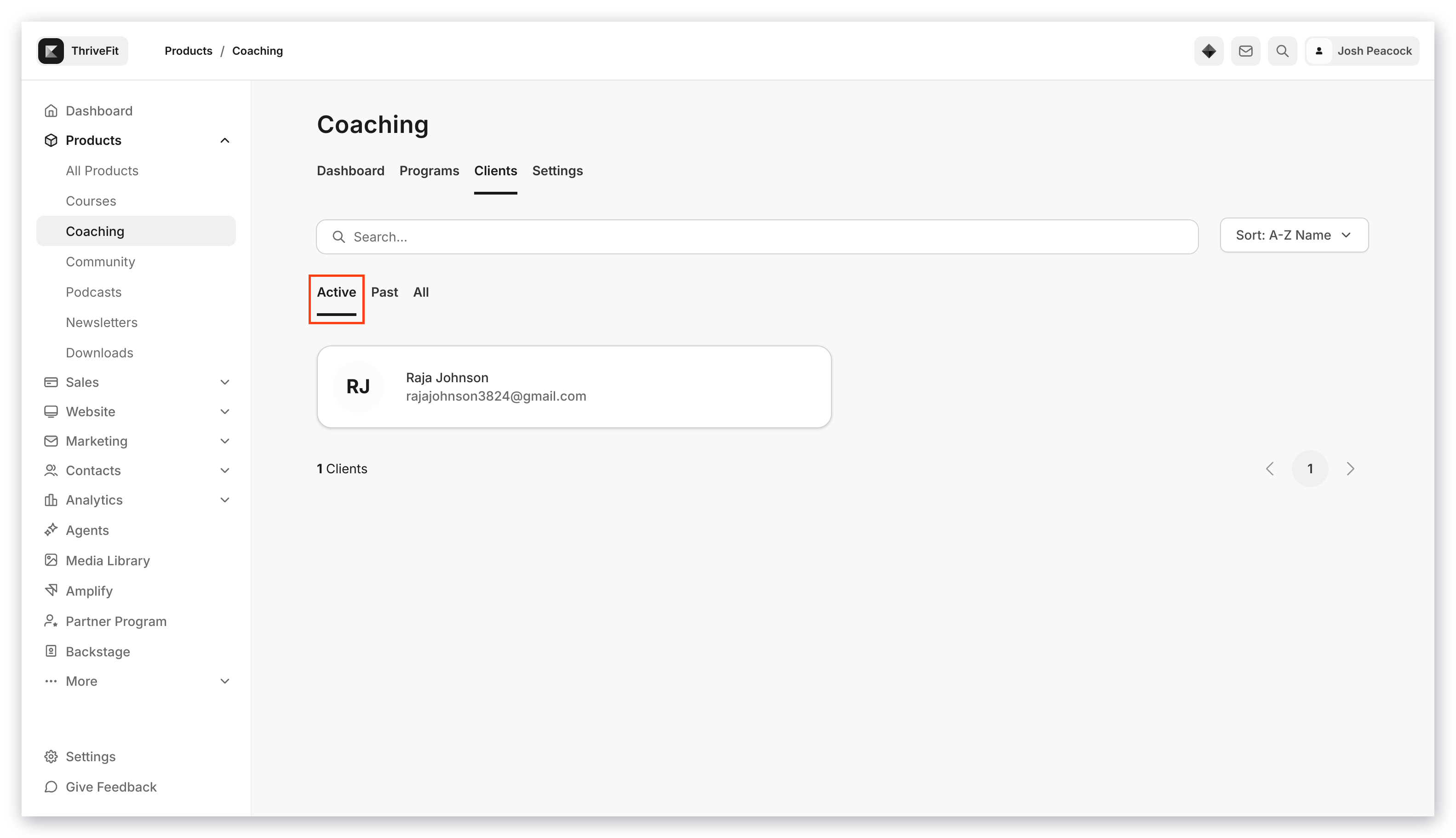
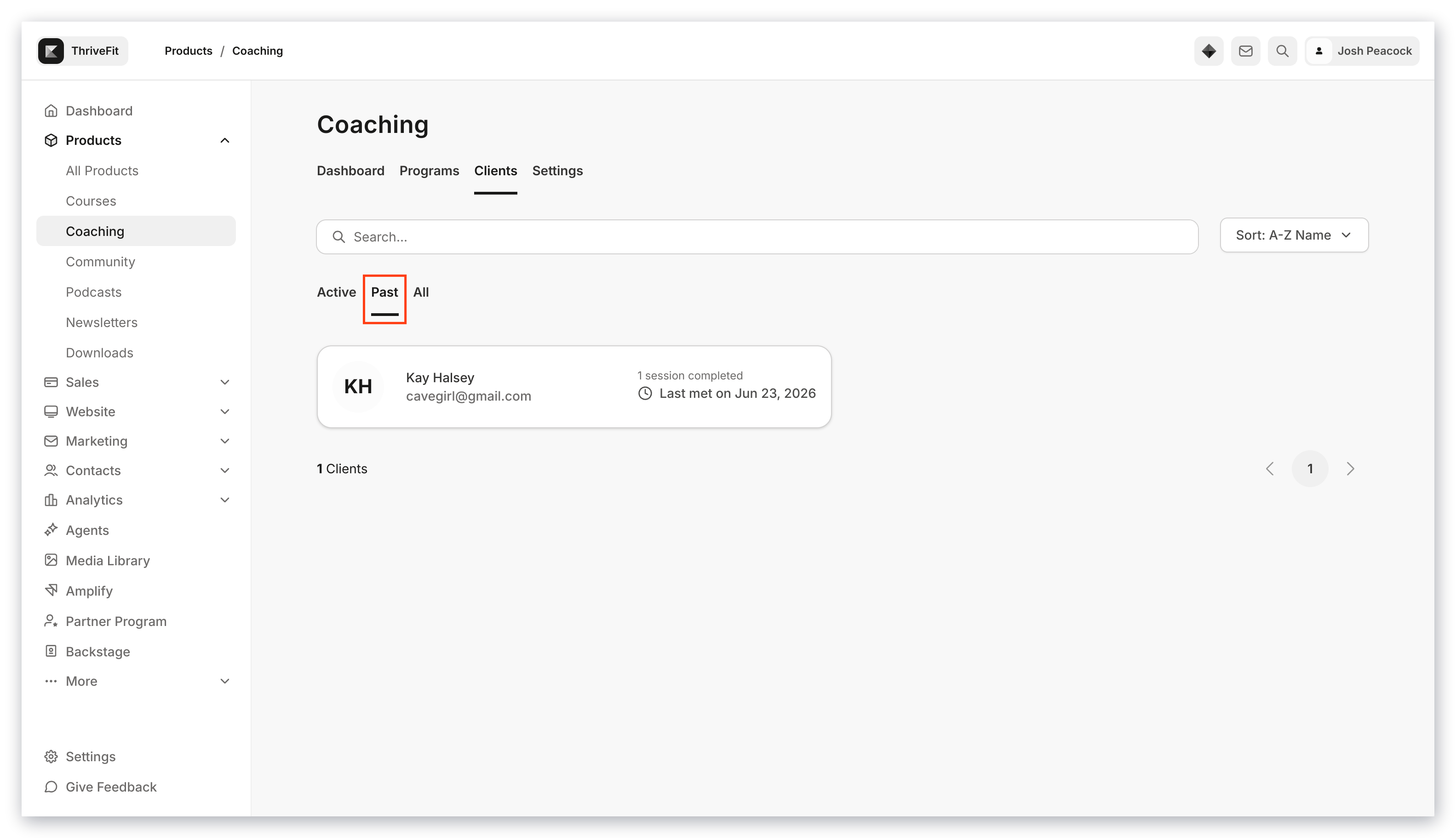
A Coaching client's status can be **Active** or **Past**.
**Active** is defined as a Coaching client who has upcoming booked Coaching sessions, or sessions that still need to be scheduled:
 **Past** is defined as a Coaching client who has completed all of their Coaching Sessions:
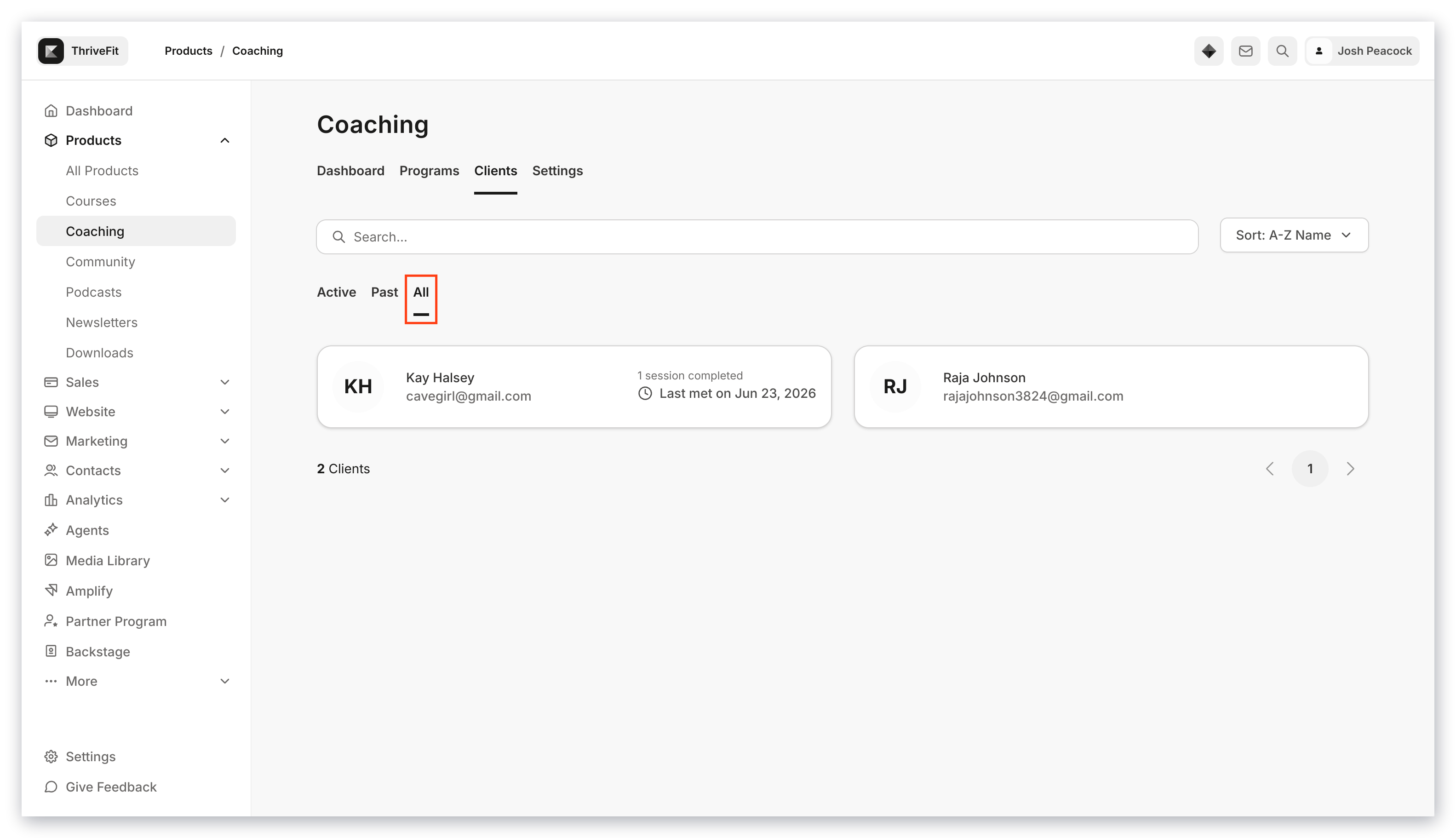
 The **All** view shows all of your Coaching clients, both Active and Past: