> ## Documentation Index
> Fetch the complete documentation index at: https://developers.kajabi.com/llms.txt
> Use this file to discover all available pages before exploring further.
# Host Live Rooms and events in a Community
> Start a Live Room, record a session, create Meetups, and control who can join in your Community.
## What are Live Rooms?
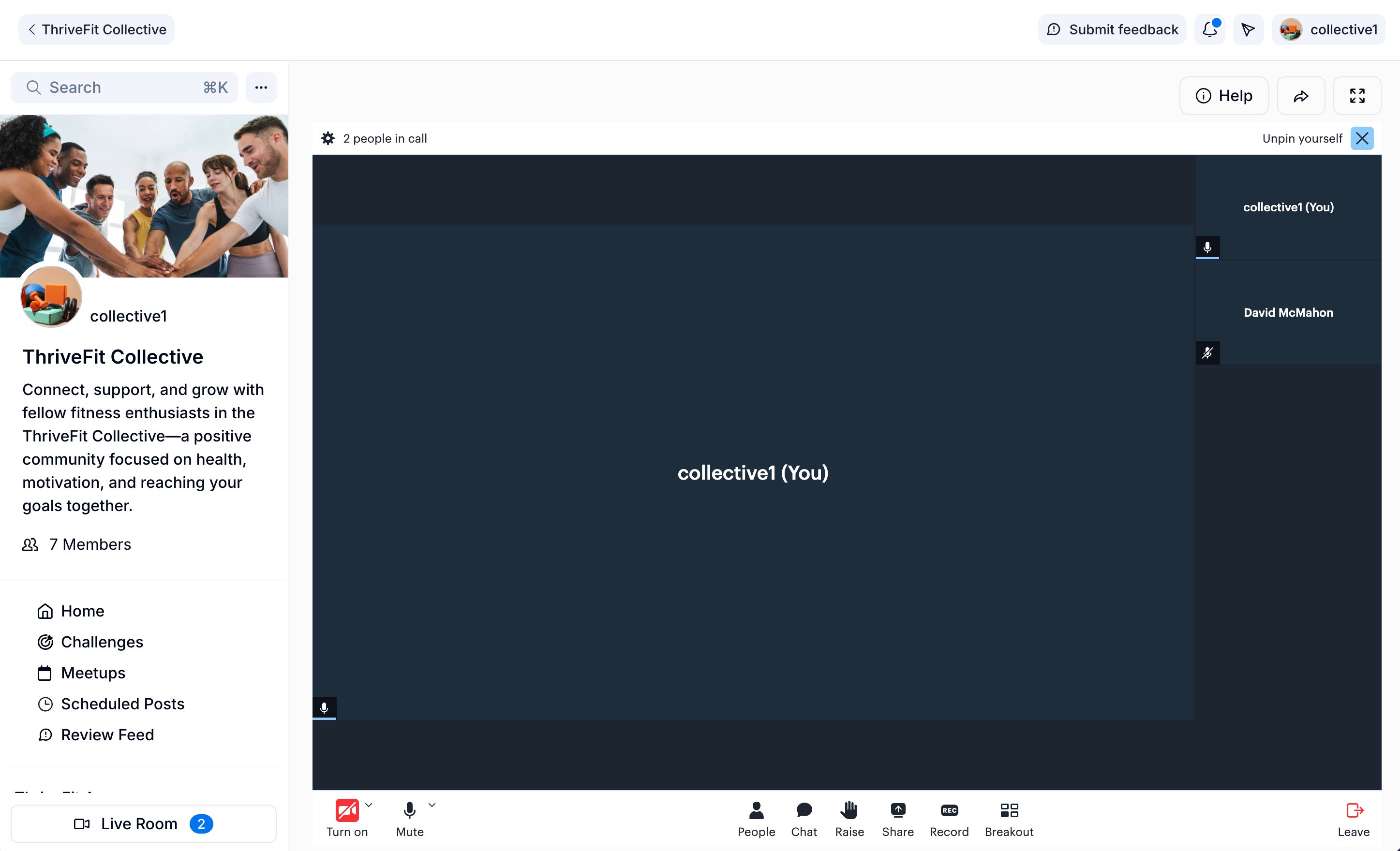
**Live Rooms** help you and your Community connect in real time by hosting meetings, Q\&A sessions, workshops, and more with your members.
The following tools are available in a Live Room:
* Record your session
* Share your screen
* Start breakout groups
* Chat with everyone in the call, and download the chat afterward
* Raise your hand to ask to speak
* Pin a participant to the main view
* Switch between **Speaker view** and grid view
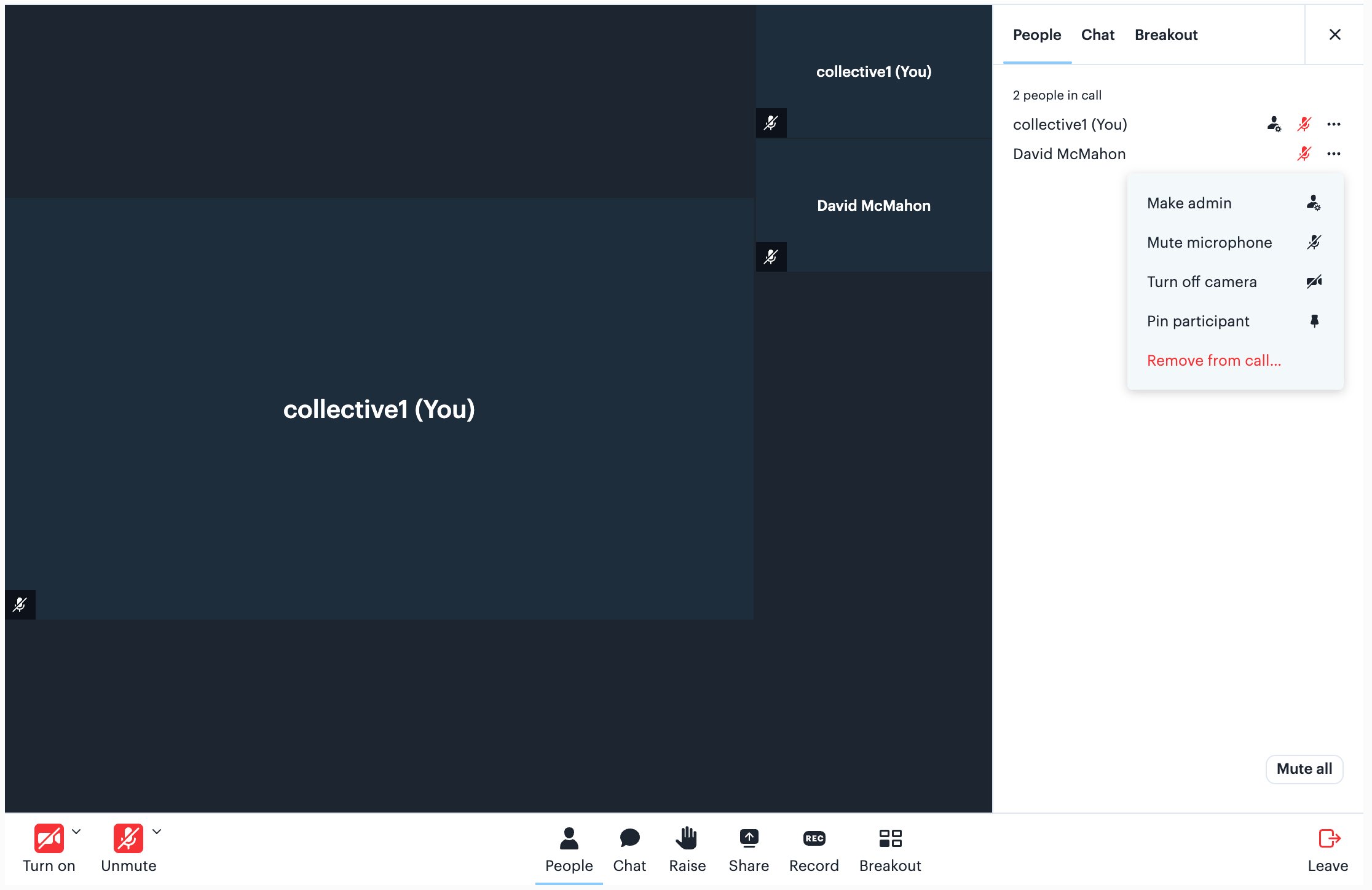
* Mute a participant's microphone, turn off their camera, or mute everyone with **Mute all**
* Remove someone from the call, or make them an admin
 ## Start a Live Room
### Open a Community Live Room
1. From the Dashboard, click **Products.**
2. Click **Community.**
3. Click **Go to Community**.
4. In the left navigation bar, click **Live Room**.
5. Click **Live Room** to start a live room.
* Optional: Click **Notify** to notify your Community members that you are live, or click **Don't Notify** to skip.
* Optional: Click **Start Recording** to begin recording immediately, or dismiss the prompt to start without recording.
### Raise a hand to ask to speak
Click **Raise** in the Live Room toolbar to signal that you want to speak.
### See how many people are in a Live Room
The **Live Room** button in your Community's left navigation bar shows how many people are in the room right now, so you can check before you join. The count appears only while someone is in the room. Once you are in the call, the same count appears at the top of the Live Room.
## End a Live Room
Click **Leave** in the bottom right corner of the Live Room to leave a session.
What happens after you leave depends on which room you are in:
* **Your Community's Live Room**: the **Live Room access** setting decides whether the session keeps running. See [Control when members can join](#control-when-members-can-join).
* **A Meetup's Private Room**: the session ends once the last host leaves, and everyone still in the call is disconnected.
To clear the room while you are still in it, remove people one at a time:
1. Click **People** in the Live Room toolbar.
2. Click the **more options (...) icon** next to the person's name.
3. Click **Remove from call**.
## Start a Live Room
### Open a Community Live Room
1. From the Dashboard, click **Products.**
2. Click **Community.**
3. Click **Go to Community**.
4. In the left navigation bar, click **Live Room**.
5. Click **Live Room** to start a live room.
* Optional: Click **Notify** to notify your Community members that you are live, or click **Don't Notify** to skip.
* Optional: Click **Start Recording** to begin recording immediately, or dismiss the prompt to start without recording.
### Raise a hand to ask to speak
Click **Raise** in the Live Room toolbar to signal that you want to speak.
### See how many people are in a Live Room
The **Live Room** button in your Community's left navigation bar shows how many people are in the room right now, so you can check before you join. The count appears only while someone is in the room. Once you are in the call, the same count appears at the top of the Live Room.
## End a Live Room
Click **Leave** in the bottom right corner of the Live Room to leave a session.
What happens after you leave depends on which room you are in:
* **Your Community's Live Room**: the **Live Room access** setting decides whether the session keeps running. See [Control when members can join](#control-when-members-can-join).
* **A Meetup's Private Room**: the session ends once the last host leaves, and everyone still in the call is disconnected.
To clear the room while you are still in it, remove people one at a time:
1. Click **People** in the Live Room toolbar.
2. Click the **more options (...) icon** next to the person's name.
3. Click **Remove from call**.
 ## Disable a Live Room
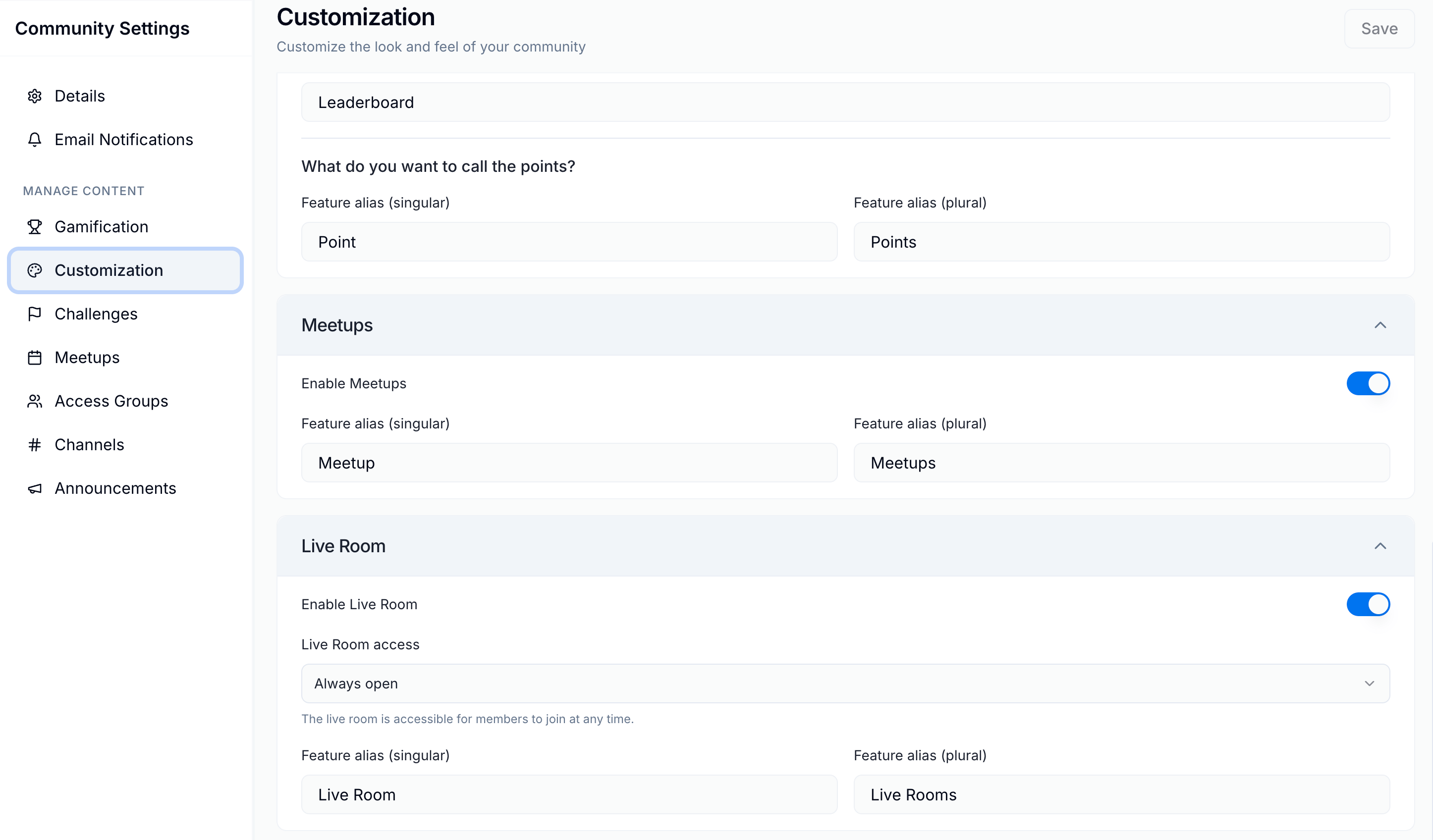
Turn off the Live Room if you do not want your Community to use it. If you only want members to join once you have started a session, leave the Live Room on and use the **Live Room access** setting instead.
To turn off your Live Room:
1. Open your **Community Settings**.
2. Select **Customization.**
3. Navigate to **Features**.
4. Under the **Live Room** section, toggle off **Enable Live Room**.
## Disable a Live Room
Turn off the Live Room if you do not want your Community to use it. If you only want members to join once you have started a session, leave the Live Room on and use the **Live Room access** setting instead.
To turn off your Live Room:
1. Open your **Community Settings**.
2. Select **Customization.**
3. Navigate to **Features**.
4. Under the **Live Room** section, toggle off **Enable Live Room**.
 ### Control when members can join
In the same **Live Room** section, use the **Live Room access** setting to control when Community members can enter:
* **Always open**: members can join the Live Room at any time, whether or not you've started a session.
* **Wait for access**: members can't enter until you start the Live Room.
**Live Room access** also decides whether a session ends on its own. With **Always open**, the Live Room keeps running after the last host leaves. With **Wait for access**, the session ends shortly after the last host leaves, and everyone still in the room is disconnected.
**Note:** **Always open** is the default. This setting applies to your Community's Live Room. A Meetup's Private Room always waits for a host, whichever option you choose here.
## Create a Meetup
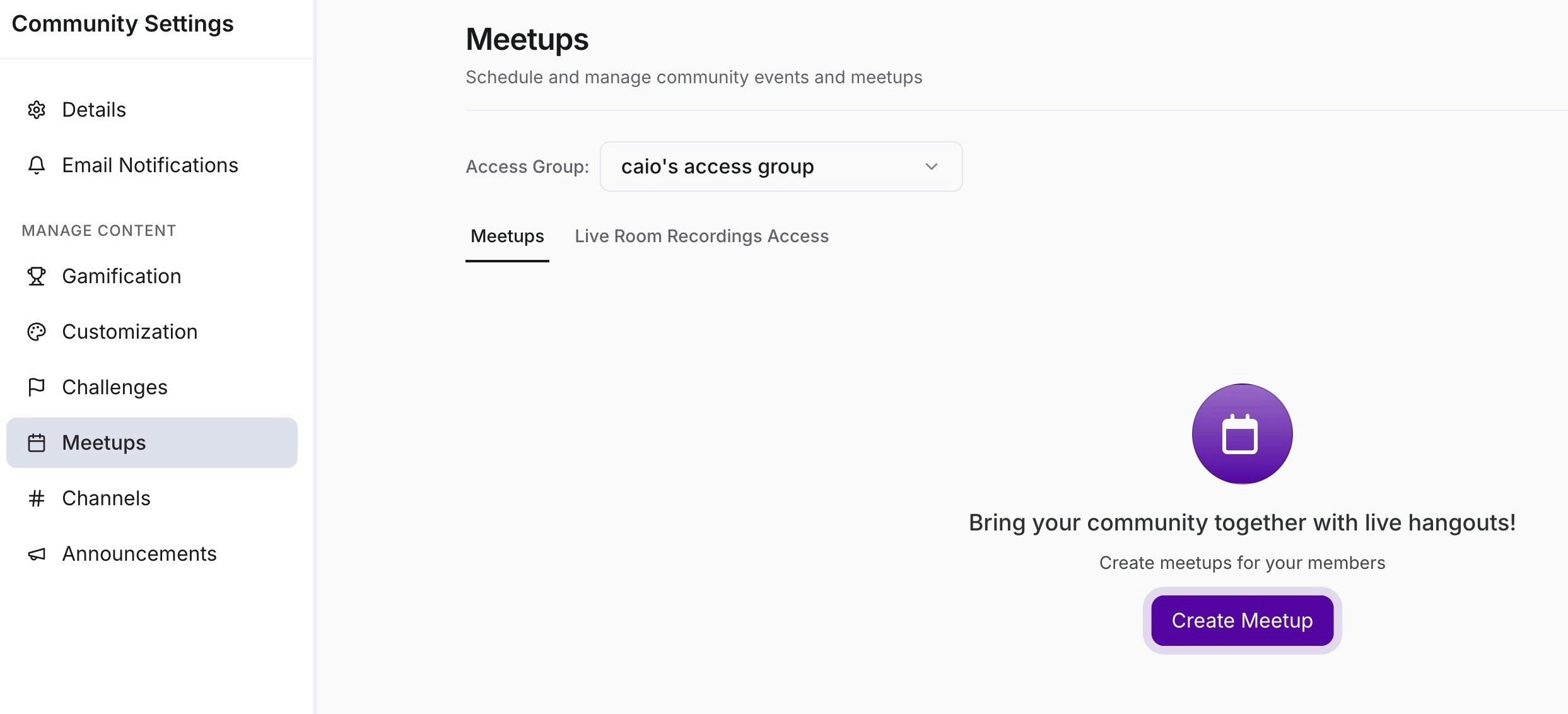
1. From the Dashboard, click **Products.**
2. Click **Community**.
3. Click **Go to Community**.
4. In the left navigation bar, click **Meetups**.
5. Click **Settings** in the top right corner.
6. Click **Create Meetup.**
### Control when members can join
In the same **Live Room** section, use the **Live Room access** setting to control when Community members can enter:
* **Always open**: members can join the Live Room at any time, whether or not you've started a session.
* **Wait for access**: members can't enter until you start the Live Room.
**Live Room access** also decides whether a session ends on its own. With **Always open**, the Live Room keeps running after the last host leaves. With **Wait for access**, the session ends shortly after the last host leaves, and everyone still in the room is disconnected.
**Note:** **Always open** is the default. This setting applies to your Community's Live Room. A Meetup's Private Room always waits for a host, whichever option you choose here.
## Create a Meetup
1. From the Dashboard, click **Products.**
2. Click **Community**.
3. Click **Go to Community**.
4. In the left navigation bar, click **Meetups**.
5. Click **Settings** in the top right corner.
6. Click **Create Meetup.**
 7. Optional: Upload a cover image or video for your Meetup.
8. Enter a **Title**.
9. Enter the event link in the **Location** field for a virtual Meetup, or click **Use Live** and choose **Use Live Room** for your default Live Room or **Create Private Room** for a room limited to the Meetup's Access Group. For in-person Meetups, enter the physical address.
10. Set the **Starts** and **Ends** date and time.
11. Set the **Timezone**.
12. **Optional**: Select a **Recurrence** option to make it a repeating Meetup.
13. Add a **Description**.
14. Assign the **Access Group**.
15. Optional: Select a **Channel** to receive in-app updates.
16. Click **Create Meetup.**
### Keep a Live Room safe and private
When you create or edit a Meetup, click **Use Live** next to the **Location** field. In the window that opens, click **Use Live Room** to use your default Live Room, or **Create Private Room** to make a room just for this Meetup:
Your default Live Room will be accessible to all members of your Community, whereas a Private Room will only be accessible to the Access Group members who are invited to your Meetup.
A Private Room also waits for a host. Members who open it before a host arrives see a waiting screen and cannot start the session themselves. Once the last host leaves, the session ends and everyone still in the call is disconnected. Leaders, admins, moderators, and assistants all count as hosts.
To moderate a session that is already running, use the **People** panel in the Live Room:
1. Click **People** in the Live Room toolbar.
2. Click the **more options (...) icon** next to a person's name.
3. Click **Mute microphone** or **Turn off camera** to control their audio and video, or click **Remove from call** to remove them from the session.
4. Optional: Click **Mute all** at the bottom of the **People** panel to mute everyone at once.
**Tip:** Your Community's Live Room does not wait for a host unless you ask it to. To hold members out until you start a session there, set **Live Room access** to **Wait for access** in your Community settings.
### Screen sharing, breakout rooms, and recording
Screen sharing, breakout rooms, and recording are all available through the admin controls in both the default Live Room and Private Rooms.
### Record a Live Room
1. Click the **Record** button in the Live Room toolbar to begin recording.
2. When recording is active, the **Record** button turns red and changes to **Stop**, and a red **Recording** indicator with a running timer appears at the top of the call.
7. Optional: Upload a cover image or video for your Meetup.
8. Enter a **Title**.
9. Enter the event link in the **Location** field for a virtual Meetup, or click **Use Live** and choose **Use Live Room** for your default Live Room or **Create Private Room** for a room limited to the Meetup's Access Group. For in-person Meetups, enter the physical address.
10. Set the **Starts** and **Ends** date and time.
11. Set the **Timezone**.
12. **Optional**: Select a **Recurrence** option to make it a repeating Meetup.
13. Add a **Description**.
14. Assign the **Access Group**.
15. Optional: Select a **Channel** to receive in-app updates.
16. Click **Create Meetup.**
### Keep a Live Room safe and private
When you create or edit a Meetup, click **Use Live** next to the **Location** field. In the window that opens, click **Use Live Room** to use your default Live Room, or **Create Private Room** to make a room just for this Meetup:
Your default Live Room will be accessible to all members of your Community, whereas a Private Room will only be accessible to the Access Group members who are invited to your Meetup.
A Private Room also waits for a host. Members who open it before a host arrives see a waiting screen and cannot start the session themselves. Once the last host leaves, the session ends and everyone still in the call is disconnected. Leaders, admins, moderators, and assistants all count as hosts.
To moderate a session that is already running, use the **People** panel in the Live Room:
1. Click **People** in the Live Room toolbar.
2. Click the **more options (...) icon** next to a person's name.
3. Click **Mute microphone** or **Turn off camera** to control their audio and video, or click **Remove from call** to remove them from the session.
4. Optional: Click **Mute all** at the bottom of the **People** panel to mute everyone at once.
**Tip:** Your Community's Live Room does not wait for a host unless you ask it to. To hold members out until you start a session there, set **Live Room access** to **Wait for access** in your Community settings.
### Screen sharing, breakout rooms, and recording
Screen sharing, breakout rooms, and recording are all available through the admin controls in both the default Live Room and Private Rooms.
### Record a Live Room
1. Click the **Record** button in the Live Room toolbar to begin recording.
2. When recording is active, the **Record** button turns red and changes to **Stop**, and a red **Recording** indicator with a running timer appears at the top of the call.
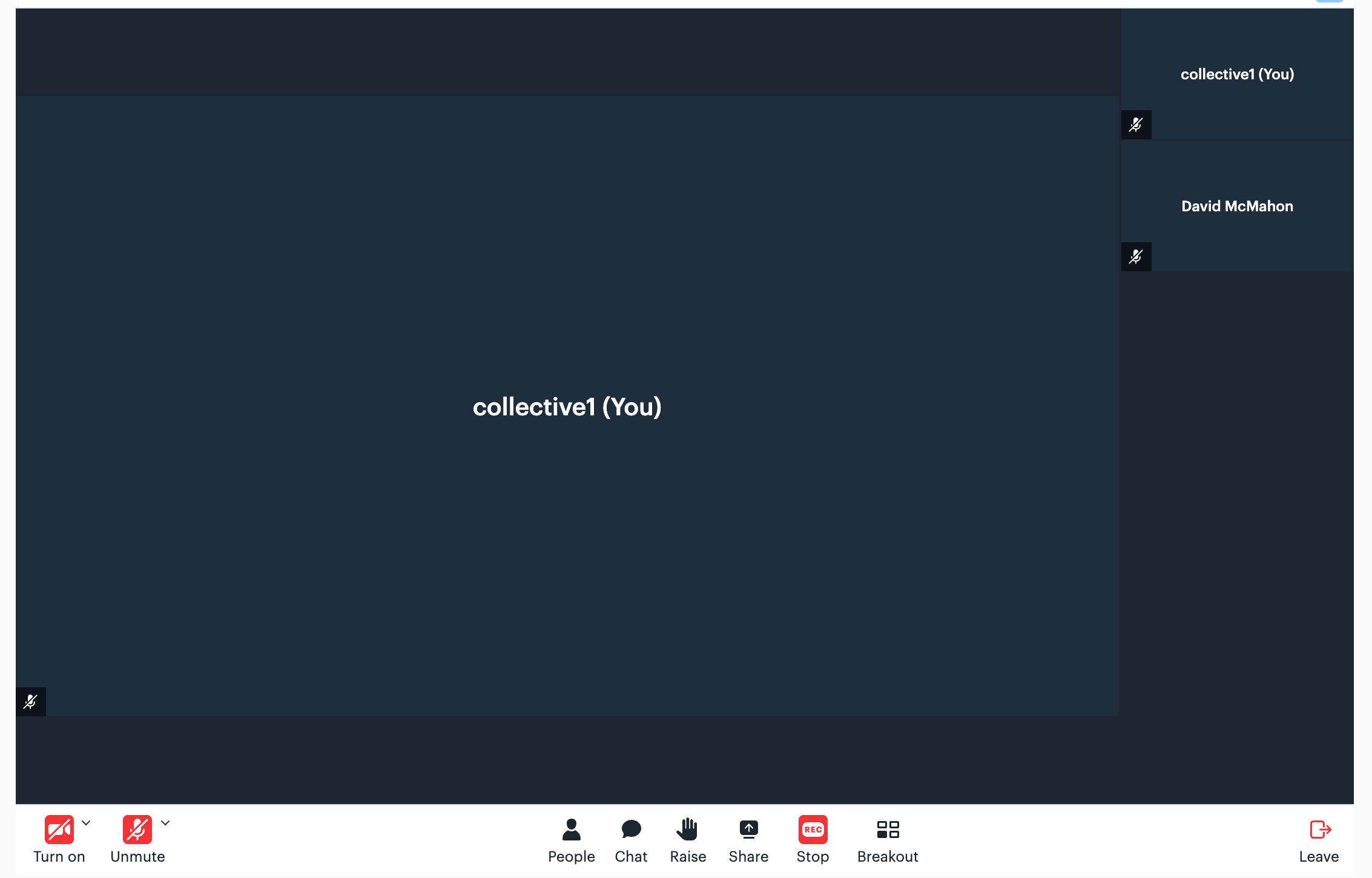 3. Click the **Stop** button to stop recording.
Recordings show each participant's name on their video, the same name they appear under during the call. Members can edit that name on the screen they see before entering the room, and whatever they enter is what the recording shows. The names start a few seconds into the recording, so the opening moments have none.
Shorter recordings appear in your Meetups page in less than 5 minutes. Longer recordings may take up to 30 minutes to process.
### Find Live Room recordings
Your recordings can be viewed in the Meetups tab under Recordings. The **Download** option is available to Community leaders, admins, moderators, and assistants.
1. From the Dashboard, click **Products.**
2. Click **Community.**
3. Click **Go to Community**.
4. Click **Meetups** in the left navigation bar.
5. Locate the recording you want to download.
6. Click the **more options (...) icon** on the recording.
7. Click **Download**.
### Edit and control access to a Live Room recording
Determine the Access Group that can view your Live Room recording:
1. From the Dashboard, click **Products.**
2. Click **Community.**
3. Click **Go to Community**.
4. Click **Meetups** in the left navigation bar.
5. Click the **more options (...) icon** next to your Live Room recording.
6. Click **Edit.**
7. Update the **Title**, **Access Group**, or **Description** as needed, or click **Delete** to remove the recording.
8. Click **Save**.
3. Click the **Stop** button to stop recording.
Recordings show each participant's name on their video, the same name they appear under during the call. Members can edit that name on the screen they see before entering the room, and whatever they enter is what the recording shows. The names start a few seconds into the recording, so the opening moments have none.
Shorter recordings appear in your Meetups page in less than 5 minutes. Longer recordings may take up to 30 minutes to process.
### Find Live Room recordings
Your recordings can be viewed in the Meetups tab under Recordings. The **Download** option is available to Community leaders, admins, moderators, and assistants.
1. From the Dashboard, click **Products.**
2. Click **Community.**
3. Click **Go to Community**.
4. Click **Meetups** in the left navigation bar.
5. Locate the recording you want to download.
6. Click the **more options (...) icon** on the recording.
7. Click **Download**.
### Edit and control access to a Live Room recording
Determine the Access Group that can view your Live Room recording:
1. From the Dashboard, click **Products.**
2. Click **Community.**
3. Click **Go to Community**.
4. Click **Meetups** in the left navigation bar.
5. Click the **more options (...) icon** next to your Live Room recording.
6. Click **Edit.**
7. Update the **Title**, **Access Group**, or **Description** as needed, or click **Delete** to remove the recording.
8. Click **Save**.
 ## Edit a Meetup
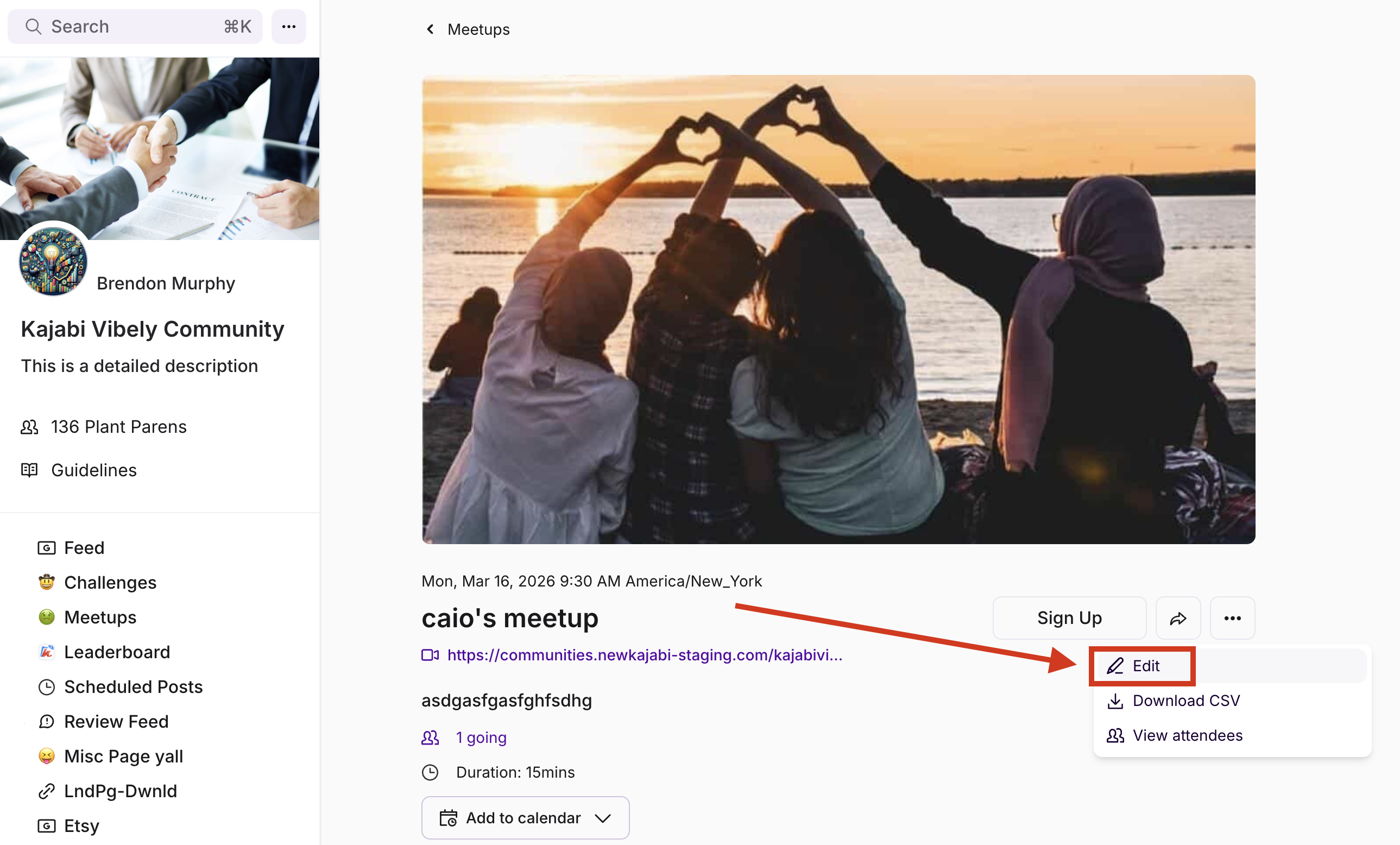
Change a Meetup you have already created when the time, link, description, or audience shifts.
1. From the Dashboard, click **Products.**
2. Click **Community**.
3. Click **Go to Community**.
4. In the left navigation bar, click **Meetups**.
5. Click **Settings** in the top right corner.
6. Find the Meetup in the list, then click its name. You can also click the **more options (...) icon** in that Meetup's row and click **Edit**.
## Edit a Meetup
Change a Meetup you have already created when the time, link, description, or audience shifts.
1. From the Dashboard, click **Products.**
2. Click **Community**.
3. Click **Go to Community**.
4. In the left navigation bar, click **Meetups**.
5. Click **Settings** in the top right corner.
6. Find the Meetup in the list, then click its name. You can also click the **more options (...) icon** in that Meetup's row and click **Edit**.
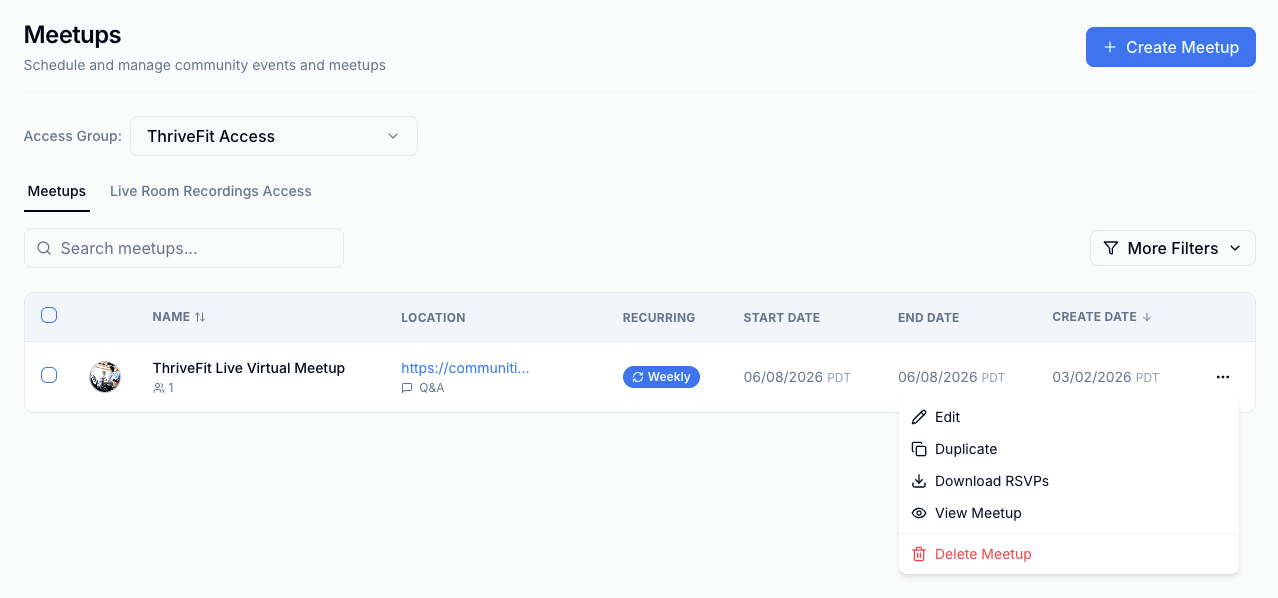 7. Update the cover image or video, **Title**, **Location**, **Starts** and **Ends**, **Timezone**, **Recurrence**, **Description**, **Access Group**, or **Channel**.
8. Click **Save**.
7. Update the cover image or video, **Title**, **Location**, **Starts** and **Ends**, **Timezone**, **Recurrence**, **Description**, **Access Group**, or **Channel**.
8. Click **Save**.
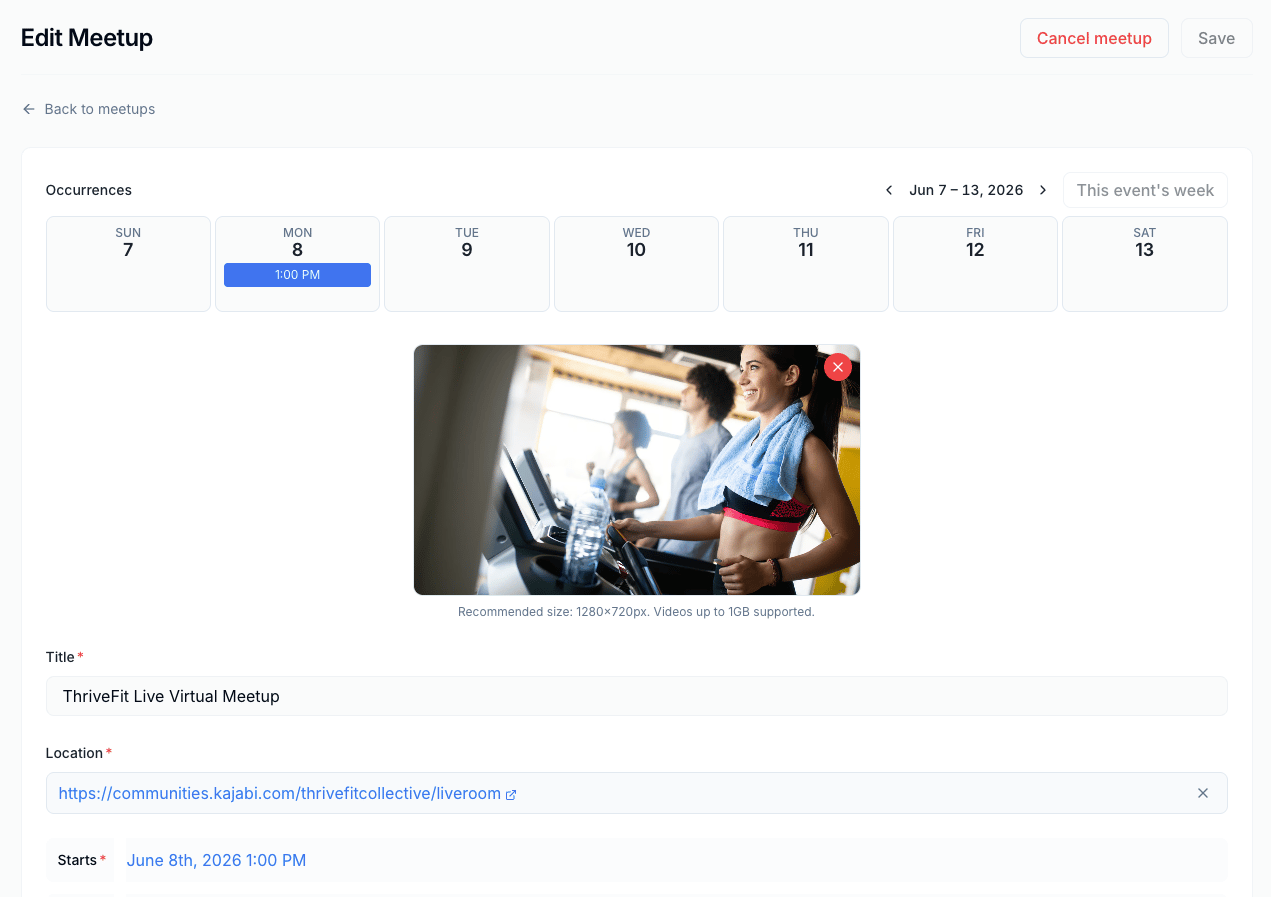 **Save** stays unavailable until you change at least one field and every required field is filled. Click it to see what is still missing. **Starts** and **Ends** cannot be set to a date in the past, and **Recurrence** appears only on Communities where recurring Meetups are available.
**Note:** For a Meetup that belongs to a recurring series, the **Access Group** is locked and cannot be changed, and saving asks whether to apply your changes to this event only, this and following events, or all events. A **Cancel meetup** button also appears, which offers the same three choices and removes those occurrences. See [Create a Community Meetup](/articles/products/community/create-a-community-meetup) for how recurring Meetups work.
## Update an outdated Meetup link in a calendar
Meetups that use a Private Room are moving to a permanent Kajabi join link. Calendar entries that were added before that switch can still point at the older room link, so Kajabi shows a notice on the Meetup's page titled **Update this meetup in your calendar**, asking the reader to remove the Meetup from their calendar and add it again to get the current join link. The notice uses whatever you have named Meetups in your Community settings, so it can read differently on your Community.
**Save** stays unavailable until you change at least one field and every required field is filled. Click it to see what is still missing. **Starts** and **Ends** cannot be set to a date in the past, and **Recurrence** appears only on Communities where recurring Meetups are available.
**Note:** For a Meetup that belongs to a recurring series, the **Access Group** is locked and cannot be changed, and saving asks whether to apply your changes to this event only, this and following events, or all events. A **Cancel meetup** button also appears, which offers the same three choices and removes those occurrences. See [Create a Community Meetup](/articles/products/community/create-a-community-meetup) for how recurring Meetups work.
## Update an outdated Meetup link in a calendar
Meetups that use a Private Room are moving to a permanent Kajabi join link. Calendar entries that were added before that switch can still point at the older room link, so Kajabi shows a notice on the Meetup's page titled **Update this meetup in your calendar**, asking the reader to remove the Meetup from their calendar and add it again to get the current join link. The notice uses whatever you have named Meetups in your Community settings, so it can read differently on your Community.
 Both you and your members see this notice, and each person clears it for themselves by removing the Meetup from their own calendar app and adding it again from the Meetup's page.
A few things to know about the notice:
* It stops appearing once the Meetup has ended, so a Meetup saved without an **Ends** time keeps showing it
* It appears on Meetups that use a Private Room, not on Meetups that use the default Live Room, a physical address, or an outside meeting link such as Zoom
* Click the **X** in its corner to dismiss it. Dismissing applies to that one Meetup in that one browser, so it can reappear on another device
* Re-saving the Meetup without changing its **Location** does not remove the notice, because the stored room link is deliberately kept so existing sessions still resolve
## Set a default Access Group
You can set a default Access Group, which means the members of that Access Group will automatically get access to your recordings. If you need to change the Access Group, you can do so after the recording is published.
**Tip:** Post a countdown on your social platforms before the Meetup to increase visibility and attendance.
1. In the left navigation bar, click **Meetups**.
2. Click **Settings** in the top right corner.
3. Under **Live Room Recordings Access**, select a **Default Access Group**. If you do not select one, a default group is automatically assigned.
4. The page will save automatically.
## Live Room recording resolution
Live Room recordings are 1080p by default. If you lower your video quality during a session, which can help on a weak connection, the recording reflects that lower quality.
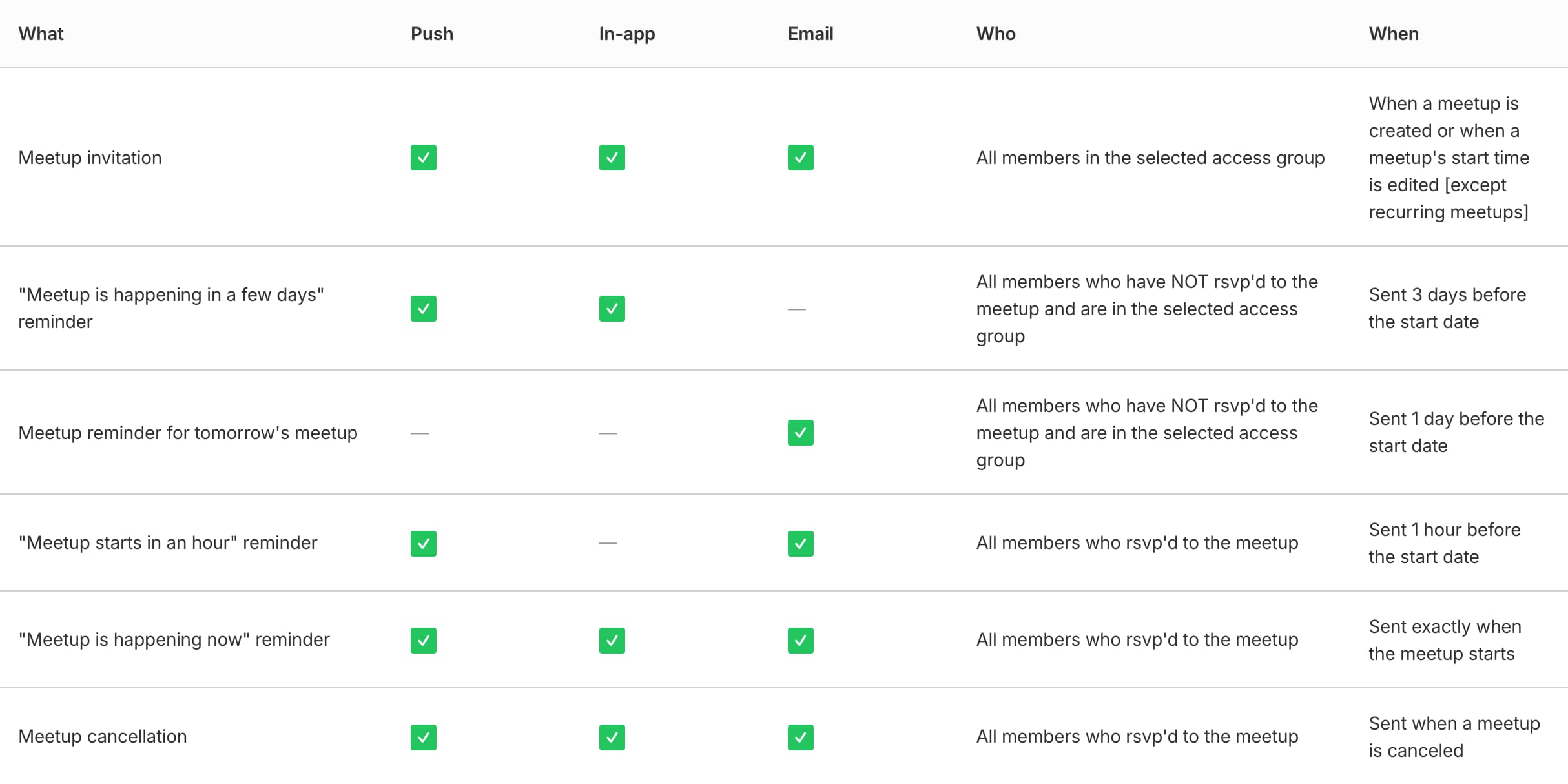
## Understanding Meetup Notifications
**Community notifications are sent out in three ways:**
* Emails
* In-app notifications (in your notification center)
* Mobile notifications (push notifications)
**Notifications are controlled two ways:**
* On an individual basis, in an individual's profile settings
* By you, the Hero, at the community level in community settings
Both you and your members see this notice, and each person clears it for themselves by removing the Meetup from their own calendar app and adding it again from the Meetup's page.
A few things to know about the notice:
* It stops appearing once the Meetup has ended, so a Meetup saved without an **Ends** time keeps showing it
* It appears on Meetups that use a Private Room, not on Meetups that use the default Live Room, a physical address, or an outside meeting link such as Zoom
* Click the **X** in its corner to dismiss it. Dismissing applies to that one Meetup in that one browser, so it can reappear on another device
* Re-saving the Meetup without changing its **Location** does not remove the notice, because the stored room link is deliberately kept so existing sessions still resolve
## Set a default Access Group
You can set a default Access Group, which means the members of that Access Group will automatically get access to your recordings. If you need to change the Access Group, you can do so after the recording is published.
**Tip:** Post a countdown on your social platforms before the Meetup to increase visibility and attendance.
1. In the left navigation bar, click **Meetups**.
2. Click **Settings** in the top right corner.
3. Under **Live Room Recordings Access**, select a **Default Access Group**. If you do not select one, a default group is automatically assigned.
4. The page will save automatically.
## Live Room recording resolution
Live Room recordings are 1080p by default. If you lower your video quality during a session, which can help on a weak connection, the recording reflects that lower quality.
## Understanding Meetup Notifications
**Community notifications are sent out in three ways:**
* Emails
* In-app notifications (in your notification center)
* Mobile notifications (push notifications)
**Notifications are controlled two ways:**
* On an individual basis, in an individual's profile settings
* By you, the Hero, at the community level in community settings
 We recommend posting a countdown on your social platforms for more meetup visibility.
## FAQs
### Can I download a Live Room recording?
Yes. From the Meetups tab, click the **more options (...) icon** next to the recording and select **Download**. The **Download** option is available to Community leaders, admins, moderators, and assistants. See [Find Live Room recordings](#find-live-room-recordings) above for the full steps.
### Can I change a Meetup after I create it?
Yes. Open **Meetups** in the left navigation bar, click **Settings**, then click the Meetup's name to open it for editing. See [Edit a Meetup](#edit-a-meetup) above for the full steps.
### Why does a Meetup show a notice asking me to update it in my calendar?
That Meetup uses a Private Room, and its join link is moving to a permanent Kajabi link. Calendar entries added before the switch can still point at the older room link. Remove the Meetup from your calendar and add it again from the Meetup's page to pick up the current link. See [Update an outdated Meetup link in a calendar](#update-an-outdated-meetup-link-in-a-calendar) above.
### Are there any limits to how many people can be in a Live Room?
You can host up to 200 people at once in your Community Live Room.
There is no separate limit on how many people can have their camera on at the same time. When more cameras are on than fit on the screen, the Live Room pages through them, and you can move between pages.
### Why are members waiting to join a Meetup's Private Room?
A Private Room does not open until a host joins, so members who arrive first see a waiting screen. That screen watches for you to start the session and lets them in on its own, for up to 15 minutes. Nobody needs to refresh anything.
If no host has started the session within those 15 minutes, the screen stops watching. It still looks like it is waiting, but it will not let anyone in, even after you start. Ask those members to open the Meetup and click into the room again, which starts a fresh wait. Leaders, admins, moderators, and assistants can all open the room.
### Why is my Live Room recording missing?
A few common reasons a recording doesn't show up:
* **Recording wasn't started.** Recording only happens if you click **Start Recording** when prompted, or click the **Record** button in the Live Room toolbar during the session. If neither happens, no recording is created, and there is no automatic recording.
* **Still processing.** Shorter recordings appear in the Meetups tab under Recordings in less than 5 minutes; longer recordings can take up to 30 minutes.
* **Access Group restriction.** If you can't see a recording that you know exists, check that you're a member of the Access Group it's assigned to.
* **Deleted.** Recordings can be removed from the **Edit** menu next to a recording, so if one was there before and isn't now, it may have been deleted. If you've checked all of the above and a recording is still missing more than 30 minutes after the session ended, reach out to Kajabi Support.
### Can I recover a deleted Live Room recording?
If you delete a recording by mistake, please reach out to Kajabi Support.
We recommend posting a countdown on your social platforms for more meetup visibility.
## FAQs
### Can I download a Live Room recording?
Yes. From the Meetups tab, click the **more options (...) icon** next to the recording and select **Download**. The **Download** option is available to Community leaders, admins, moderators, and assistants. See [Find Live Room recordings](#find-live-room-recordings) above for the full steps.
### Can I change a Meetup after I create it?
Yes. Open **Meetups** in the left navigation bar, click **Settings**, then click the Meetup's name to open it for editing. See [Edit a Meetup](#edit-a-meetup) above for the full steps.
### Why does a Meetup show a notice asking me to update it in my calendar?
That Meetup uses a Private Room, and its join link is moving to a permanent Kajabi link. Calendar entries added before the switch can still point at the older room link. Remove the Meetup from your calendar and add it again from the Meetup's page to pick up the current link. See [Update an outdated Meetup link in a calendar](#update-an-outdated-meetup-link-in-a-calendar) above.
### Are there any limits to how many people can be in a Live Room?
You can host up to 200 people at once in your Community Live Room.
There is no separate limit on how many people can have their camera on at the same time. When more cameras are on than fit on the screen, the Live Room pages through them, and you can move between pages.
### Why are members waiting to join a Meetup's Private Room?
A Private Room does not open until a host joins, so members who arrive first see a waiting screen. That screen watches for you to start the session and lets them in on its own, for up to 15 minutes. Nobody needs to refresh anything.
If no host has started the session within those 15 minutes, the screen stops watching. It still looks like it is waiting, but it will not let anyone in, even after you start. Ask those members to open the Meetup and click into the room again, which starts a fresh wait. Leaders, admins, moderators, and assistants can all open the room.
### Why is my Live Room recording missing?
A few common reasons a recording doesn't show up:
* **Recording wasn't started.** Recording only happens if you click **Start Recording** when prompted, or click the **Record** button in the Live Room toolbar during the session. If neither happens, no recording is created, and there is no automatic recording.
* **Still processing.** Shorter recordings appear in the Meetups tab under Recordings in less than 5 minutes; longer recordings can take up to 30 minutes.
* **Access Group restriction.** If you can't see a recording that you know exists, check that you're a member of the Access Group it's assigned to.
* **Deleted.** Recordings can be removed from the **Edit** menu next to a recording, so if one was there before and isn't now, it may have been deleted. If you've checked all of the above and a recording is still missing more than 30 minutes after the session ended, reach out to Kajabi Support.
### Can I recover a deleted Live Room recording?
If you delete a recording by mistake, please reach out to Kajabi Support.