> ## Documentation Index
> Fetch the complete documentation index at: https://developers.kajabi.com/llms.txt
> Use this file to discover all available pages before exploring further.
# Rearrange Channels in a Kajabi Community
> Organize your Kajabi Community by reordering Channels to control how they display for members.
Keep your Community organized by reordering **Channels** to prioritize the most relevant content for your members. Rearranging Channels lets you control the display order across your Community.
## Community Channels
A Channel in Kajabi Communities allows you to segment your customers into more refined groups. Channels can be a feed or a chat to build engaging interactions, activities, and discussions amongst your customers.
[Learn to create a Channel](https://help.kajabi.com/hc/en-us/articles/9952453388443).
## Rearrange Channels
Organize your Channels for your Community Members by reordering how they are displayed within your Community. By reordering your Channels, you will create a Custom order.
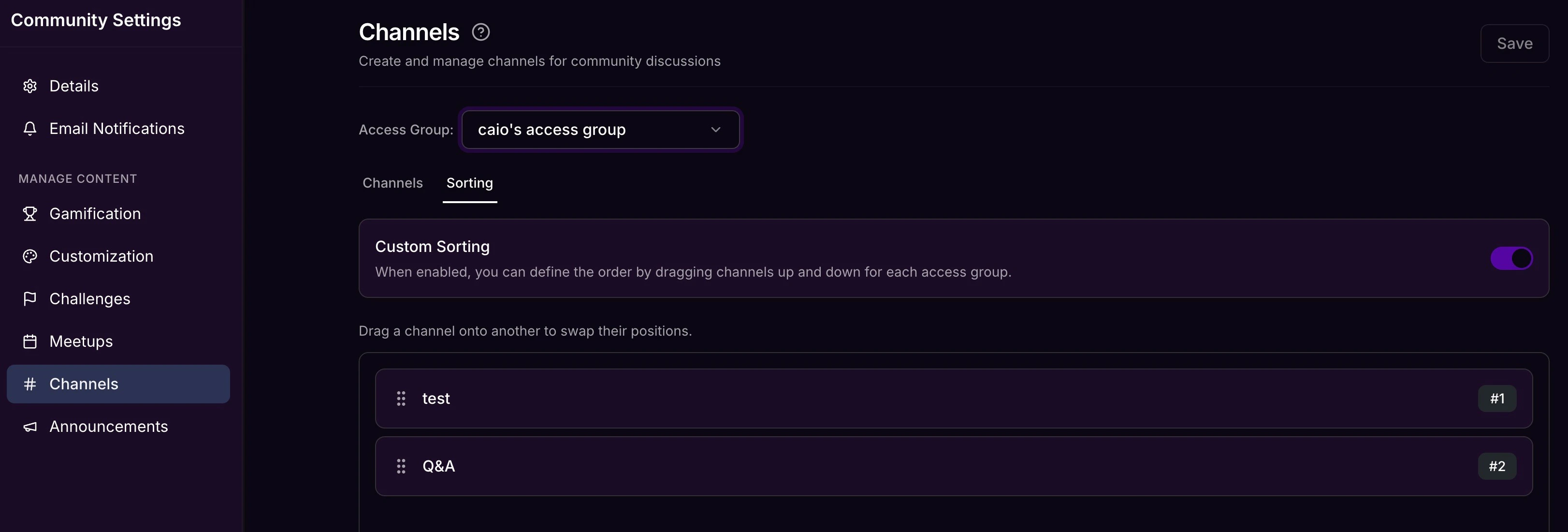 ### Rearrange Channels from Community Settings
* Open **Products** from your Kajabi Dashboard.
* Select **Community**.
* Click **Go to your Community**.
* Inside your Community, click the ellipsis icon on your cover photo, then select **Community Settings.**
* Navigate to **Channels.**
* Select the **Sorting** tab.
* Locate the **Channel** you wish to move.
* Drag and drop the Channel to your desired location.
* Repeat for all Channels you wish to rearrange.
* Be sure to click **Save** to keep and apply your changes.
### Rearrange Channels from Community Home
* Open **Products** from your Kajabi Dashboard.
* Select **Community**.
* Click **Go to your Community**.
* Locate the **Channel** you wish to move inside the left sidebar.
* Drag and drop the Channel to your desired location.
* Repeat for all Channels you wish to rearrange.
## Move a Channel to a different Access Group
Rearranging (above) only changes a Channel's display order — it does not change which Access Group can see it.
**Important:** A Channel's Access Group is set when the Channel is created and cannot be changed or reassigned afterward. There is currently no option to move an existing Channel from one Access Group to another.
**To effectively move a Channel to a different Access Group:**
1. Create a new Channel inside the desired Access Group, matching the original Channel's name and settings.
2. Manually recreate or repost any important content from the old Channel into the new one.
3. Archive or delete the old Channel once the new one is set up.
### Rearrange Channels from Community Settings
* Open **Products** from your Kajabi Dashboard.
* Select **Community**.
* Click **Go to your Community**.
* Inside your Community, click the ellipsis icon on your cover photo, then select **Community Settings.**
* Navigate to **Channels.**
* Select the **Sorting** tab.
* Locate the **Channel** you wish to move.
* Drag and drop the Channel to your desired location.
* Repeat for all Channels you wish to rearrange.
* Be sure to click **Save** to keep and apply your changes.
### Rearrange Channels from Community Home
* Open **Products** from your Kajabi Dashboard.
* Select **Community**.
* Click **Go to your Community**.
* Locate the **Channel** you wish to move inside the left sidebar.
* Drag and drop the Channel to your desired location.
* Repeat for all Channels you wish to rearrange.
## Move a Channel to a different Access Group
Rearranging (above) only changes a Channel's display order — it does not change which Access Group can see it.
**Important:** A Channel's Access Group is set when the Channel is created and cannot be changed or reassigned afterward. There is currently no option to move an existing Channel from one Access Group to another.
**To effectively move a Channel to a different Access Group:**
1. Create a new Channel inside the desired Access Group, matching the original Channel's name and settings.
2. Manually recreate or repost any important content from the old Channel into the new one.
3. Archive or delete the old Channel once the new one is set up.