> ## Documentation Index
> Fetch the complete documentation index at: https://developers.kajabi.com/llms.txt
> Use this file to discover all available pages before exploring further.
# Share a Course
> Share a Course with social media platforms, email campaigns, and more.
After creating a Course and connecting an offer, share it across social media platforms, email campaigns, and more using the **Course share button**.
**Note:** The share button is not available if an offer is not connected to the Course. To give access without charging, grant a free offer to your contacts instead. See [Grant an Offer](/articles/sales/offers/how-to-grant-an-offer).
With the share button, you can also copy the link and share it anywhere you can add a link, from linking it to your social media platforms to embedding it into your email campaigns.
1. From the Kajabi Dashboard, select **Products** then **Courses**.
2. Navigate to the **Course** you want to share.
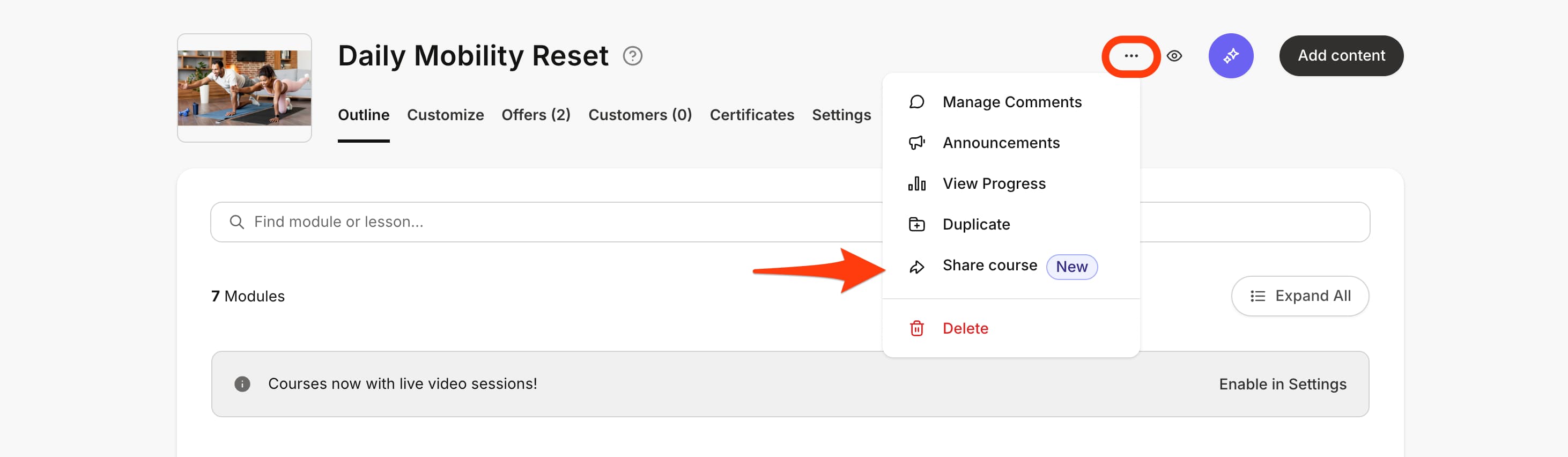
3. Open the `…` menu, at the top right navigation.
4. Click **Share course**:
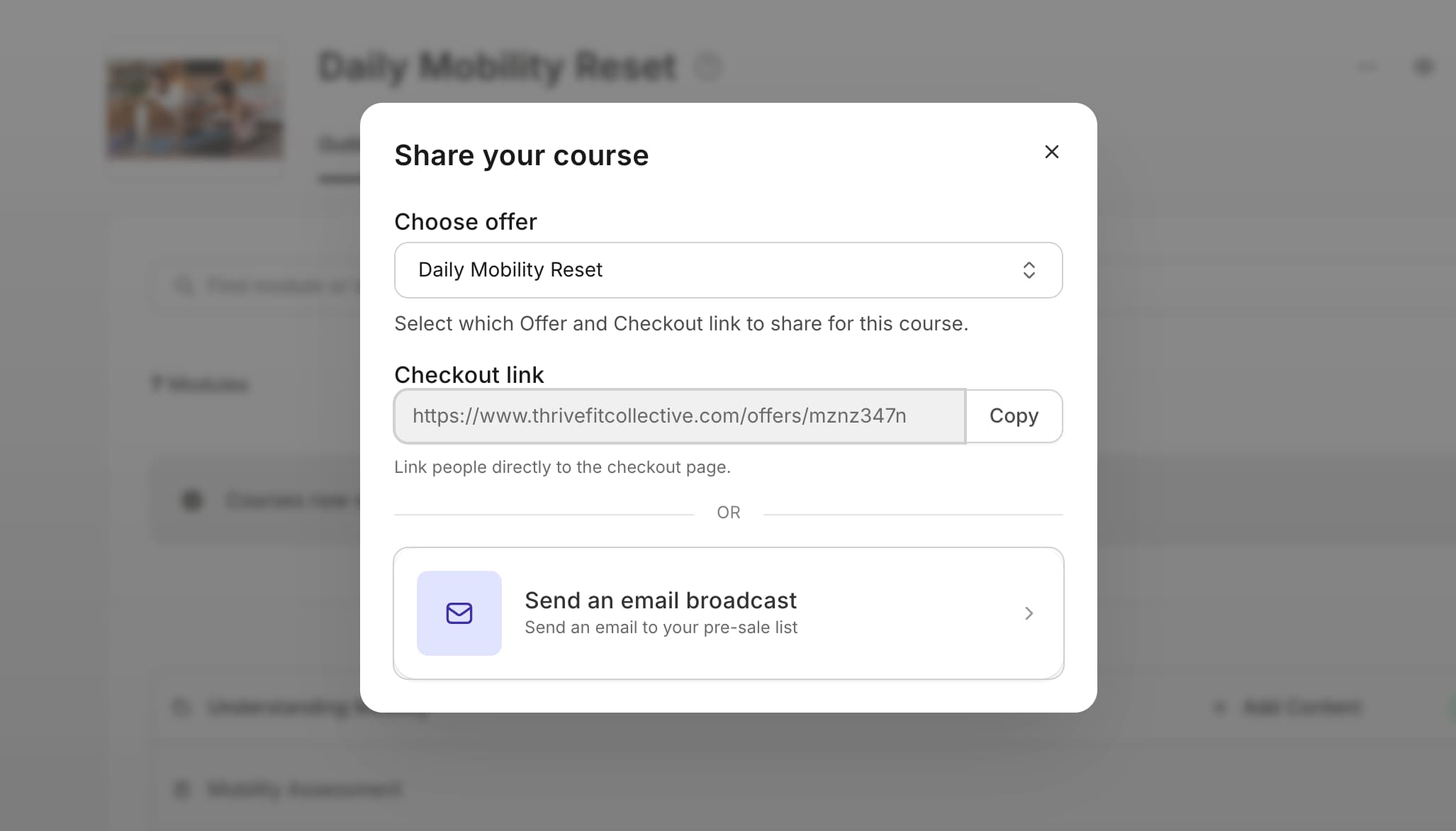 With the Checkout link, your audience can use this to purchase your offer.
[Learn more about what happens after a customer purchases your offer.](../../sales/offers/what-happens-when-a-customer-purchases-my-offer)
With the Checkout link, your audience can use this to purchase your offer.
[Learn more about what happens after a customer purchases your offer.](../../sales/offers/what-happens-when-a-customer-purchases-my-offer)