> ## Documentation Index
> Fetch the complete documentation index at: https://developers.kajabi.com/llms.txt
> Use this file to discover all available pages before exploring further.
# Change the text for Upsell and Downsell Offers
> Create a custom message for Upsell and Downsell Offers that aligns with your brand and language.
Create the best checkout experience for your customers by creating a custom message for your **Upsell and Downsell Offers** that best aligns with your brand and language.
## Edit the purchase button text
Clearly communicate the option to purchase your [Upsell](/articles/sales/offers/how-to-add-and-remove-upsells-and-downsells) or [Downsell](/articles/sales/offers/how-to-add-and-edit-a-downsell) Offer with your unique brand and language by editing the purchase button text on your Upsell or Downsell Offer page.
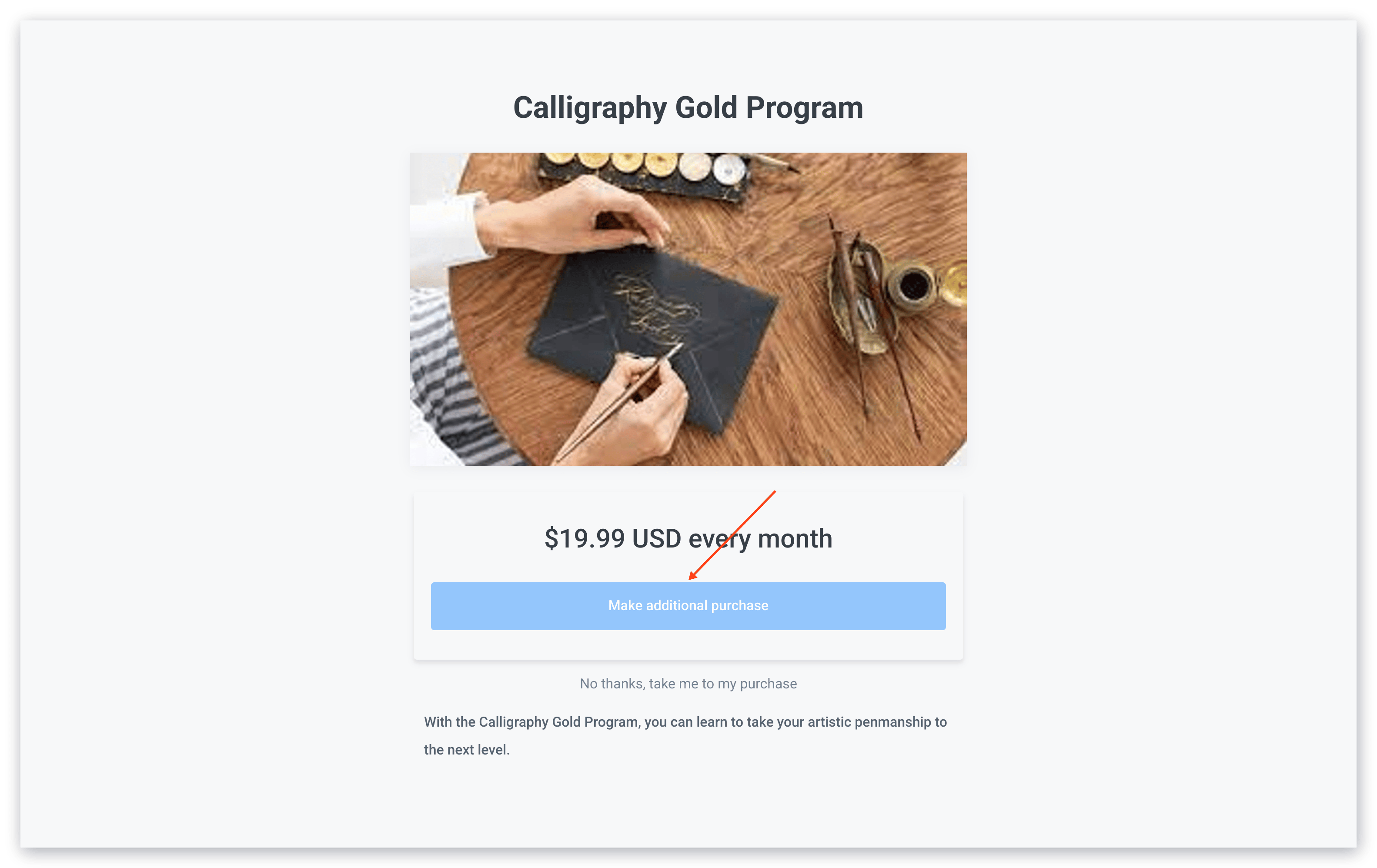
### What is the purchase button text?
The purchase button in the Upsell and Downsell page is used to communicate to your customer the option to make an additional purchase along with their original purchase:
 [Learn more about Upsells](/articles/sales/offers/how-to-add-and-remove-upsells-and-downsells#h_85759d1e-4803-47b4-9690-69d5675d9536).
1. Open the **Sales** tab from your Dashboard.
2. Click **Offers**.
3. Select the **Offer** your Upsell Offer is connected to.
4. Select the **Upsells** tab.
5. Click the **title of your Upsell** or **Downsell Offer**.
6. Navigate to the **Purchase button text** field.
7. Enter your desired text.
8. Click **Save** to keep and apply your changes.
[Learn more about Upsells](/articles/sales/offers/how-to-add-and-remove-upsells-and-downsells#h_85759d1e-4803-47b4-9690-69d5675d9536).
1. Open the **Sales** tab from your Dashboard.
2. Click **Offers**.
3. Select the **Offer** your Upsell Offer is connected to.
4. Select the **Upsells** tab.
5. Click the **title of your Upsell** or **Downsell Offer**.
6. Navigate to the **Purchase button text** field.
7. Enter your desired text.
8. Click **Save** to keep and apply your changes.
After editing your Upsell Offer, be sure to enable your Upsell Offer by toggling it to Active status. [Learn more](/articles/sales/offers/how-to-add-and-remove-upsells-and-downsells#h_7477d196-8d49-4ec7-b304-2e547f91b339)
## Edit the cancel button text
Set expectations for your customers if they choose to decline your [Upsell](/articles/sales/offers/how-to-add-and-remove-upsells-and-downsells) or [Downsell](/articles/sales/offers/how-to-add-and-edit-a-downsell) Offer. Clearly communicate the option not to purchase your Upsell Offer with your unique brand and language by editing the cancel button text on your Upsell Offer page.
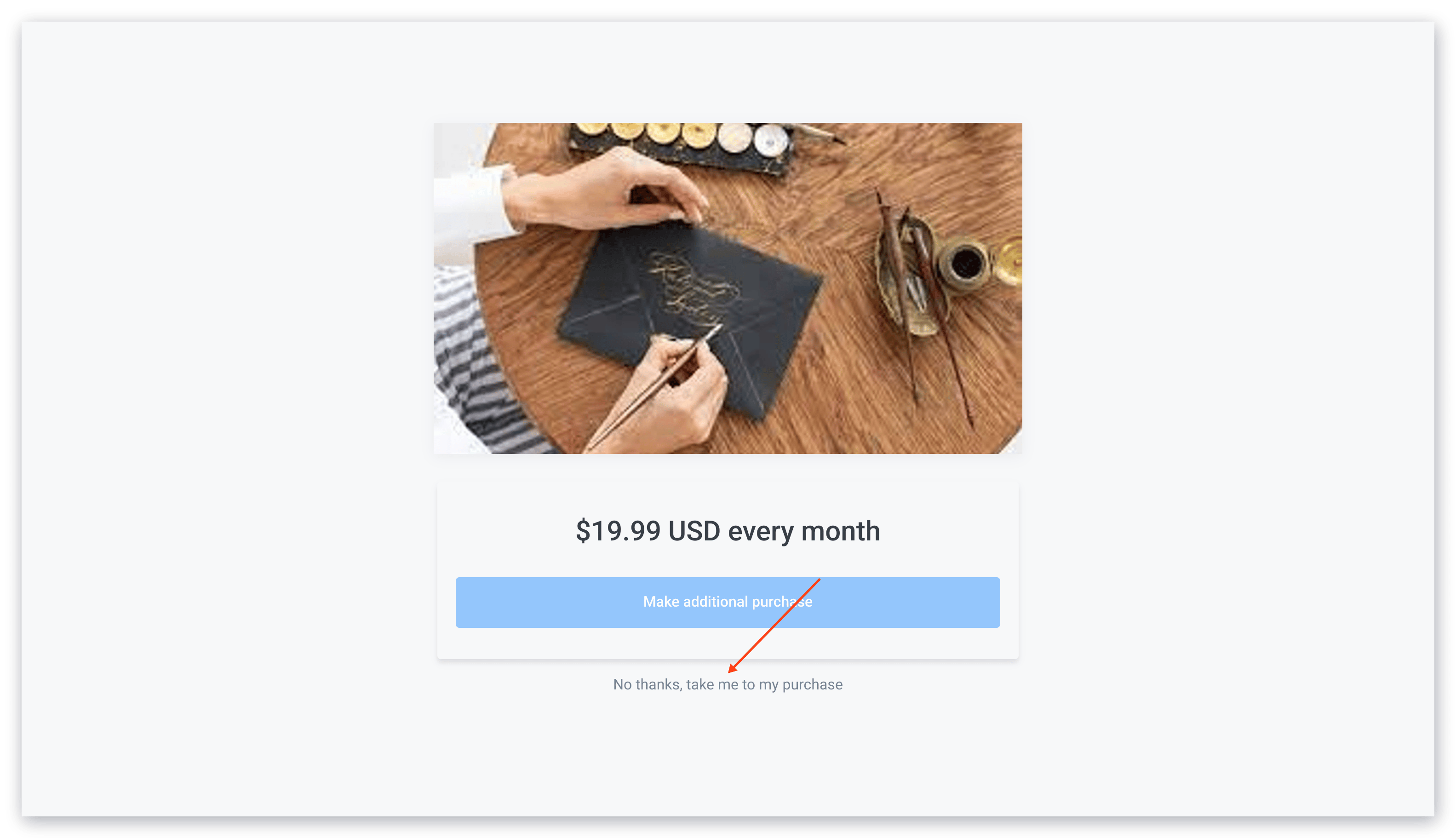
### What is the cancel button text?
The cancel button on the Upsell and Downsell Offer page allows your customers to decline the option to purchase your Upsell or Downsell Offer:
 [Learn more about Upsells](/articles/sales/offers/how-to-add-and-remove-upsells-and-downsells#h_85759d1e-4803-47b4-9690-69d5675d9536).
1. Open the **Sales** tab from your Dashboard.
2. Click **Offers**.
3. Select the **Offer** your Upsell Offer is connected to.
4. Select the **Upsells** tab.
5. Click the **title of your Upsell** or **Downsell Offer**.
6. Navigate to the **Cancel button text** field.
7. Enter your desired text.
8. Click **Save** to keep and apply your changes.
[Learn more about Upsells](/articles/sales/offers/how-to-add-and-remove-upsells-and-downsells#h_85759d1e-4803-47b4-9690-69d5675d9536).
1. Open the **Sales** tab from your Dashboard.
2. Click **Offers**.
3. Select the **Offer** your Upsell Offer is connected to.
4. Select the **Upsells** tab.
5. Click the **title of your Upsell** or **Downsell Offer**.
6. Navigate to the **Cancel button text** field.
7. Enter your desired text.
8. Click **Save** to keep and apply your changes.
After editing your Upsell or Downsell Offer, be sure to enable your Offer by activating it. [Learn more](/articles/sales/offers/how-to-add-and-remove-upsells-and-downsells#h_7477d196-8d49-4ec7-b304-2e547f91b339)