> ## Documentation Index
> Fetch the complete documentation index at: https://developers.kajabi.com/llms.txt
> Use this file to discover all available pages before exploring further.
# Create a free Offer
> Provide free resources, content, and services to customers with a free Offer.
Create a **free Offer** to provide free resources, content, services, and more to your customers. A free offer grants access to your product at no charge. The checkout page collects the customer's email and creates their account but skips all payment fields.
**Note:** Even though no payment is collected, customers must still complete the checkout form to be granted access. You cannot bypass the checkout step for free offers.
## Edit the payment type of your Offer
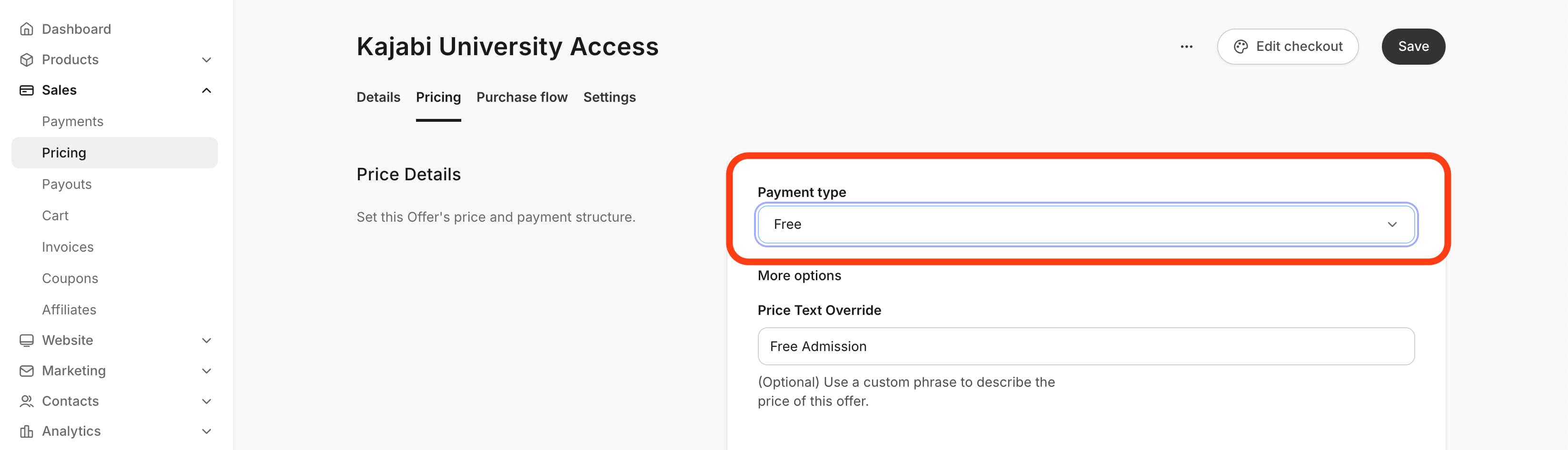
1. From the Kajabi Dashboard, go to **Sales** > **Pricing**.
2. Select the Offer you wish to edit or [create a new one](/articles/sales/offers/create-an-offer).
3. In the Offer Editor, click **Pricing.**
4. Navigate to the Price Details section.
5. Then, under **Payment type**, select **Free.**
6. Be sure to click **Save** to keep and apply your changes.
 **Tip:** Give access to your Product(s) and services for free by creating a free Offer or by [Granting an Offer](/articles/sales/offers/how-to-grant-an-offer). Free Offers and Granted Offers ultimately give access to your content for free, but free Offer purchases will go through the [Offer Checkout process](/articles/sales/offers/what-happens-when-a-customer-purchases-my-offer) whereas a Granted Offer will simply send the [Offer Confirmation Email and the Member Welcome Email](/articles/account-settings/notifications/edit-automated-email-notifications) if the customer is subscribed to receive your marketing emails. Be sure to set up the Offer that best fits your business.
## Customize the free Offer
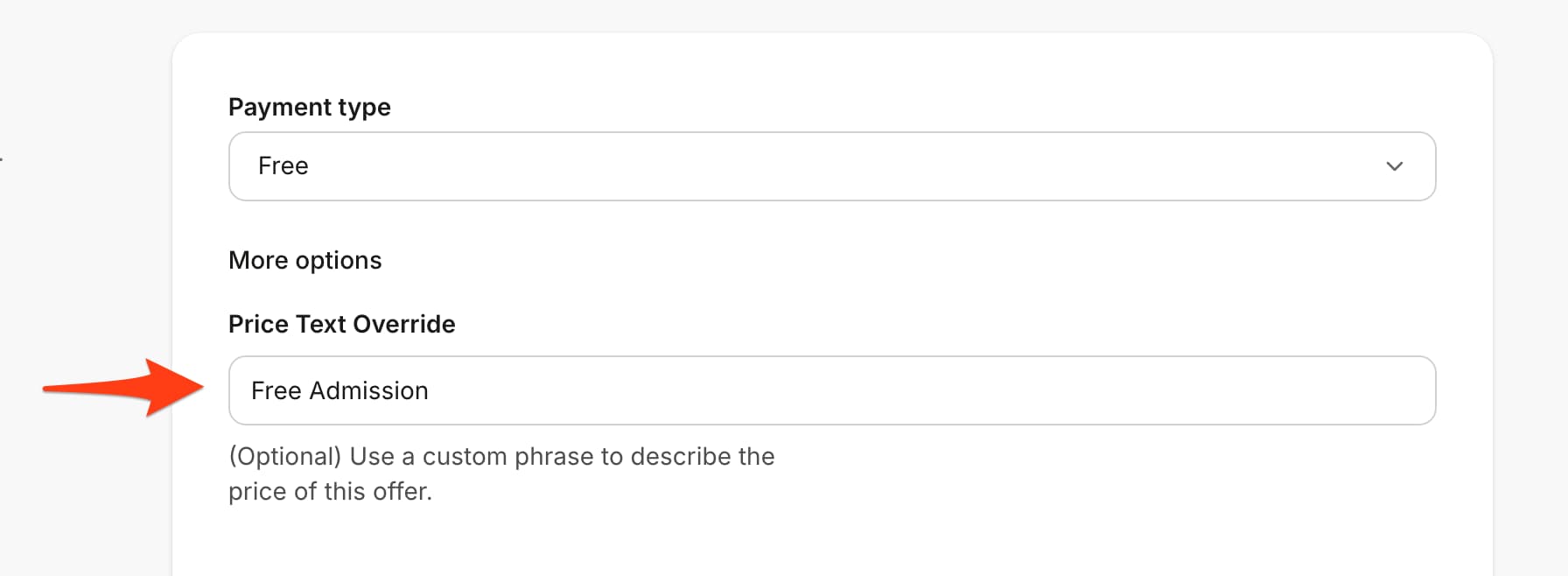
If the Offer Pricing Option selected is Free, there are no additional fields to be edited. Instead, you have the option to override the default Price text.
If you wish to edit the text describing the Price for the Offer, enter a custom phrase to describe the price in the **Price text override** field:
**Tip:** Give access to your Product(s) and services for free by creating a free Offer or by [Granting an Offer](/articles/sales/offers/how-to-grant-an-offer). Free Offers and Granted Offers ultimately give access to your content for free, but free Offer purchases will go through the [Offer Checkout process](/articles/sales/offers/what-happens-when-a-customer-purchases-my-offer) whereas a Granted Offer will simply send the [Offer Confirmation Email and the Member Welcome Email](/articles/account-settings/notifications/edit-automated-email-notifications) if the customer is subscribed to receive your marketing emails. Be sure to set up the Offer that best fits your business.
## Customize the free Offer
If the Offer Pricing Option selected is Free, there are no additional fields to be edited. Instead, you have the option to override the default Price text.
If you wish to edit the text describing the Price for the Offer, enter a custom phrase to describe the price in the **Price text override** field:
 After completing your Offer, edit and preview your Checkout Page. [Learn more](/articles/sales/checkout/customize-your-checkout-page)
**Note:** Free Offers cannot include an Upsell Offer. Add an Upsell to [Offers with a price](/articles/sales/offers/how-to-create-a-pricing-plan-for-your-offer) to encourage your customers to purchase additional Offers. [Learn how Upsells work](/articles/sales/offers/upsells-overview)
## **Customize free trial offers**
A free trial gives customers access for a set period before billing begins.
1. From the Kajabi Dashboard, go to **Sales** > **Pricing**.
2. Select the Offer you wish to edit or [create a new one](/articles/sales/offers/create-an-offer).
3. In the Offer Editor, click **Pricing.**
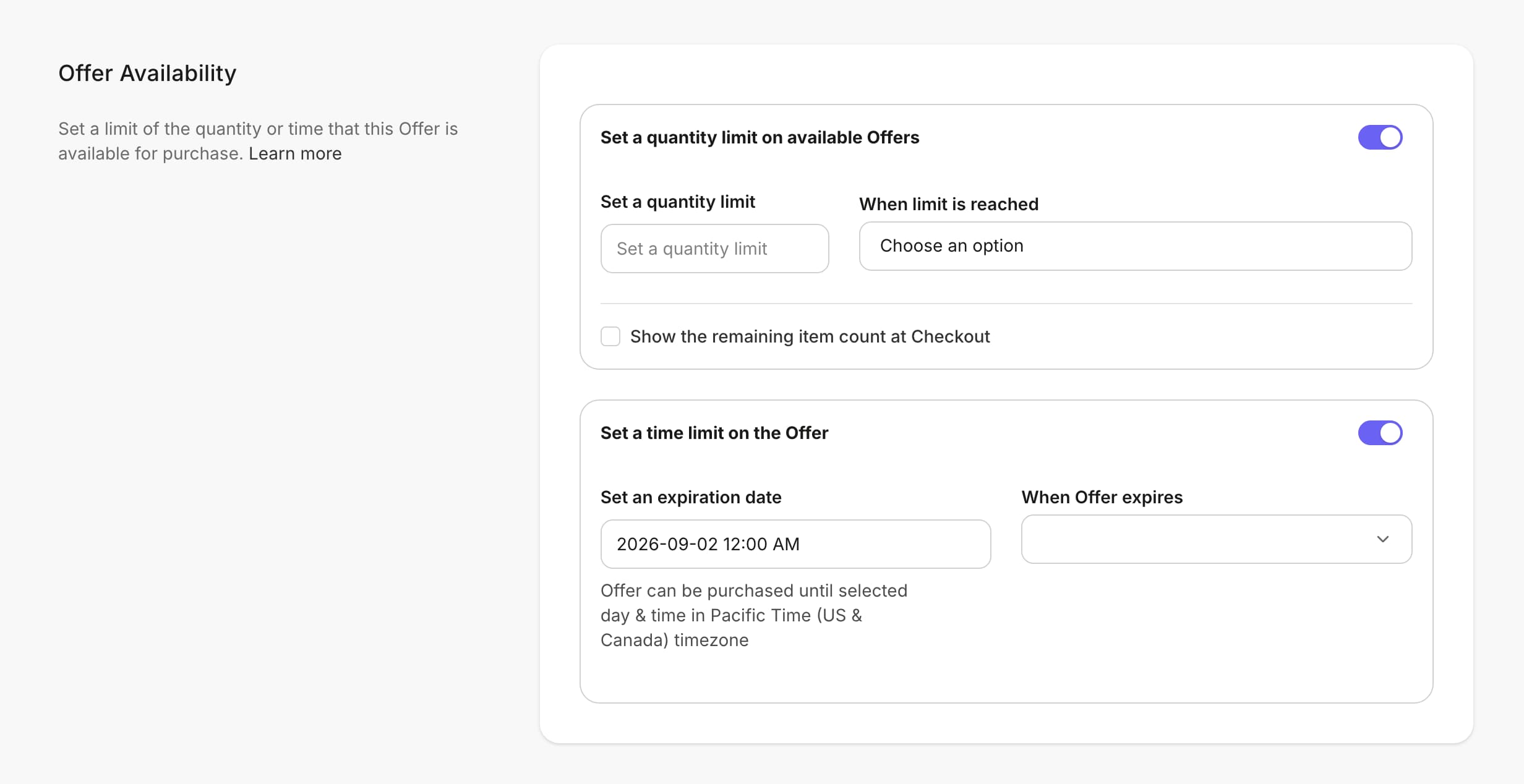
4. Navigate to the Offer availability section.
5. Set a quantity or time limit for the Offer.
After completing your Offer, edit and preview your Checkout Page. [Learn more](/articles/sales/checkout/customize-your-checkout-page)
**Note:** Free Offers cannot include an Upsell Offer. Add an Upsell to [Offers with a price](/articles/sales/offers/how-to-create-a-pricing-plan-for-your-offer) to encourage your customers to purchase additional Offers. [Learn how Upsells work](/articles/sales/offers/upsells-overview)
## **Customize free trial offers**
A free trial gives customers access for a set period before billing begins.
1. From the Kajabi Dashboard, go to **Sales** > **Pricing**.
2. Select the Offer you wish to edit or [create a new one](/articles/sales/offers/create-an-offer).
3. In the Offer Editor, click **Pricing.**
4. Navigate to the Offer availability section.
5. Set a quantity or time limit for the Offer.
 ### **How billing works at trial end**
When the trial period ends, Kajabi automatically charges the customer's stored payment method. The customer must provide payment details at checkout even though they are not charged immediately.
### **Cancelling during a trial**
If a customer cancels their subscription during the trial period, their access continues until the trial end date. They are not charged. Access is revoked at the end of the trial period, not immediately on cancellation.
### **If payment fails at trial end**
If the charge fails (declined card, expired card), Kajabi will retry the payment. If all retries fail, the subscription is cancelled and access is revoked. The customer receives an email notification about the failed charge.
### **Displaying pricing on trial offer checkouts**
The checkout page shows the trial price (\$0 or trial terms) and the post-trial price. Both are displayed so customers understand what they'll be charged after the trial ends.
### **How billing works at trial end**
When the trial period ends, Kajabi automatically charges the customer's stored payment method. The customer must provide payment details at checkout even though they are not charged immediately.
### **Cancelling during a trial**
If a customer cancels their subscription during the trial period, their access continues until the trial end date. They are not charged. Access is revoked at the end of the trial period, not immediately on cancellation.
### **If payment fails at trial end**
If the charge fails (declined card, expired card), Kajabi will retry the payment. If all retries fail, the subscription is cancelled and access is revoked. The customer receives an email notification about the failed charge.
### **Displaying pricing on trial offer checkouts**
The checkout page shows the trial price (\$0 or trial terms) and the post-trial price. Both are displayed so customers understand what they'll be charged after the trial ends.