> ## Documentation Index
> Fetch the complete documentation index at: https://developers.kajabi.com/llms.txt
> Use this file to discover all available pages before exploring further.
# Upsells overview
> Create reusable Upsell pages, attach them to multiple Offers, and track performance with built-in analytics.
**Upsells** let you present additional purchase opportunities to customers immediately after checkout, increasing the average value of every order without building a new page from scratch each time. If you used Upsells before the rebuilt experience launched, your existing Upsells were automatically migrated and now work the same reusable way described below.
## Key benefits
* **Fully customizable Upsell pages**: Built and styled in the same Builder you use for your site and checkout pages, with full control over layout, sections, spacing, and content.
* **Reusable across Offers**: Create an Upsell once and attach it to multiple Offers. Edits apply everywhere it's used.
* **Built-in analytics**: View purchases, conversion rate, and revenue at a glance on the Upsells tab or within each individual Upsell.
## How Upsells work
Upsells are created once and reused across your Offers. The same Upsell can serve as either an Upsell or a Downsell, depending on where it appears in your Upsell Funnel. Downsells are not created or managed separately. They are Upsells shown after a previous Upsell is declined.
## How Upsell Funnels work
After a customer completes a purchase, you can guide them through a series of Upsells.
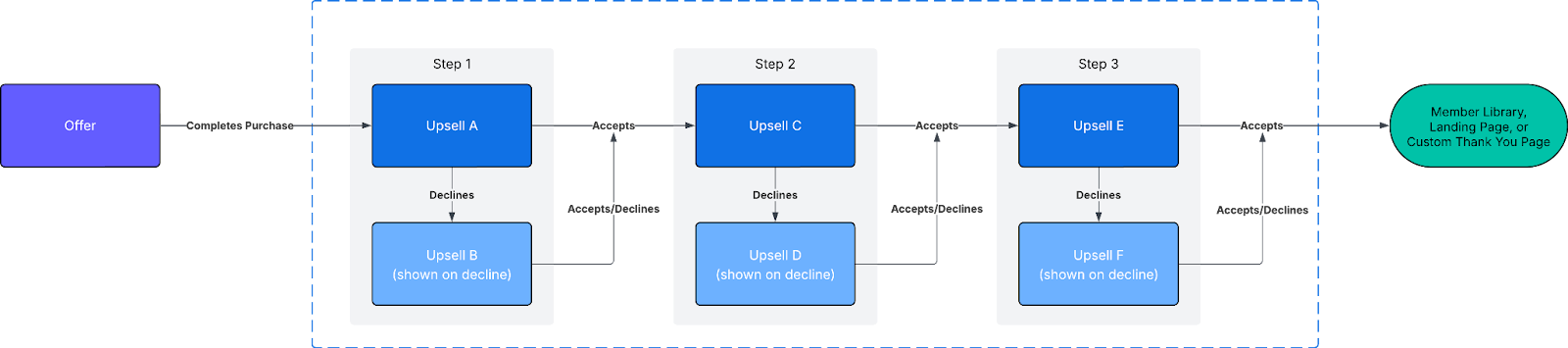
Each step shows an Upsell. If the customer declines, you can optionally add another Upsell as a Downsell before continuing to the next step.
The same Upsell can be reused across different funnels, but it can only appear once within a single funnel.
Here is an example of a three-step Upsell Funnel with Downsells at each step:
 ## Create an Upsell
1. From the Dashboard, click **Sales**, then click **Pricing.**
2. Click the **Upsells** tab.
3. Click **New Upsell.**
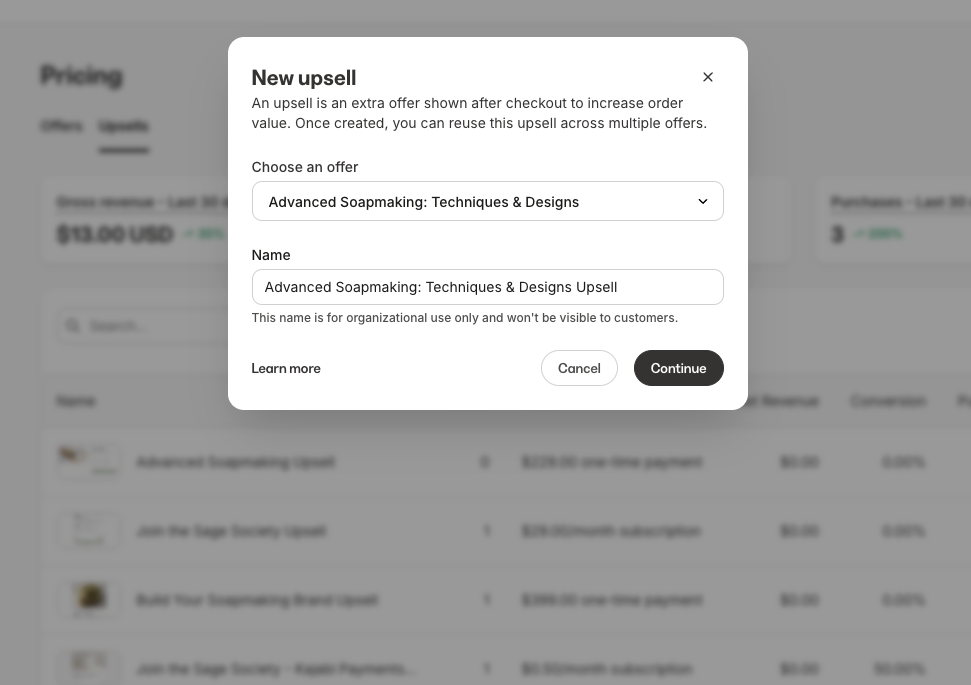
4. Name your Upsell and configure the pricing details.
5. Under the active template, click **Customize** to edit the page layout, content, and branding in the Builder.
6. Save your changes.
## Create an Upsell
1. From the Dashboard, click **Sales**, then click **Pricing.**
2. Click the **Upsells** tab.
3. Click **New Upsell.**
4. Name your Upsell and configure the pricing details.
5. Under the active template, click **Customize** to edit the page layout, content, and branding in the Builder.
6. Save your changes.
 **Warning:** Because Upsells are reusable, any edits you make to an Upsell page apply everywhere that Upsell is used. If you need different content for a specific Offer, create a separate Upsell.
## Add a discount to an Upsell
Offer an upsell at a reduced price, without changing the Offer's regular price anywhere else. The discounted price shows on the Upsell page and is what the customer is charged if they accept.
Discounts are added when editing an existing Upsell. If you're creating a new Upsell, save it first, then reopen it to add a discount.
### Enable an Upsell discount
1. From the Dashboard, click **Sales**, then click **Pricing.**
2. Click the **Upsells** tab, then open the Upsell you want to edit.
3. In the **Details** section, confirm an Offer is selected.
4. Turn on the **Apply discount** toggle.
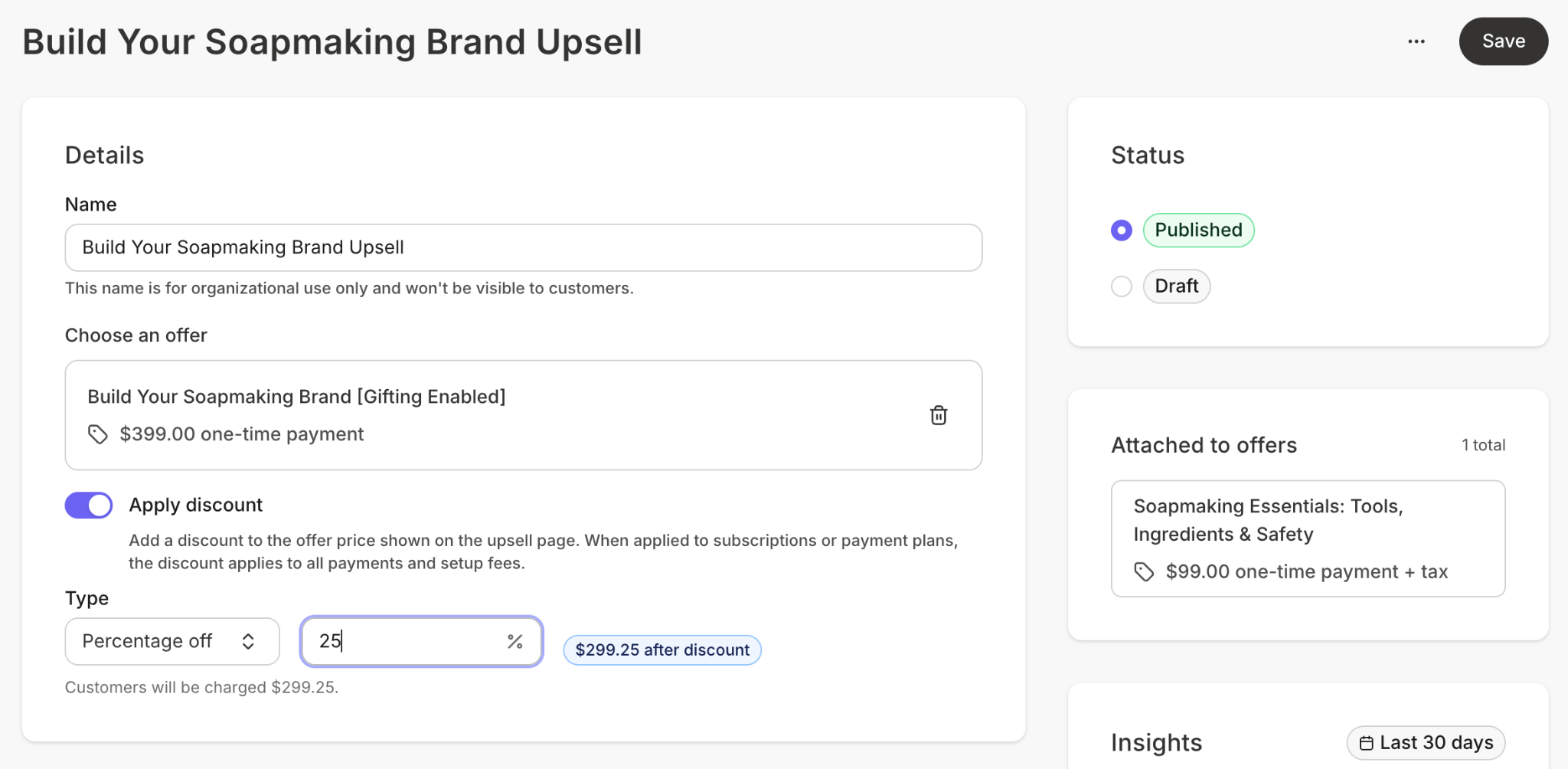
5. Enter a **Discount** percentage between 1 and 99.
6. Save your changes.
As you enter a valid percentage, a preview shows the discounted price so you can confirm the amount before saving.
**Warning:** Because Upsells are reusable, any edits you make to an Upsell page apply everywhere that Upsell is used. If you need different content for a specific Offer, create a separate Upsell.
## Add a discount to an Upsell
Offer an upsell at a reduced price, without changing the Offer's regular price anywhere else. The discounted price shows on the Upsell page and is what the customer is charged if they accept.
Discounts are added when editing an existing Upsell. If you're creating a new Upsell, save it first, then reopen it to add a discount.
### Enable an Upsell discount
1. From the Dashboard, click **Sales**, then click **Pricing.**
2. Click the **Upsells** tab, then open the Upsell you want to edit.
3. In the **Details** section, confirm an Offer is selected.
4. Turn on the **Apply discount** toggle.
5. Enter a **Discount** percentage between 1 and 99.
6. Save your changes.
As you enter a valid percentage, a preview shows the discounted price so you can confirm the amount before saving.
 ### What customers see
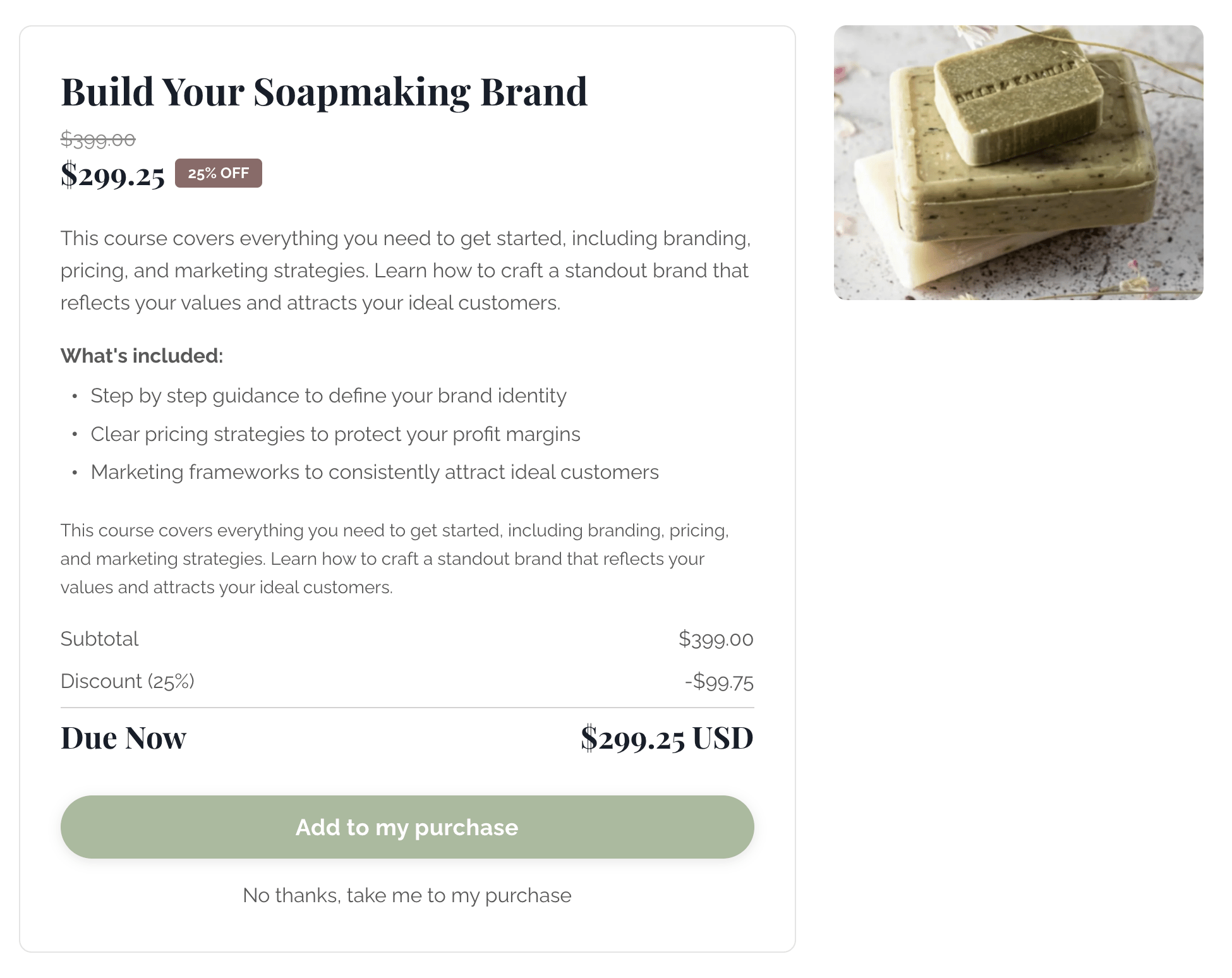
On the Upsell page, the original price appears crossed out, the discounted price shows as the headline, and a badge such as **25% OFF** appears next to it. The order summary lists the subtotal, the discount as a credit, and the discounted total due now. On receipts and in purchase history, the saving appears as **Discount**.
### What customers see
On the Upsell page, the original price appears crossed out, the discounted price shows as the headline, and a badge such as **25% OFF** appears next to it. The order summary lists the subtotal, the discount as a credit, and the discounted total due now. On receipts and in purchase history, the saving appears as **Discount**.
 The badge automatically uses your site's primary color; update your site's primary color settings to change it.
The discount is applied to the price automatically. There's no code for the customer to enter, and it can't be combined with a coupon at checkout. It also doesn't appear in **Marketing > Coupons** or anywhere you manage coupons; you change or remove it by editing the Upsell.
**Note:** A discount can't reduce a charge below \$0.50.
### Customize the discount text
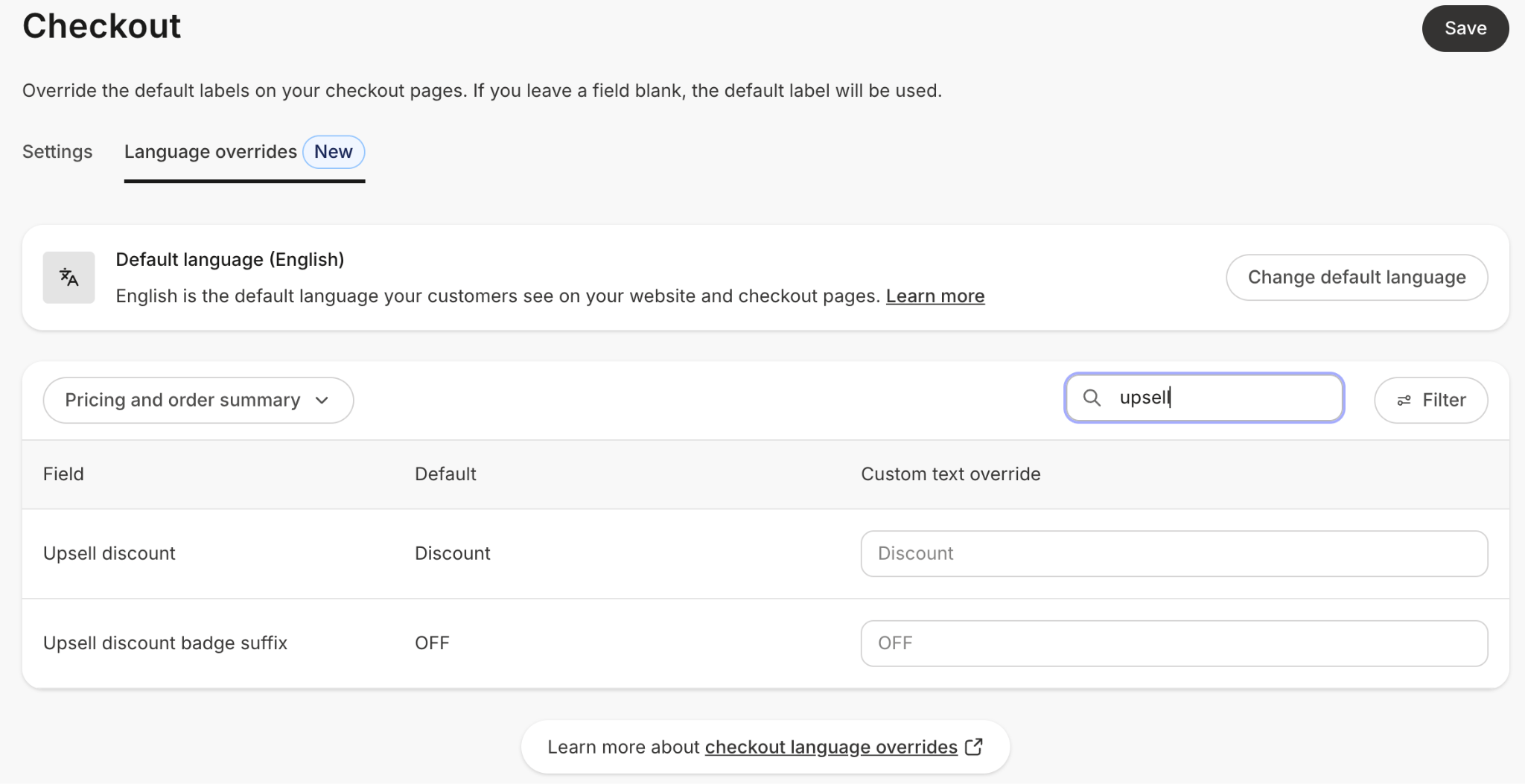
Two pieces of the discount display follow your site's language settings by default, and you can override either one from your checkout language overrides:
* **Discount**: The label on the discount line in the order summary.
* **OFF**: The suffix on the badge (for example, 25% OFF).
To change the wording or set your own translation:
1. From the Dashboard, click **Settings**, then click **Checkout**, then click the **Language overrides** tab.
2. Find the **Upsell discount** field (the order-summary label) or the **Upsell discount badge suffix** field (the badge suffix).
3. Enter your preferred text, or leave it off to use the default.
The badge automatically uses your site's primary color; update your site's primary color settings to change it.
The discount is applied to the price automatically. There's no code for the customer to enter, and it can't be combined with a coupon at checkout. It also doesn't appear in **Marketing > Coupons** or anywhere you manage coupons; you change or remove it by editing the Upsell.
**Note:** A discount can't reduce a charge below \$0.50.
### Customize the discount text
Two pieces of the discount display follow your site's language settings by default, and you can override either one from your checkout language overrides:
* **Discount**: The label on the discount line in the order summary.
* **OFF**: The suffix on the badge (for example, 25% OFF).
To change the wording or set your own translation:
1. From the Dashboard, click **Settings**, then click **Checkout**, then click the **Language overrides** tab.
2. Find the **Upsell discount** field (the order-summary label) or the **Upsell discount badge suffix** field (the badge suffix).
3. Enter your preferred text, or leave it off to use the default.
 ## View Upsells
All of your Upsells are centrally managed from one place:
1. From the Dashboard, click **Sales**, then click **Pricing.**
2. Click the **Upsells** tab.
3. Click into an Upsell and review the details.
4. Click **Preview** to see how it appears to customers.
Any Upsells created before the rebuilt experience was enabled on your account have been automatically migrated.
## View Upsells
All of your Upsells are centrally managed from one place:
1. From the Dashboard, click **Sales**, then click **Pricing.**
2. Click the **Upsells** tab.
3. Click into an Upsell and review the details.
4. Click **Preview** to see how it appears to customers.
Any Upsells created before the rebuilt experience was enabled on your account have been automatically migrated.
 ## Customize an Upsell page
1. From the Dashboard, click **Sales**, then click **Pricing**, then click the **Upsells** tab.
2. Open the Upsell you want to customize.
3. Under the active template, click **Customize.**
4. Adjust layout, add sections or blocks, and refine branding directly in the Builder.
5. Save your changes. Updates apply everywhere this Upsell is used.
## Customize an Upsell page
1. From the Dashboard, click **Sales**, then click **Pricing**, then click the **Upsells** tab.
2. Open the Upsell you want to customize.
3. Under the active template, click **Customize.**
4. Adjust layout, add sections or blocks, and refine branding directly in the Builder.
5. Save your changes. Updates apply everywhere this Upsell is used.
 **Note:** If you have a description added in your Offer, it will also display under the body text in the Upsell editor.
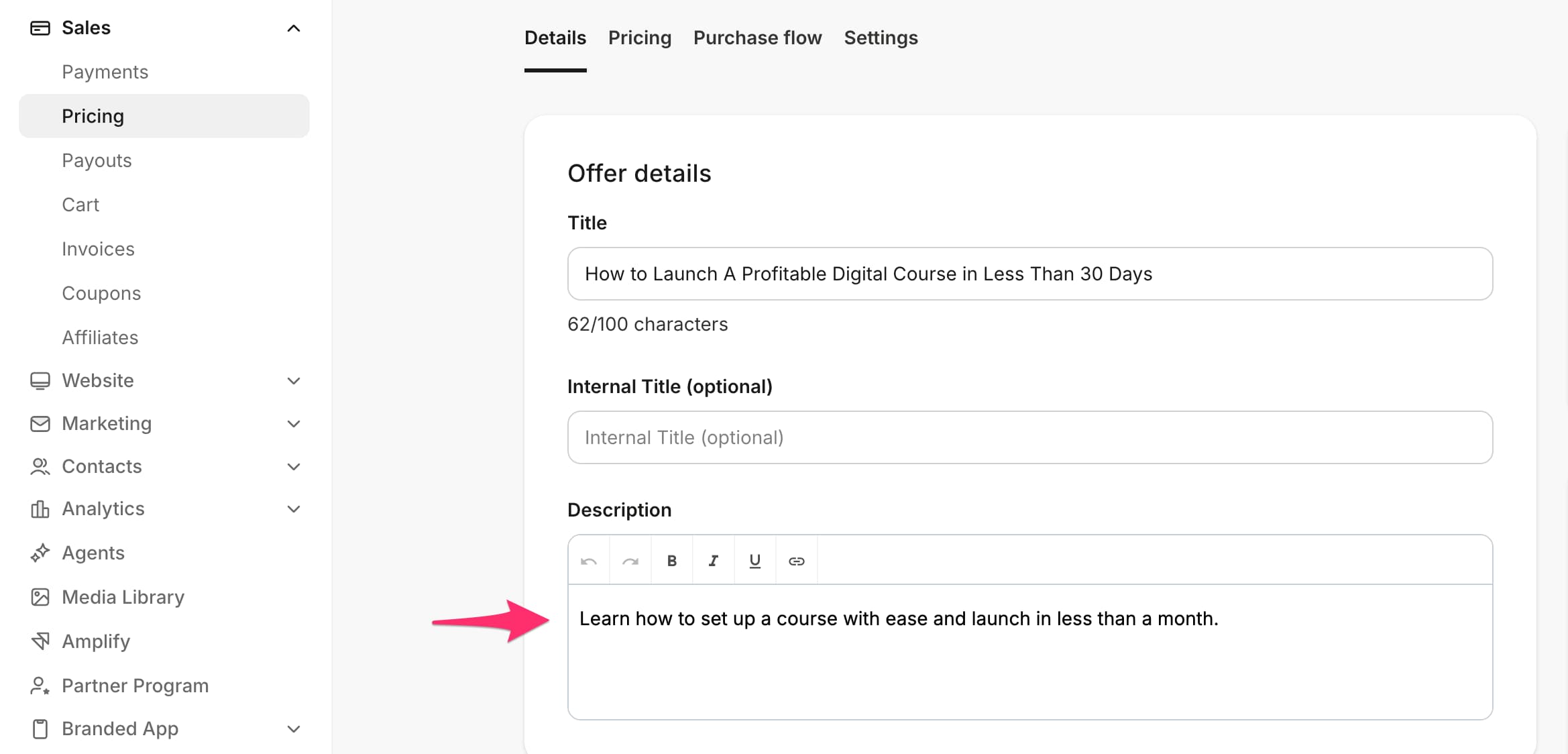
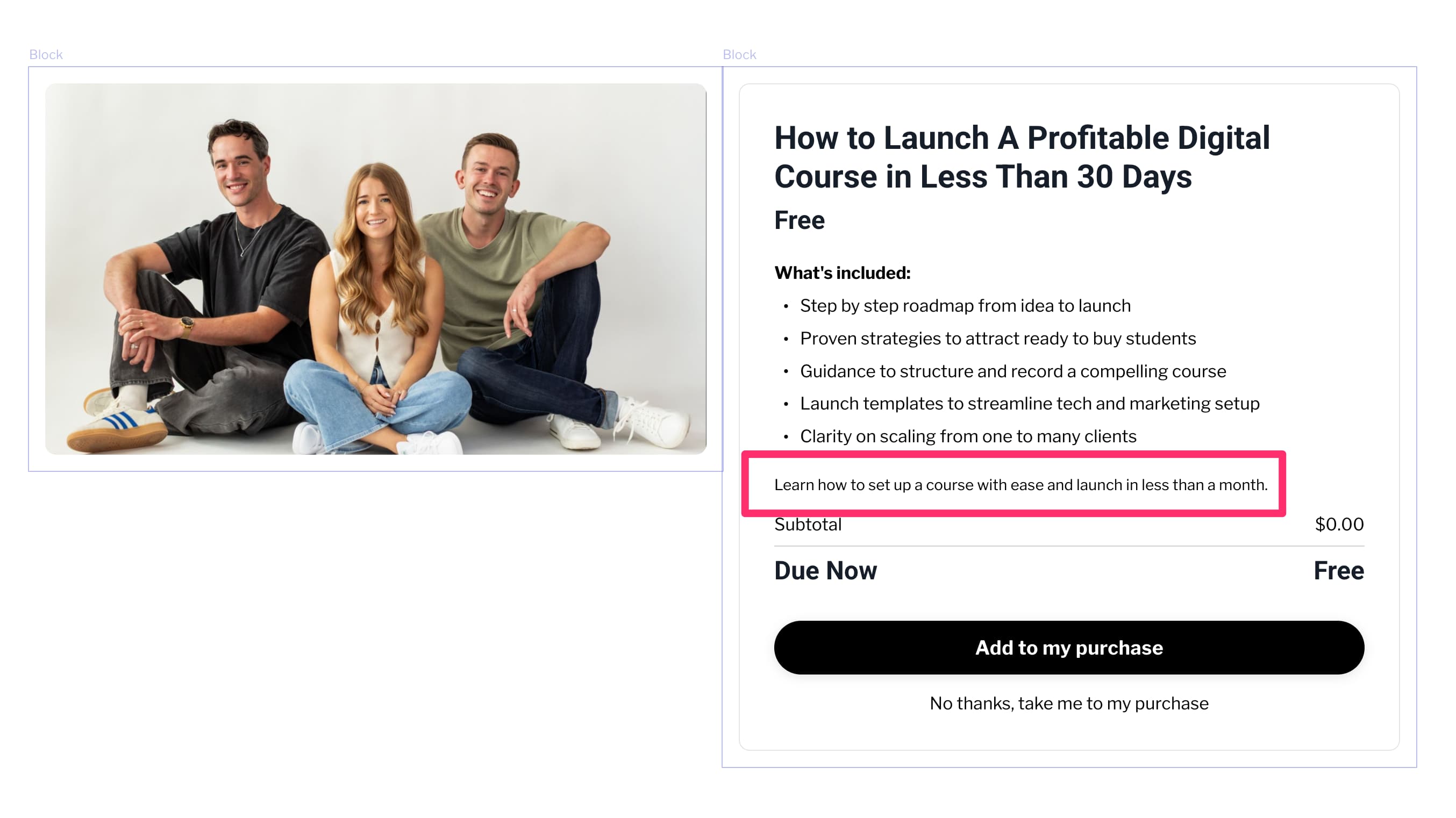 To customize the description that appears here, edit the description of the Offer itself.
1. From the Dashboard, click **Sales**, then click **Pricing.**
2. Select your Offer.
3. Click **Details.**
To customize the description that appears here, edit the description of the Offer itself.
1. From the Dashboard, click **Sales**, then click **Pricing.**
2. Select your Offer.
3. Click **Details.**
 ## Manage Upsells within an Offer
1. From the Dashboard, click **Sales**, then click **Pricing**, then click **Offers.**
2. Select the Offer you want to manage.
3. Go to the **Purchase Flow** tab.
4. Scroll to **Upsell Funnel.**
5. Add Upsells, add Downsell pages, and reorder steps using drag and drop.
## Manage Upsells within an Offer
1. From the Dashboard, click **Sales**, then click **Pricing**, then click **Offers.**
2. Select the Offer you want to manage.
3. Go to the **Purchase Flow** tab.
4. Scroll to **Upsell Funnel.**
5. Add Upsells, add Downsell pages, and reorder steps using drag and drop.
 For step-by-step instructions on adding Upsells to your purchase flow, reordering steps, and configuring Downsells, see [Manage Upsells in the Purchase Flow.](/articles/sales/offers/manage-upsells-in-the-purchase-flow)
## View Upsell analytics
You can view performance across all your Upsells at a glance on the **Upsells** tab, or click into any individual Upsell to see metrics for that specific Upsell. Metrics include purchases, conversion rate, and revenue.
For deeper performance data over time, see [Upsell Purchases Over Time.](/articles/analytics/report-upsell-purchases-over-time)
For step-by-step instructions on adding Upsells to your purchase flow, reordering steps, and configuring Downsells, see [Manage Upsells in the Purchase Flow.](/articles/sales/offers/manage-upsells-in-the-purchase-flow)
## View Upsell analytics
You can view performance across all your Upsells at a glance on the **Upsells** tab, or click into any individual Upsell to see metrics for that specific Upsell. Metrics include purchases, conversion rate, and revenue.
For deeper performance data over time, see [Upsell Purchases Over Time.](/articles/analytics/report-upsell-purchases-over-time)
 **Note:** Analytics began collecting data from the time the rebuilt system was enabled, around April 2026, and do not include historical data.
## FAQs
### Will my live Upsell flows be disrupted?
No. Customer-facing Upsell pages continue to function as expected. The update only affects how Upsells are managed on your end.
### Where did the Cross-Selling tab go?
It has been renamed to **Purchase Flow** and is still found within each individual Offer. It includes all post-purchase actions: Upsell Funnel, Post-Purchase Page, Emails, and Automations.
### What is the difference between an Upsell and an Order Bump?
An Upsell is presented after a customer completes checkout, as part of a post-purchase funnel. An Order Bump appears on the checkout page itself as an add-on option before the customer submits payment. Both increase average order value, but they appear at different points in the purchase experience.
### Are Upsells and Order Bumps processed as one transaction?
No. If a customer accepts an Upsell, it is processed as a separate transaction from the original purchase, using the same payment method. Order Bumps are added directly at checkout and processed as part of the original transaction.
### If a customer already owns an Offer contained within an Upsell, will they still see the Upsell flow during checkout?
No. If the customer already owns the Offer, they will not be presented with any Upsells that contain that Offer.
**Note:** Analytics began collecting data from the time the rebuilt system was enabled, around April 2026, and do not include historical data.
## FAQs
### Will my live Upsell flows be disrupted?
No. Customer-facing Upsell pages continue to function as expected. The update only affects how Upsells are managed on your end.
### Where did the Cross-Selling tab go?
It has been renamed to **Purchase Flow** and is still found within each individual Offer. It includes all post-purchase actions: Upsell Funnel, Post-Purchase Page, Emails, and Automations.
### What is the difference between an Upsell and an Order Bump?
An Upsell is presented after a customer completes checkout, as part of a post-purchase funnel. An Order Bump appears on the checkout page itself as an add-on option before the customer submits payment. Both increase average order value, but they appear at different points in the purchase experience.
### Are Upsells and Order Bumps processed as one transaction?
No. If a customer accepts an Upsell, it is processed as a separate transaction from the original purchase, using the same payment method. Order Bumps are added directly at checkout and processed as part of the original transaction.
### If a customer already owns an Offer contained within an Upsell, will they still see the Upsell flow during checkout?
No. If the customer already owns the Offer, they will not be presented with any Upsells that contain that Offer.