> ## Documentation Index
> Fetch the complete documentation index at: https://developers.kajabi.com/llms.txt
> Use this file to discover all available pages before exploring further.
# Add a Menu or User Menu block to a header
> Add a Menu block for site navigation or a User Menu block for account access to your page Header, and customize each block's alignment.
Your page Header can include a **Menu** block, a **User Menu** block, or both. A Menu block displays a navigation menu you've already built so visitors can explore your site. A User Menu block gives logged-in customers a quick way to log in, log out, and reach their Library and account settings — its own settings panel labels it **User Dropdown**.
**Note:** Don't confuse the User Menu block with the separate [Dropdown Menu block](/articles/website/pages/add-a-dropdown-menu-to-your-header), which displays a custom navigation dropdown rather than customer account options.
## Add a Menu block
1. From your Dashboard, click the **Website** tab.
2. Select the **Website Pages** or **Landing Pages** tab.
3. Open the [page editor](/articles/website/pages/how-to-get-to-the-page-editor) for your page.
4. Navigate to the sidebar panel and click **Header**.
5. Click **Add Block**.
6. Select **Menu.**
7. Open the **Menu** dropdown.
8. Select the menu you want to add to your Header.
**Note:** To create or edit the links in your menu, click **Edit link lists** below the Menu block heading in the sidebar editor. [Learn to build navigation menus](/articles/website/navigation/build-navigation-menus).
## Add a User Menu block
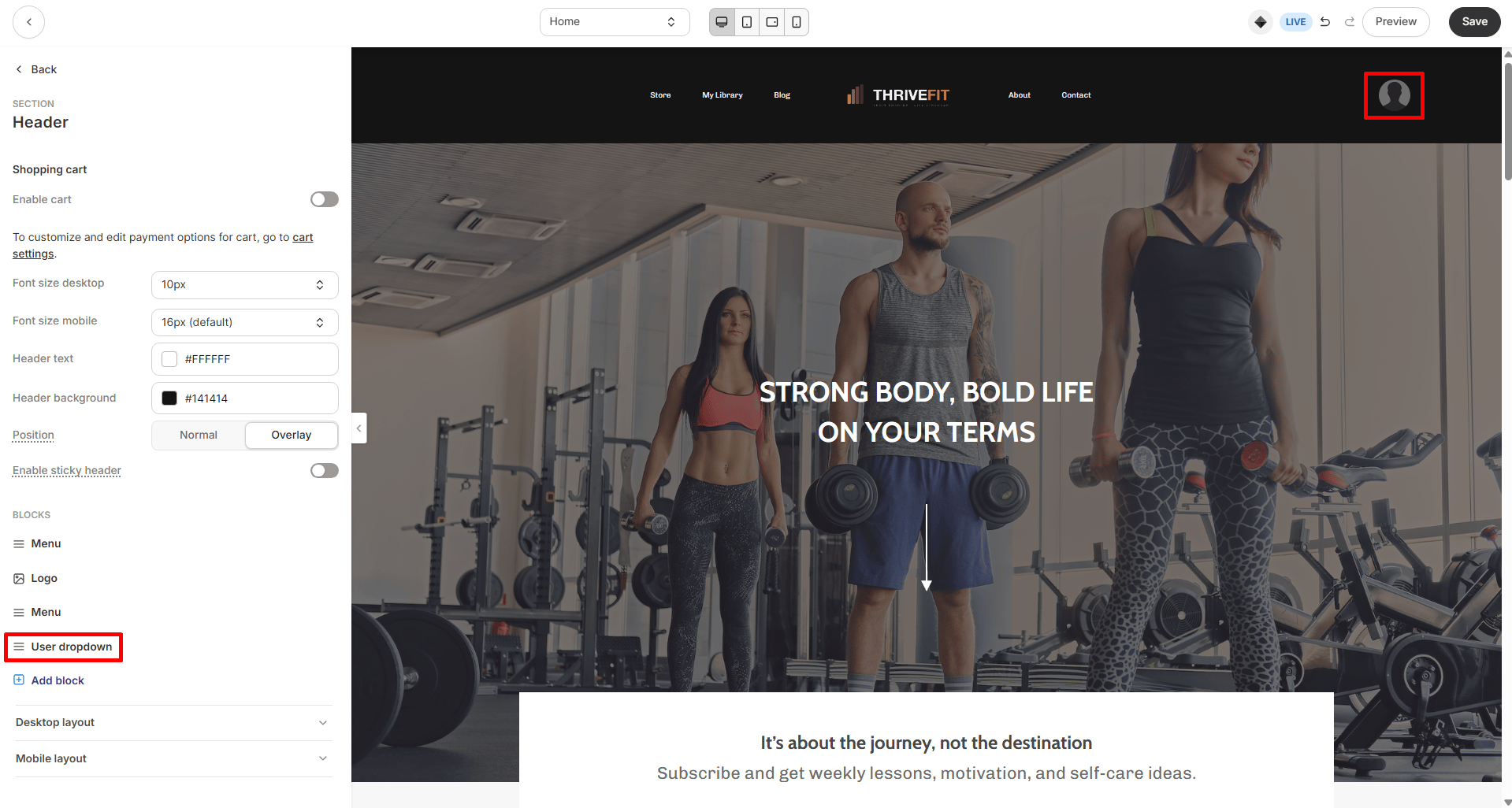
The User Menu block displays as your visitor's Avatar. When a page visitor clicks their Avatar, the dropdown opens so they can:
* Access their [Library](/articles/website/pages/customizing-your-library-page).
* View and edit their [customer settings](/articles/contacts/manage-your-contacts/customer-update-of-customer-settings#access-customer-settings).
* Log out of your site.
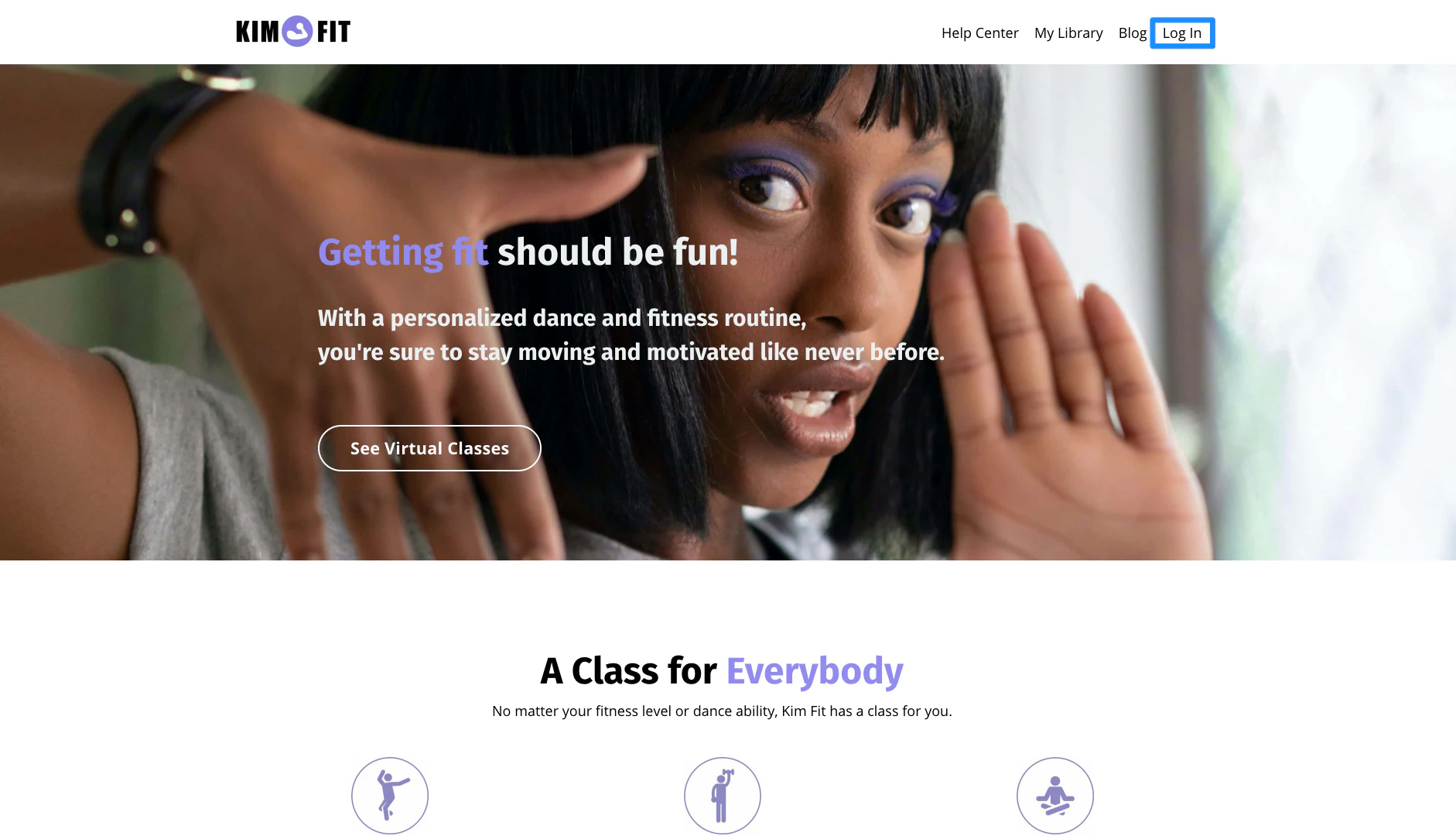
If a visitor hasn't logged in yet, the block shows a **Log In** link instead of the Avatar.
**Note:** Previewing your page as a logged-in Admin shows your uploaded Avatar (if you've uploaded one to your [Account Details](/articles/account-settings/my-kajabi/change-your-account-details)) or a default Avatar. Customers logged into your site see their own uploaded Avatar (if they uploaded one in their customer settings) or a default Avatar.
1. From your Dashboard, click the **Website** tab.
2. Select the **Website Pages** or **Landing Pages** tab.
3. Open the [page editor](/articles/website/pages/how-to-get-to-the-page-editor) for your page.
4. Navigate to the sidebar panel and click **Header**.
5. Click **Add Block**.
6. Select **User Menu.** Your Header now shows the User Menu block as your visitor's Avatar.
 ***
## Customize your header blocks
### Stretch block
**Note:** Only available with the Website Builder pages. [Learn more](/articles/website/pages/customizing-your-website-pages-with-the-website-builder)
Enable **Stretch Block** to fill the remaining space of the Header section.
A good rule for using Stretch Block is to enable it for the block on the far left of your Header. For example, if you want a Logo on the far left and a Menu and User Menu block on the right, select **Stretch Block** for your Logo:
Control the alignment and positioning of your blocks by adjusting **Stretch Block** and **Block Alignment** for the blocks in your Header.
### Header block alignment
Adjust the horizontal alignment of a block in the Header to appear more left, centered, or right-aligned. This setting is affected by the positioning and alignment of surrounding blocks.
### User Menu dropdown alignment
Customize the text alignment for the items displayed in your User Menu's dropdown.
**Tip:** Select and save your desired menu alignment, then preview your page to confirm it fits your vision.
## FAQs
### Can I add both a Menu block and a User Menu block to the same Header?
Yes. Add each block separately by following the steps above, then use Stretch Block and Text alignment to arrange them together in your Header — for example, a Logo on the left with a Menu and User Menu on the right.
### Why do I see two Log In buttons in my Header?
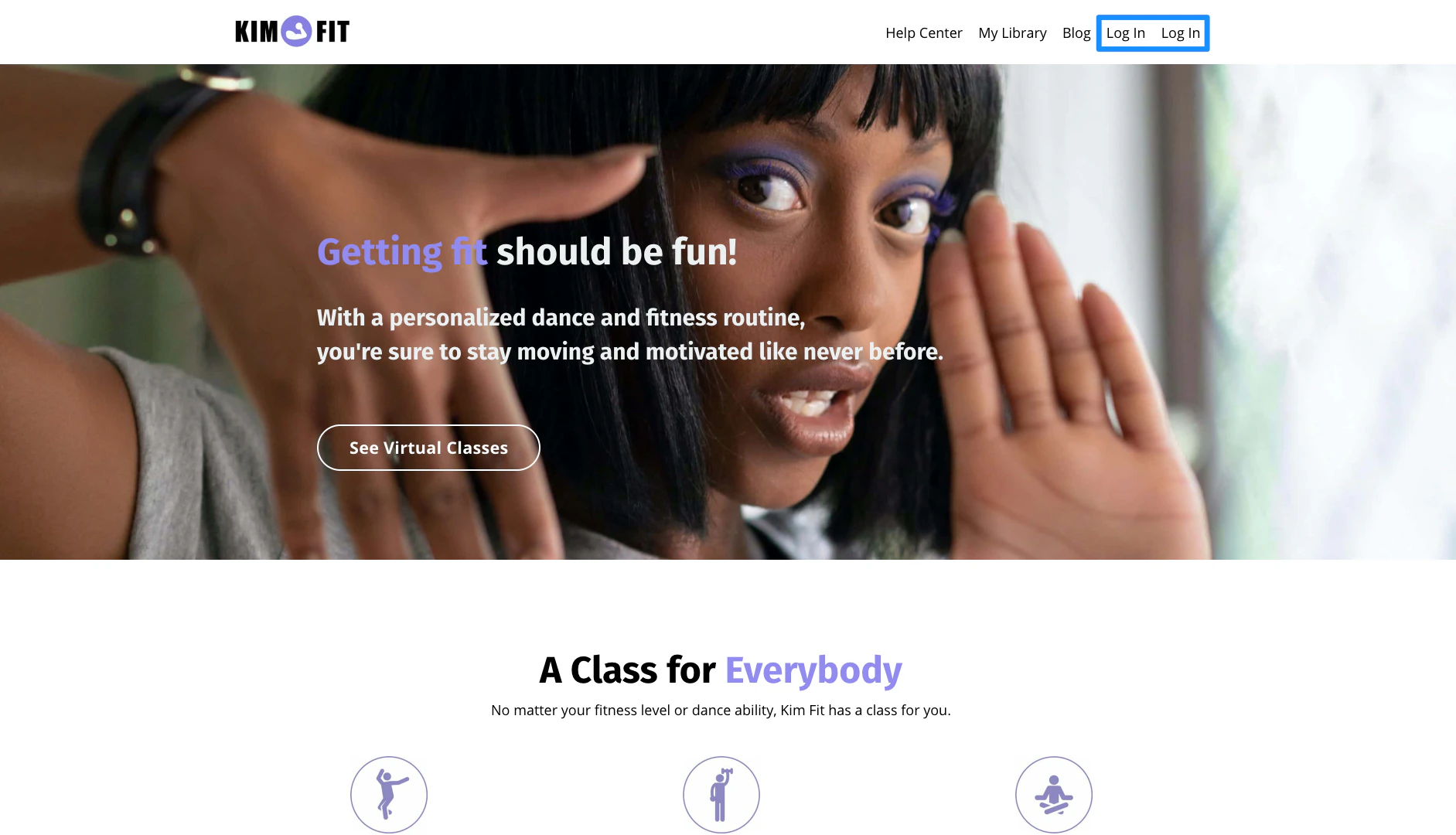
The User Menu block displays its own "Log In" text when a page visitor hasn't signed in yet. If your navigation menu already links to your [login page](/articles/website/pages/how-to-build-your-login-page), your Header shows two "Log In" buttons:
***
## Customize your header blocks
### Stretch block
**Note:** Only available with the Website Builder pages. [Learn more](/articles/website/pages/customizing-your-website-pages-with-the-website-builder)
Enable **Stretch Block** to fill the remaining space of the Header section.
A good rule for using Stretch Block is to enable it for the block on the far left of your Header. For example, if you want a Logo on the far left and a Menu and User Menu block on the right, select **Stretch Block** for your Logo:
Control the alignment and positioning of your blocks by adjusting **Stretch Block** and **Block Alignment** for the blocks in your Header.
### Header block alignment
Adjust the horizontal alignment of a block in the Header to appear more left, centered, or right-aligned. This setting is affected by the positioning and alignment of surrounding blocks.
### User Menu dropdown alignment
Customize the text alignment for the items displayed in your User Menu's dropdown.
**Tip:** Select and save your desired menu alignment, then preview your page to confirm it fits your vision.
## FAQs
### Can I add both a Menu block and a User Menu block to the same Header?
Yes. Add each block separately by following the steps above, then use Stretch Block and Text alignment to arrange them together in your Header — for example, a Logo on the left with a Menu and User Menu on the right.
### Why do I see two Log In buttons in my Header?
The User Menu block displays its own "Log In" text when a page visitor hasn't signed in yet. If your navigation menu already links to your [login page](/articles/website/pages/how-to-build-your-login-page), your Header shows two "Log In" buttons:
 ### How do I show a single Log In button?
Remove the link to your login page from your navigation menu, and make sure your Header includes a User Menu block.
[Learn to edit your navigation menu](/articles/website/navigation/build-navigation-menus#edit-navigation-menu).
The User Menu block displays "Log In" until a visitor signs in, then switches to their Avatar. With the login link removed from your navigation menu and a User Menu block in your Header, your Header shows a single Log In button:
### How do I show a single Log In button?
Remove the link to your login page from your navigation menu, and make sure your Header includes a User Menu block.
[Learn to edit your navigation menu](/articles/website/navigation/build-navigation-menus#edit-navigation-menu).
The User Menu block displays "Log In" until a visitor signs in, then switches to their Avatar. With the login link removed from your navigation menu and a User Menu block in your Header, your Header shows a single Log In button: