> ## Documentation Index
> Fetch the complete documentation index at: https://developers.kajabi.com/llms.txt
> Use this file to discover all available pages before exploring further.
# Landing Page A/B Testing overview
> Learn how to use Landing Page A/B testing to optimize your Landing Page to drive better results.
Landing Page A/B testing is an important way to ensure your landing page is providing the best results possible. This is achieved by creating two different landing pages, each slightly different than the other to see which one your site visitors react to better. With Kajabi, you can choose the variable between both pages to be:
* Clicks
* Form Opt-ins
* Conversions
* GMV
Site visitors will randomly be assigned to either landing page when visiting, and the results will be recorded accordingly.
Through Landing Page A/B testing you will be able to get a better understanding of what your site visitors are looking for, and can create future landing pages to better suit their needs.
## Create a Landing Page A/B test
### How to create a Landing Page A/B test
#### Step 1. Create a landing page
To create a Landing Page A/B Test, you will first need to create a Landing Page.
[Learn how to create a Landing Page](/articles/website/pages/how-to-add-pages-to-your-website).
#### Step 2. Create and edit your Landing Page A/B test
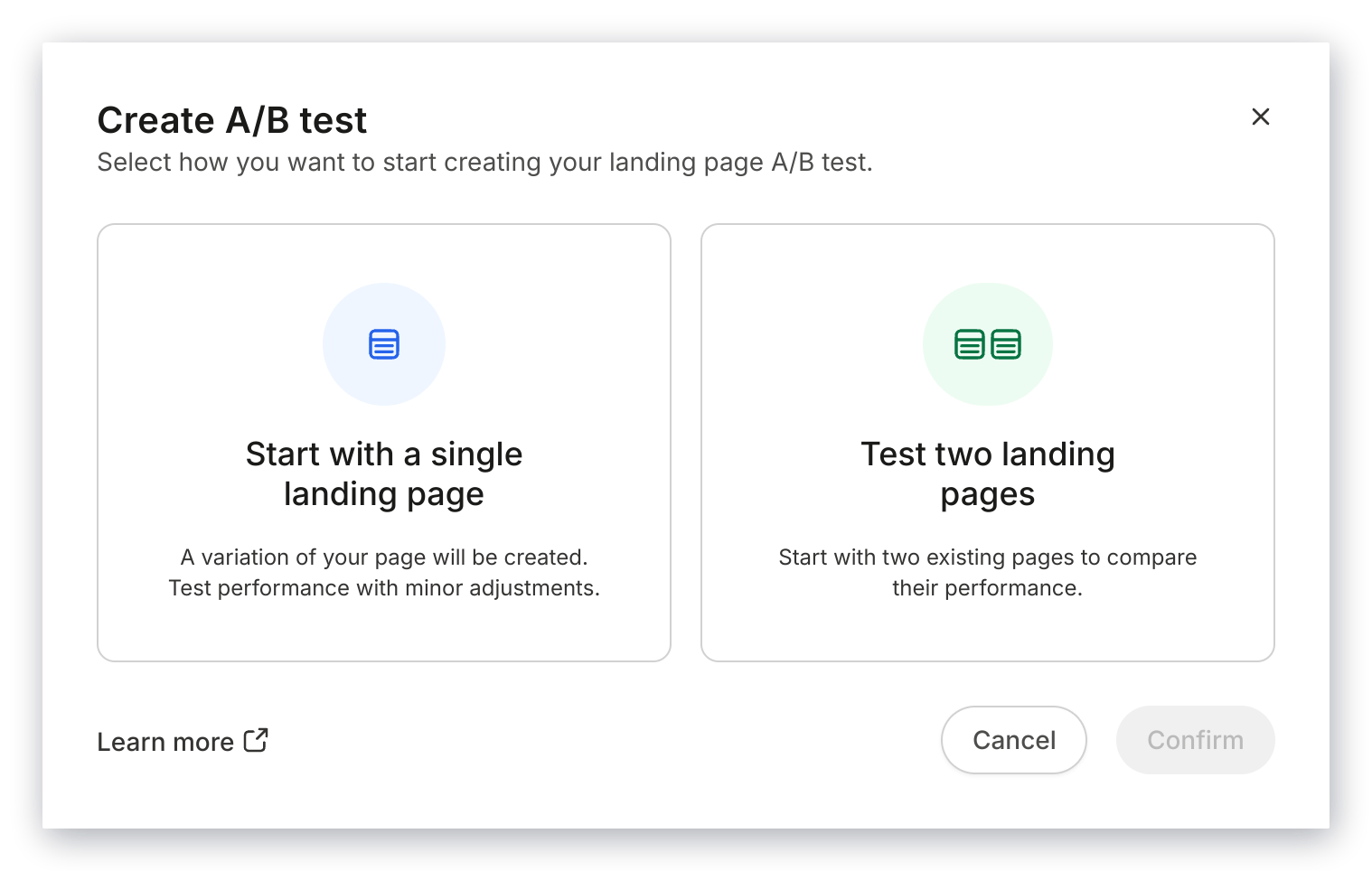
When creating your Landing Page A/B test, you will need to choose between two testing options:
* Option A will test one landing page against a variation of that page.
* Option B will allow you to select two different landing pages to test against each other.
 **Note:** If you are using Option B to test a feature, such as an opt-in form, both pages must have a form before the test is started. If one of the pages does not have the feature you intend to test, the test results will be inconclusive.
#### To create your A/B Test
* From your Kajabi Dashboard, click **Website-Landing Pages**.
* Select **Create A/B Test** or open the more menu of an existing page and select **Create A/B Test**:
**Note:** If you are using Option B to test a feature, such as an opt-in form, both pages must have a form before the test is started. If one of the pages does not have the feature you intend to test, the test results will be inconclusive.
#### To create your A/B Test
* From your Kajabi Dashboard, click **Website-Landing Pages**.
* Select **Create A/B Test** or open the more menu of an existing page and select **Create A/B Test**:
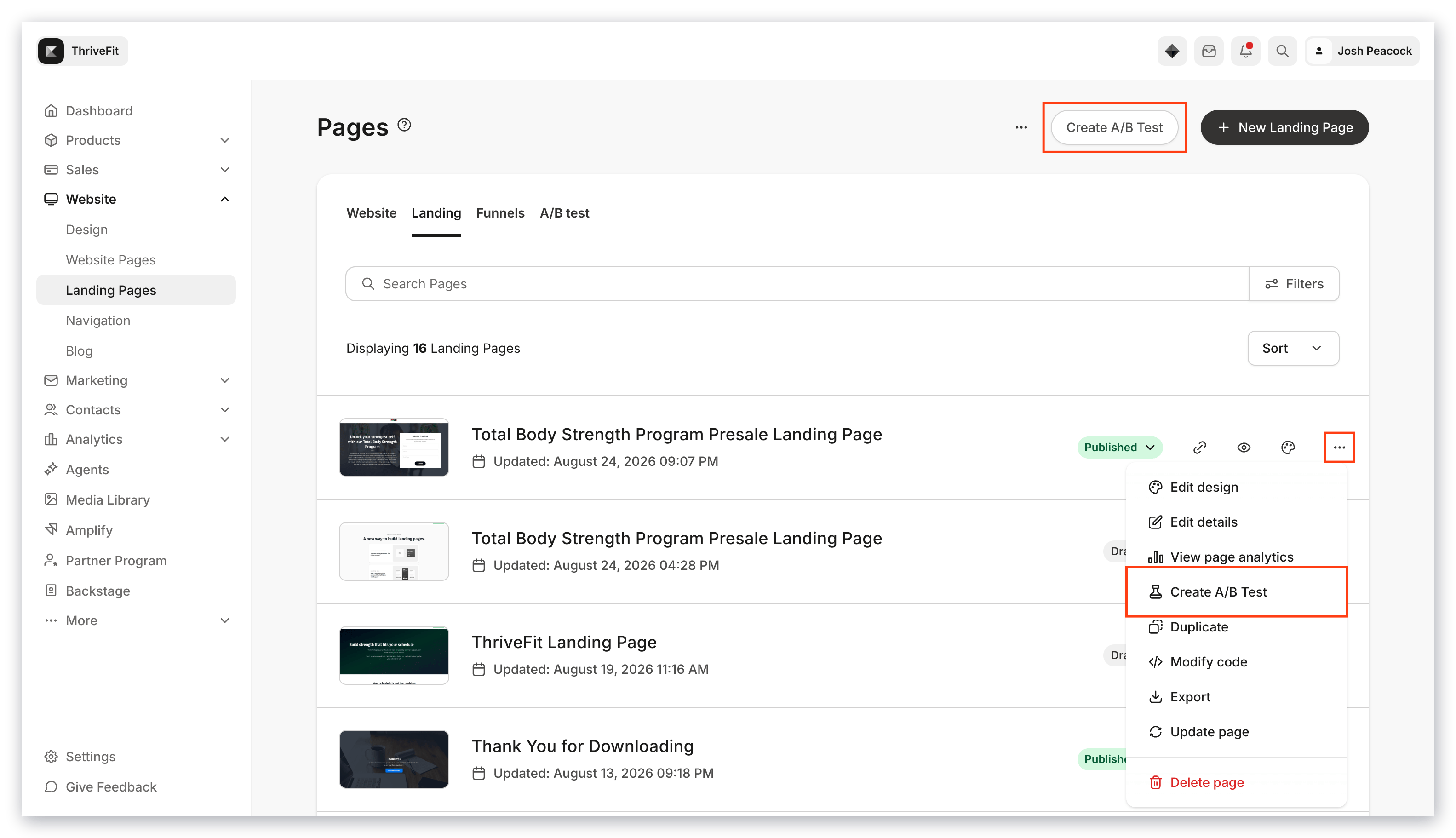 * Select **Start with a single landing page** or **Test two landing pages**.
* Then, click **Confirm**.
* Follow the on-screen instructions to select your landing page(s).
* In the A/B test form, enter a **test title** (up to 140 characters).
* Choose the **winning metric**. The winning metric can either be Clicks, Opt-ins, GMV, or Conversions.
* Enter your desired **test duration**. The minimum duration is 1 hour and the maximum is 30 days. You can specify the amount in hours or days.
* Select **Create Test**.
* Once the A/B test has been created, move it from Draft to **Published** to start the test and make the pages visible to site visitors.
#### Option A: Start with a single landing page
* Select **Start with a single landing page** or **Test two landing pages**.
* Then, click **Confirm**.
* Follow the on-screen instructions to select your landing page(s).
* In the A/B test form, enter a **test title** (up to 140 characters).
* Choose the **winning metric**. The winning metric can either be Clicks, Opt-ins, GMV, or Conversions.
* Enter your desired **test duration**. The minimum duration is 1 hour and the maximum is 30 days. You can specify the amount in hours or days.
* Select **Create Test**.
* Once the A/B test has been created, move it from Draft to **Published** to start the test and make the pages visible to site visitors.
#### Option A: Start with a single landing page
#### Option B: Test two landing pages
Landing Page A/B tests cannot be canceled once the test has started. You can, however, view the results early and choose to publish the winning page early.
## Limitations
* A/B test titles have a maximum length of 140 characters
* Test duration must be between 1 hour (minimum) and 30 days (maximum)
* Tests cannot be canceled once started
* A test result can be *determined* (a clear winner) or *inconclusive* (no statistically significant difference)
* Each variant tracks: unique visitors, clicks, opt-ins, conversions, and GMV
* Conversions and GMV are attributed by visit: once a visitor has viewed a variant, any purchase they make while the test is running counts toward that variant
* Attribution is not limited to the Offer on the Landing Page, and there is no short time limit, so purchases of other Offers or from other pages on your site are included
* Refunds are not deducted from Conversions or GMV, so these figures reflect gross sales
* Because of this, your A/B test results are an estimate and may not match your **Sales** report exactly (see [How Conversions and GMV are attributed](#how-conversions-and-gmv-are-attributed))
## Review your A/B test report
After your test duration is completed, a winner will be determined.
Once your Landing Page A/B test is complete, you can begin viewing and assessing your A/B test results. The winning landing page is selected based on the chosen metric within the test timeframe. After the test is completed or a winner is manually selected - the winning variation is published. The winning landing page can then be found under [Landing Pages](/articles/website/pages/how-to-add-pages-to-your-website).
### To view your Landing Page A/B Test results
* Open the **Website-Landing Page** tab from your Dashboard.
* Click **A/B Test**:
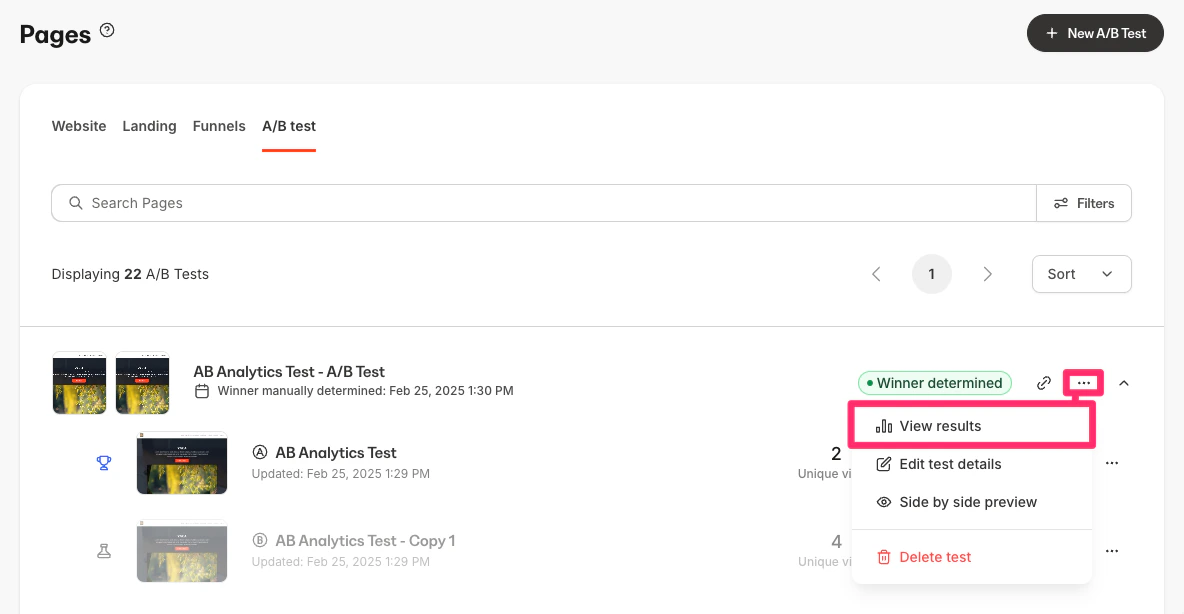
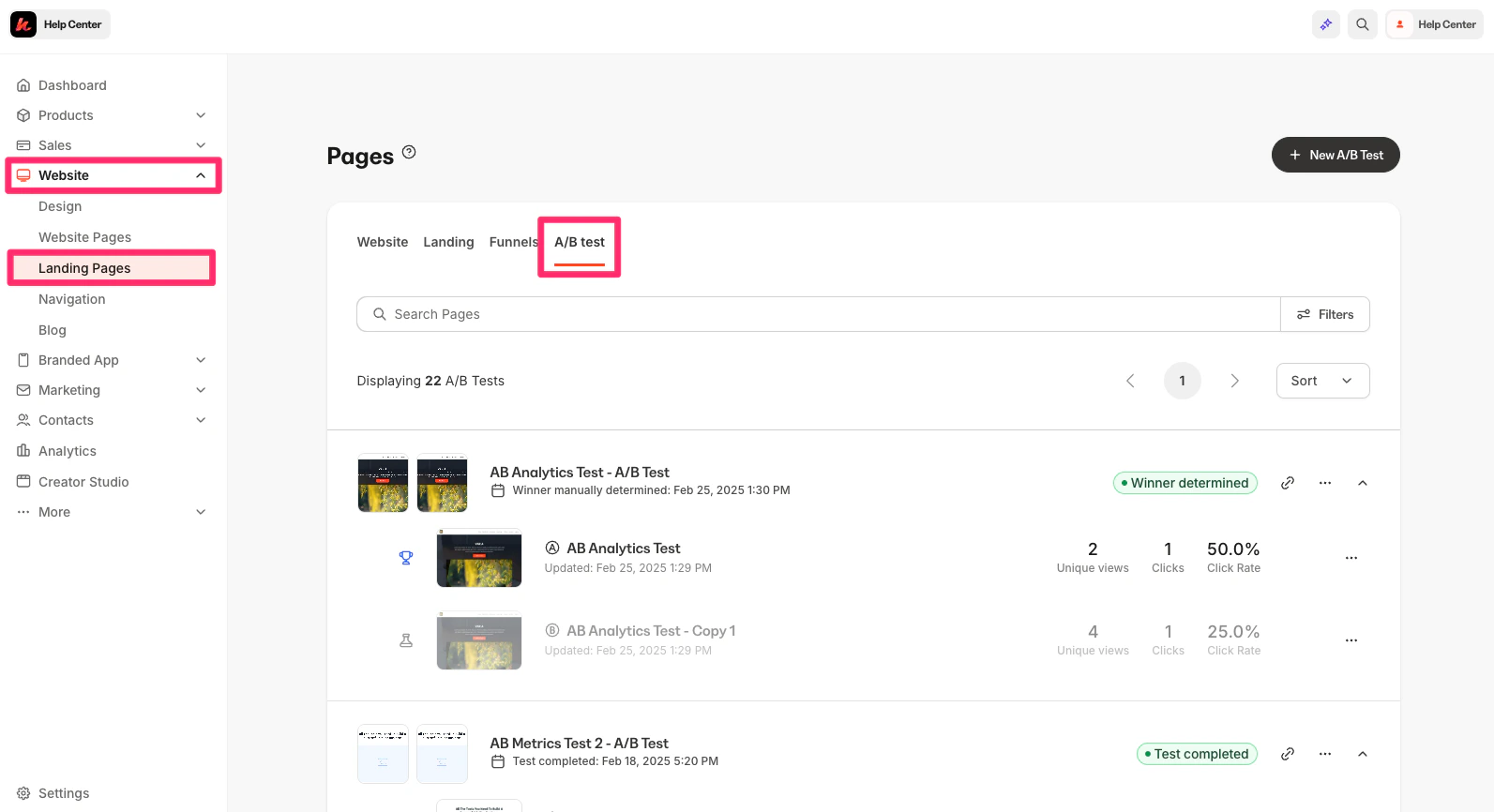 * Then, find the Landing Page A/B test you wish to view the results for and select the `…` menu, then **View results**:
 ## Metrics definitions
Metrics can be impacted by browser security enabled by visitors.
| Metric | Definition |
| - | - |
| Unique Visitors | Total number of unique visitors per browser. This number can be impacted by visitors with browser security |
| Clicks | Unique clicks per visitor on any link on the page, including hyperlinks and any images with hyperlinks attached |
| Click Rate | Clicks divided by unique visitors |
| Click Metrics | Total number of unique visitors who clicked on any link on page, including hyperlinks, buttons, and any images with hyperlinks attached |
| Opt-in | Form submitted per unique visitor |
| Opt-in Rate | Forms submitted divided by unique visitors |
| Conversions | Total transactions from visitors who viewed the page, including any purchase they make while the test is running. Not limited to the Offer on the Landing Page, and there is no set time window |
| Conversion Rate | Conversions divided per unique visitor |
| GMV | Total gross revenue from purchases credited to the variant. Refunds are not deducted |
| GMV per View | GMV divided per unique visitor |
## How Conversions and GMV are attributed
When your winning metric is **Conversions** or **GMV**, how a sale gets credited to a variant affects your results.
A sale is credited to a variant whenever the same visitor buys something after viewing that variant, not only the specific Offer on the Landing Page.
* When a visitor views one of your A/B test Landing Pages, Kajabi remembers which variant they saw (using their browser's cookies).
* From that point on, **any purchase that visitor makes while the test is running is credited to the variant they saw**, as long as their browser still has that cookie.
* There is no short time limit, and it is not restricted to the Offer on the page. A visitor who viewed a variant days or even weeks earlier, then buys *any* product from anywhere on your site, still counts toward that variant.
**Note:**
This is intentional: viewing a variant may have influenced a visitor to buy, even if they did not purchase the exact Offer shown. Read your Conversions and GMV as a measure of influence and relative performance between your variants, rather than an exact count of sales for one specific Offer.
## Differences between A/B test results and the Sales report
Your **Sales** report is the source of truth for actual transactions. Your A/B test results can differ from it for a few reasons:
* **Other purchases may be included.** Any purchase by a visitor who viewed a variant is counted, not just the Offer being tested.
* **Order bumps and upsells can add purchases.** These may be recorded as additional sales in your results.
* **Refunds are not deducted.** Conversions and GMV reflect gross sales, so refunded orders are still counted.
* **Some purchases cannot be matched.** Tracking relies on your visitor's browser cookies, so a purchase may not be linked to a variant if the visitor uses an ad blocker or tracking-protection setting, browses in incognito or private mode, switches browsers or devices between viewing and buying, or clears their cookies.
* **Coupons and prices may differ between variants.** Uneven pricing makes revenue comparisons unreliable.
For the most accurate picture, use your A/B test results to compare the *relative* performance of your variants, and use your **Sales** report for the exact revenue and number of sales for a specific Offer.
## Landing Page A/B best practices
Landing Page A/B testing can prove very important to your site, but it does take some time. So it is important to ensure you are following some best practices to ensure you are making the most progress from every test.
### An appropriate length of time is important
* While Kajabi offers a minimum testing time of 1 hour and a maximum testing time of 30 days, we recommend running your A/B test for the full 30 days to ensure the best results.
### Test only the important pages
* A/B testing is valuable but takes time. Focus on the Landing Pages that you wish to see the most results from, such as sign-up pages or offer pages.
### Ending the test too early
* While viewing your winning page and ending the test early is possible, this may not be for the best in every case. We suggest letting the test fully run its course to make sure you have the most data possible.
### A/B Test Calculator
* To determine the required duration and number of visitors needed for a statistically significant test, use an [A/B Test Calculator](https://www.abtasty.com/sample-size-calculator/).
### Keep Offers and coupons consistent across variants
* For a fair comparison, use the same Offer(s) and the same coupons on both variants. Different Offers, prices, or coupons between variants can skew your Conversions and GMV.
### Avoid editing variants after the test starts
* Changing a variant's content, Offers, or pricing mid-test can distort your results. Set up both variants the way you want them before you publish the test.
### Compare against the Sales report
* Because A/B test Conversions and GMV are attributed by visit (see [How Conversions and GMV are attributed](#how-conversions-and-gmv-are-attributed)), cross-check your **Sales** report when you need the exact revenue or number of sales for a specific Offer.
### Configure your Cookie Blocker Platform
* If your metrics are lower than expected, ensure your cookie blocker platform is configured to allow the "rl\_anonymous\_id" cookie as a required cookie rather than categorizing it as a performance cookie.