> ## Documentation Index
> Fetch the complete documentation index at: https://developers.kajabi.com/llms.txt
> Use this file to discover all available pages before exploring further.
# SEO and social sharing
> Optimize your search engine results and boost your site traffic with SEO and Sharing settings.
Your website, pages, blog, and blog posts all have a dedicated Search Engine Optimization (SEO) and Sharing section. To optimize your search engine results and boost your site traffic, learn about the basics of the SEO and Sharing settings on Kajabi.
There are three fields in the SEO and social sharing section that you can update:
* Page Title
* Page Description
* Page Image
### Page Title
A strong title can be beneficial in getting your page ranked by Google and other leading search engines.
You can set a page title in the SEO and social sharing section of a page or blog post. Depending on the search engine, they will sometimes show your description below the URL breadcrumb on the search engine results page.
They may also choose to display relevant text from your page instead of your title. The page title may also appear in the browser tab.
[Learn how to optimize your Page Title](../../resources/business-guides/get-started-with-seo#h_01FTVB6PVT6HCRQ2S23V364HTB).
### Page Description
Summarize the content of your page in 1-2 sentences.
Keep in mind that depending on the search engine, your description may display below the title on the search engine results. And the search engine may display relevant text from your page instead of your description.
[Learn how to optimize your Page Description](../../resources/business-guides/get-started-with-seo#h_01FTVB6VC1BE8SPC2E9YQXZGZB).
### Page Image
You can set a social image of a page or blog post. This may display when your link is shared by text, email, or social media.
**Tip:** Use free image editing tools like [Canva](https://www.canva.com/) to design your images.
***
## Website pages
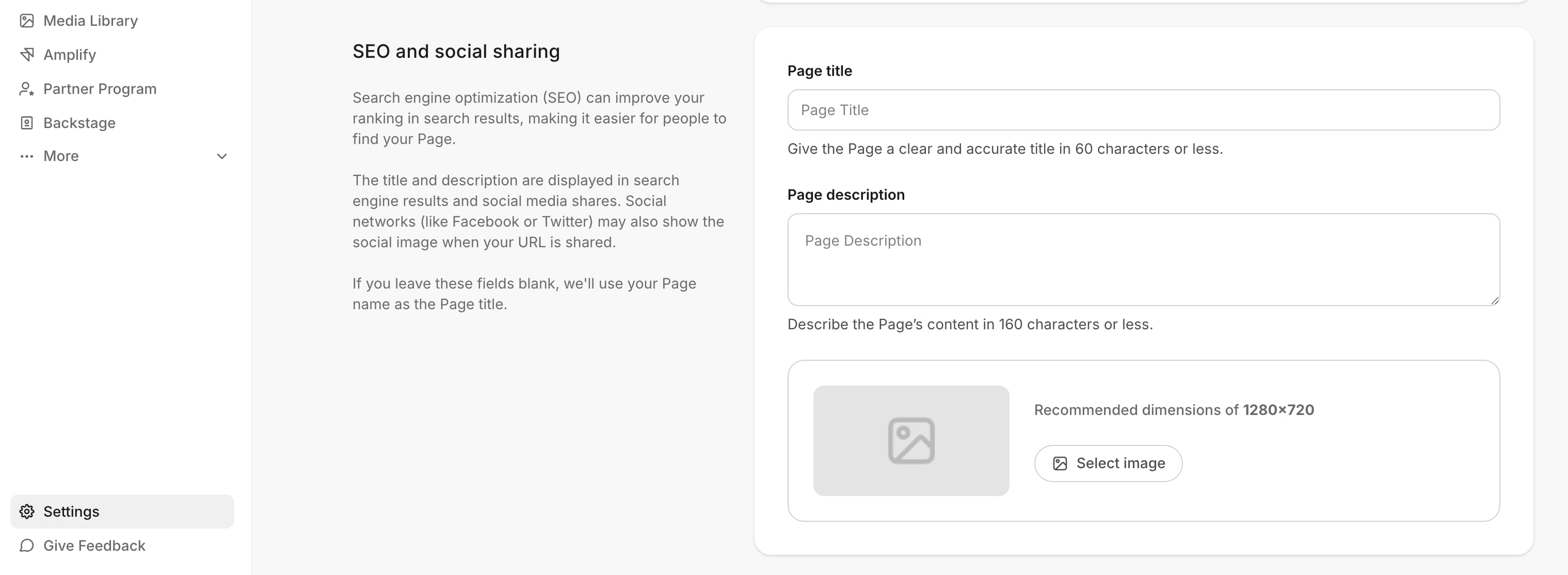
Some website pages are created automatically for your Kajabi site. This means certain pages are not able to have a unique SEO and social sharing section, and these details must be filled out in the Site Details section found in your Settings. This is true for the following website pages: 404, Announcements, Blog, Blog Post, Blog Search, Home, Library, Login, Customer Directory, Store, and Thank You.
### To access your SEO and social sharing settings
1. From the Kajabi Dashboard, open the **Settings** tab.
2. Then, select **Site Details**.
3. From there, scroll to the bottom of the page to **SEO and social sharing**:
 **Note:** For the default About and Contact page and any website pages you create, you can edit the SEO and social sharing section by following the steps outlined in the SEO and sharing for landing pages section. You will just choose the Website tab, instead of the Landing Pages tab.
***
## Landing pages
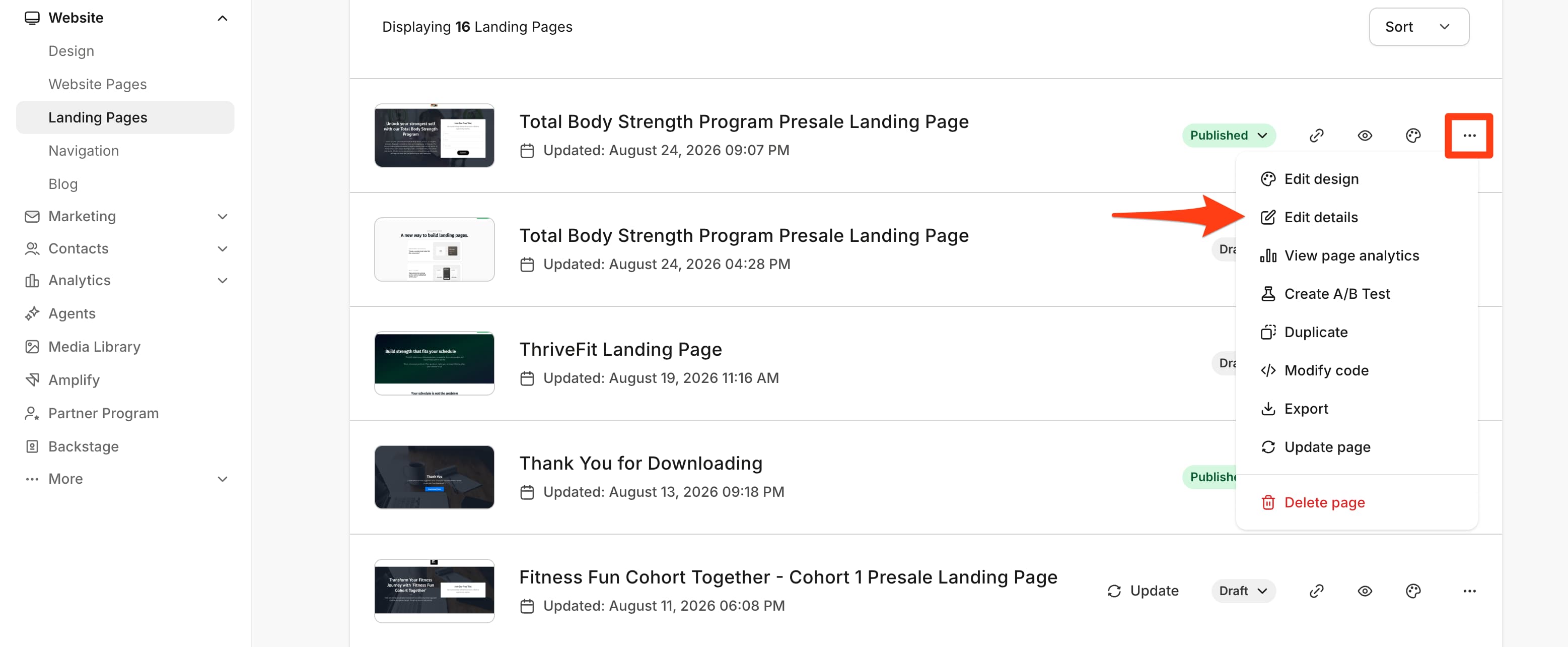
### To configure your SEO and social sharing settings for your landing pages
1. From the Kajabi Dashboard, open the **Website** tab.
2. Click on **Website Pages** or **Landing Pages**. [Learn about each page type available on Kajabi](/articles/website/pages/pages-overview).
3. Next to the title of the page you want to edit, click the **more options (...)** menu.
4. In the dropdown menu, click **Edit details**.
5. Scroll down to the **SEO and social sharing** section for the specific landing page selected:
**Note:** For the default About and Contact page and any website pages you create, you can edit the SEO and social sharing section by following the steps outlined in the SEO and sharing for landing pages section. You will just choose the Website tab, instead of the Landing Pages tab.
***
## Landing pages
### To configure your SEO and social sharing settings for your landing pages
1. From the Kajabi Dashboard, open the **Website** tab.
2. Click on **Website Pages** or **Landing Pages**. [Learn about each page type available on Kajabi](/articles/website/pages/pages-overview).
3. Next to the title of the page you want to edit, click the **more options (...)** menu.
4. In the dropdown menu, click **Edit details**.
5. Scroll down to the **SEO and social sharing** section for the specific landing page selected:
 **Tip:** To ensure that each landing page has SEO and Sharing set up, fill out each landing page's SEO and social sharing section when creating your landing page.
## Blog
Your SEO and social sharing settings for your blog will apply to your Blog homepage, Blog search results page, and Blog category pages.
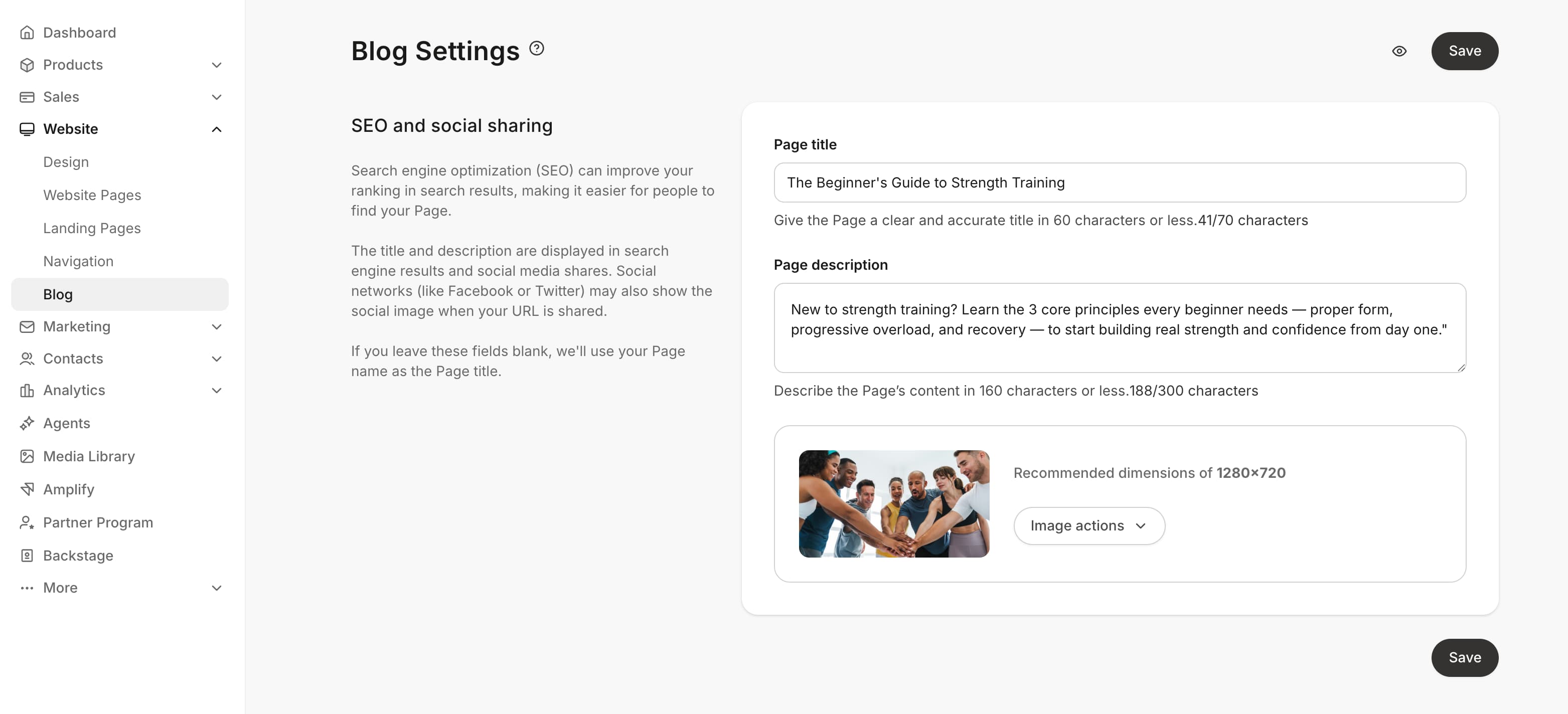
### To configure your SEO and social settings for your Blog
1. Open the **Website** tab from your Dashboard.
2. Then, select the **Blog** tab.
3. From there, click **Settings**:
**Tip:** To ensure that each landing page has SEO and Sharing set up, fill out each landing page's SEO and social sharing section when creating your landing page.
## Blog
Your SEO and social sharing settings for your blog will apply to your Blog homepage, Blog search results page, and Blog category pages.
### To configure your SEO and social settings for your Blog
1. Open the **Website** tab from your Dashboard.
2. Then, select the **Blog** tab.
3. From there, click **Settings**:
 ### To configure your SEO and social sharing settings for each Blog Post
1. Open the **Website** tab from your Dashboard.
2. Then, click **Blog**.
3. There, select the **Blog Post** you want to edit.
4. Scroll down to the bottom of the page to **SEO and social sharing** section.
**Tip:** To ensure that each blog post has SEO and Sharing set up, fill out each individual Blog Post's SEO and social sharing section when creating the Blog Post.
## Funnel pages
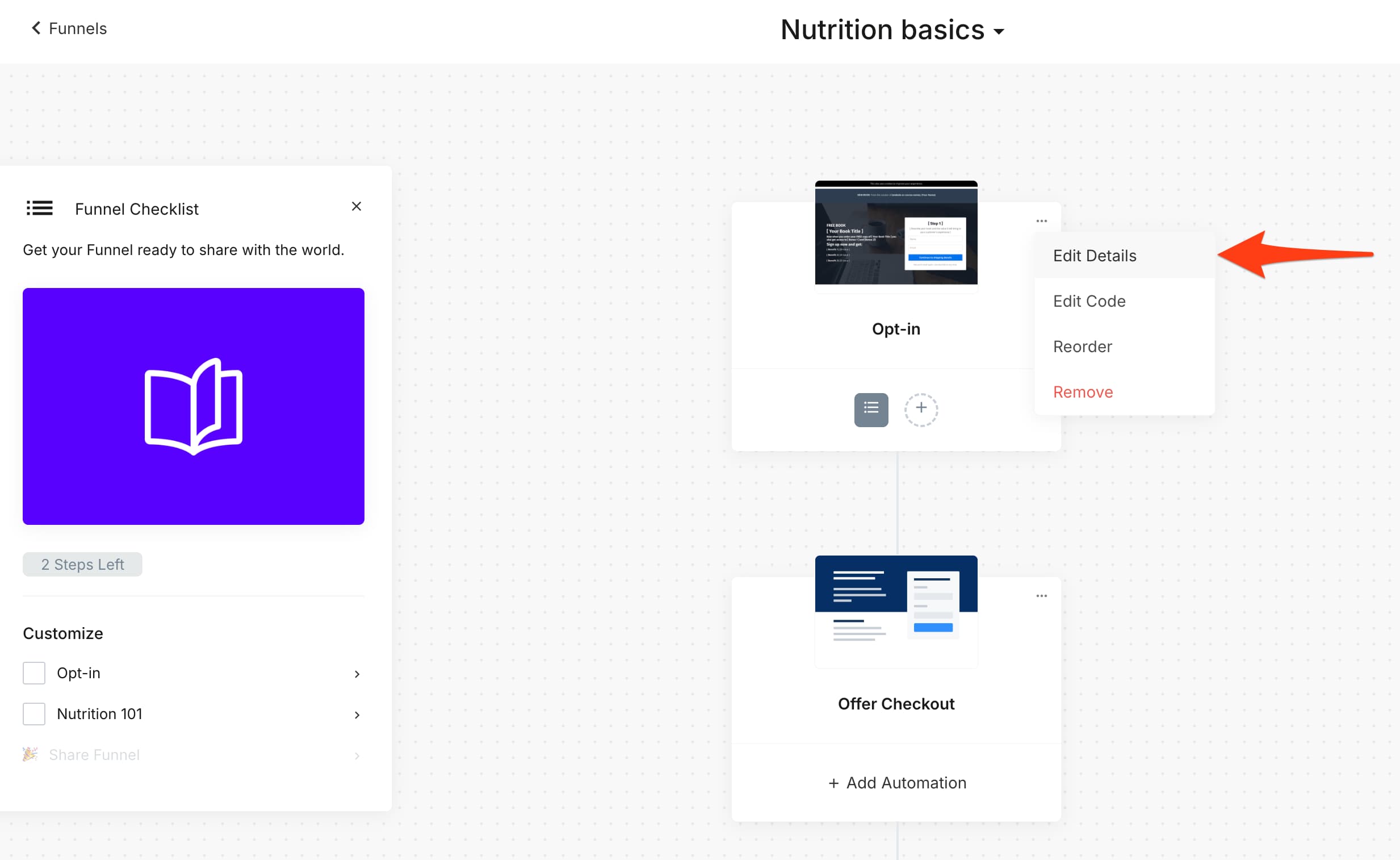
The SEO image used for your Funnel is pulled from the first page of your Funnel. To change the image, upload your desired image to the Funnel Page Details:
1. From the Kajabi Dashboard, click the **Marketing** tab.
2. Select **Funnels.**
3. Select the **Funnel** you wish to edit.
4. Locate the first **Page** in your Funnel.
5. Click the `…` icon.
6. Click **Edit details**.
7. Navigate to the **SEO and social sharing section** to customize your settings:
### To configure your SEO and social sharing settings for each Blog Post
1. Open the **Website** tab from your Dashboard.
2. Then, click **Blog**.
3. There, select the **Blog Post** you want to edit.
4. Scroll down to the bottom of the page to **SEO and social sharing** section.
**Tip:** To ensure that each blog post has SEO and Sharing set up, fill out each individual Blog Post's SEO and social sharing section when creating the Blog Post.
## Funnel pages
The SEO image used for your Funnel is pulled from the first page of your Funnel. To change the image, upload your desired image to the Funnel Page Details:
1. From the Kajabi Dashboard, click the **Marketing** tab.
2. Select **Funnels.**
3. Select the **Funnel** you wish to edit.
4. Locate the first **Page** in your Funnel.
5. Click the `…` icon.
6. Click **Edit details**.
7. Navigate to the **SEO and social sharing section** to customize your settings:
 ## Sharing and debugging
If the Social Image you set for the URL is not showing when you post the link somewhere:
**Facebook:**
* Paste the URL in the [Facebook Debugger](https://developers.facebook.com/tools/debug/).
* Scrape the URL again.
* Paste the link in your desired location.
**Twitter:**
For Twitter, you can use the Twitter Card Validator to refresh their cache here: [https://cards-dev.twitter.com/validator](https://cards-dev.twitter.com/validator).
**AddThis**
If you are using AddThis, they too have their own tool for re-scraping your site pages. Use the Rescrape URLs tool under the profile options to scrape specific URLs, or contact AddThis support to have them scrape your site.
**LinkedIn**
* Open the [Post Inspector Tool](https://www.linkedin.com/post-inspector/).
* Enter the desired URL into the text field located at the top of the page.
* Click **Inspect**.
## My SEO changes aren't showing up on the live site
After saving changes to a page's SEO title or description, the live site may still display the old version. Work through these steps in order.
### Step 1: Republish the page
Saving in the editor doesn't always trigger an immediate cache refresh. To force it:
1. From the Kajabi Dashboard, open the **Website** tab.
2. Locate the page either in the **Website**, **Landing**, or **Funnels** tab.
3. On the right-hand side, select **Customize** to open the page in the editor.
4. Make a minor edit (add and delete a space).
5. Click **Save**.
6. Wait a few minutes, then check the live URL in a private/incognito window.
### Step 2: Clear your browser cache
If the page still shows old content, your browser may be serving a cached copy. Open the URL in a private or incognito window (which bypasses local cache), or hard-refresh with Ctrl+Shift+R (Windows) or Cmd+Shift+R (Mac).
### Step 3: Purge your CDN cache (if using your own Cloudflare account)
If your Kajabi site runs through Cloudflare or another CDN proxy, cached content at that layer can take longer to update. Purge the Cloudflare cache from your Cloudflare dashboard:
1. Log in to your Cloudflare Dashboard.
2. Select your website domain.
3. Go to **Caching** and select **Configuration**.
4. Find **Purge Cache** and click **Purge Everything**.
5. Recheck the live URL.
### Search engine results still showing old values?
Even after Kajabi reflects your new SEO title and description, search engines (Google, Bing, etc.) continue to display the old values until their crawlers re-index your page — this can take days or weeks and is outside Kajabi's control. To speed it up, submit the URL for re-indexing in Google Search Console using URL Inspection > Request Indexing.
## Sharing and debugging
If the Social Image you set for the URL is not showing when you post the link somewhere:
**Facebook:**
* Paste the URL in the [Facebook Debugger](https://developers.facebook.com/tools/debug/).
* Scrape the URL again.
* Paste the link in your desired location.
**Twitter:**
For Twitter, you can use the Twitter Card Validator to refresh their cache here: [https://cards-dev.twitter.com/validator](https://cards-dev.twitter.com/validator).
**AddThis**
If you are using AddThis, they too have their own tool for re-scraping your site pages. Use the Rescrape URLs tool under the profile options to scrape specific URLs, or contact AddThis support to have them scrape your site.
**LinkedIn**
* Open the [Post Inspector Tool](https://www.linkedin.com/post-inspector/).
* Enter the desired URL into the text field located at the top of the page.
* Click **Inspect**.
## My SEO changes aren't showing up on the live site
After saving changes to a page's SEO title or description, the live site may still display the old version. Work through these steps in order.
### Step 1: Republish the page
Saving in the editor doesn't always trigger an immediate cache refresh. To force it:
1. From the Kajabi Dashboard, open the **Website** tab.
2. Locate the page either in the **Website**, **Landing**, or **Funnels** tab.
3. On the right-hand side, select **Customize** to open the page in the editor.
4. Make a minor edit (add and delete a space).
5. Click **Save**.
6. Wait a few minutes, then check the live URL in a private/incognito window.
### Step 2: Clear your browser cache
If the page still shows old content, your browser may be serving a cached copy. Open the URL in a private or incognito window (which bypasses local cache), or hard-refresh with Ctrl+Shift+R (Windows) or Cmd+Shift+R (Mac).
### Step 3: Purge your CDN cache (if using your own Cloudflare account)
If your Kajabi site runs through Cloudflare or another CDN proxy, cached content at that layer can take longer to update. Purge the Cloudflare cache from your Cloudflare dashboard:
1. Log in to your Cloudflare Dashboard.
2. Select your website domain.
3. Go to **Caching** and select **Configuration**.
4. Find **Purge Cache** and click **Purge Everything**.
5. Recheck the live URL.
### Search engine results still showing old values?
Even after Kajabi reflects your new SEO title and description, search engines (Google, Bing, etc.) continue to display the old values until their crawlers re-index your page — this can take days or weeks and is outside Kajabi's control. To speed it up, submit the URL for re-indexing in Google Search Console using URL Inspection > Request Indexing.