

Note: Multiple triggers and multiple flows require both of the following, and each is still rolling out on top of them. If you meet both and do not see + Add Trigger or + Add flow, they are not available on your account yet.
- Upgraded to the visual Automation Builder
- A Growth plan or higher (Advanced Automations)
Create an Automation with multiple triggers
- From the Dashboard, select Marketing > Automations.
- Select an existing Automation or create a new one.
- Save the first Trigger. The option to add additional triggers only appears after the first trigger is saved.
- Click + Add Trigger to the right to create another trigger within your Automation.
- Add the Automation’s Then action(s).
- Click Save Trigger when you’re done:
Create an Automation with multiple flows
- From the Dashboard, select Marketing > Automations.
- Select an existing Automation or create a new one.
- Click the + Add flow button to add a flow to your Automation.
- The flow appears on the right, allowing you to create a separate workflow inside the same Automation.
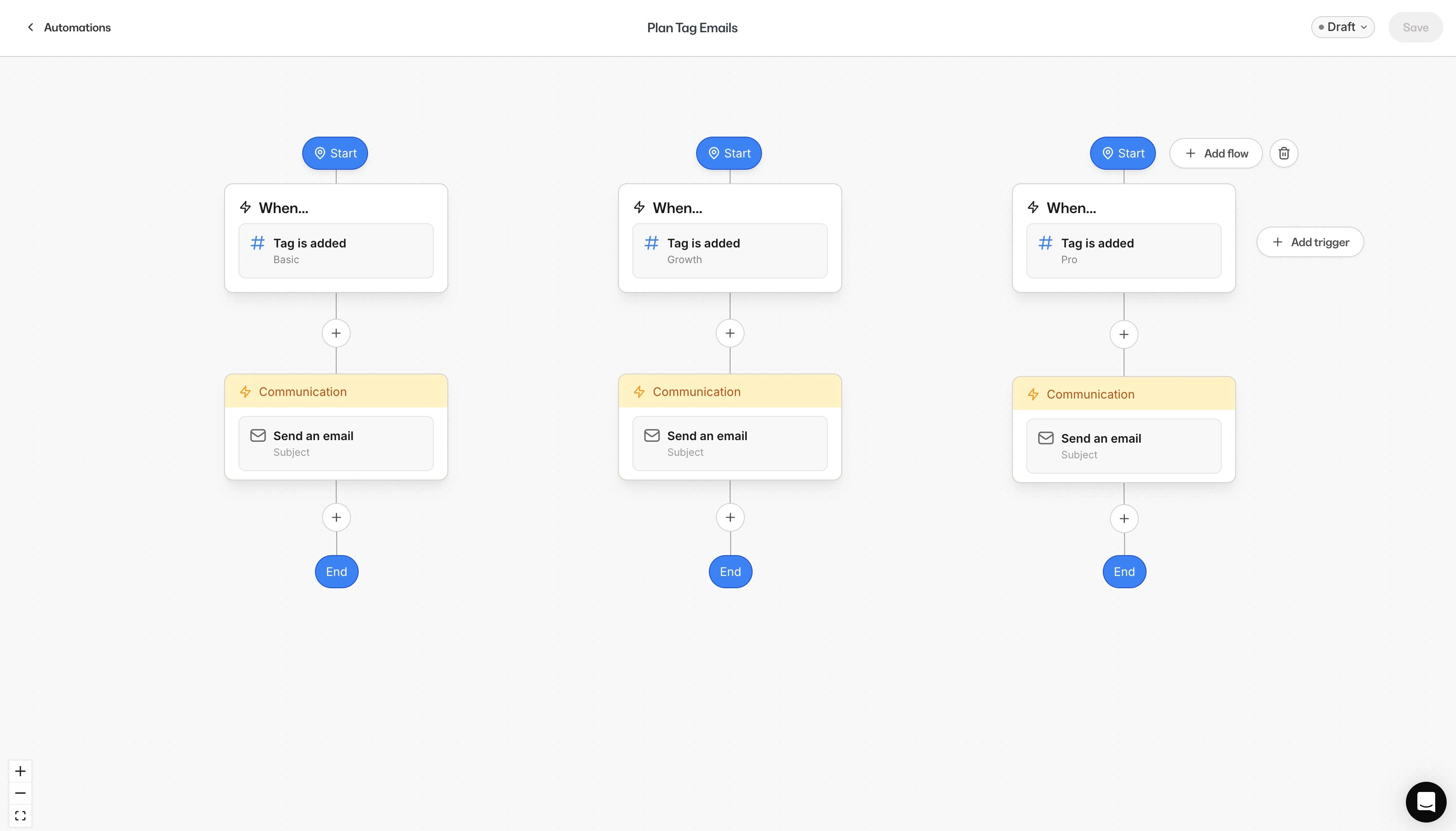
Note: Each Automation can contain up to 10 individual flows and triggers combined. Once you reach 10, + Add flow stops adding new ones.
Add branching logic and wait nodes
After defining the Then action, you can optionally add up to 5 branches to create conditional paths. You can also include wait nodes as needed throughout the Automation.Example branching use case
For users who submitted multiple forms:- Branch 1: Send Email 1 if they have a specific tag or have purchased Offer A
- Branch 2: Send Email 2 if they do not meet those conditions