

Add a CTA linking to a section of your page
Use a Call to Action to lead your user from one section of your page to another section with the Go to a section on this page feature.To add your CTA
- Open the Website tab from the Dashboard.
- Select the Page you wish to edit in either Website Pages or Landing Pages.
- Click Customize.
- Select Add Section, click Call to Action to preview the section then click Add or click on any CTA button if you already have a section with buttons added.
- Select the button to edit the settings of the CTA.
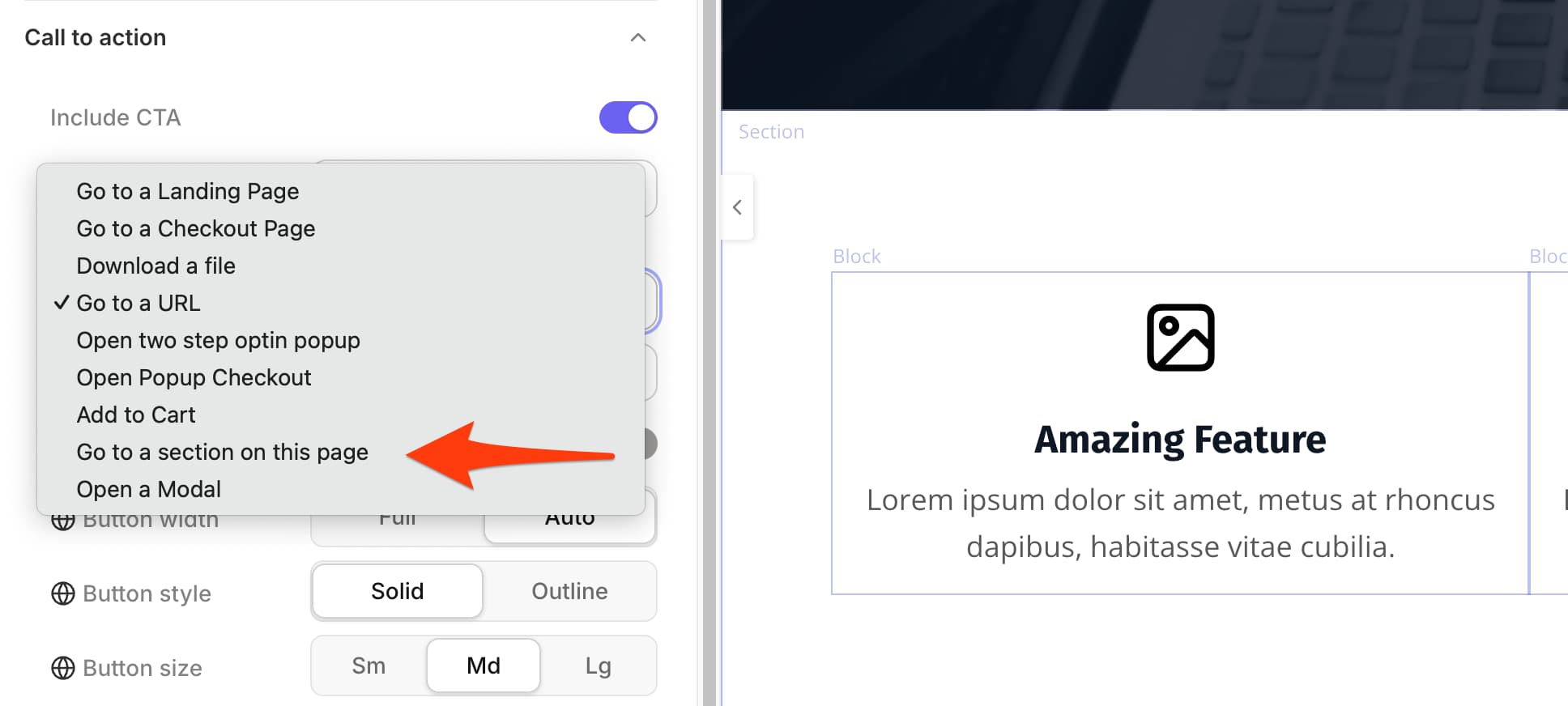
- In the Call to action menu, select Go to a section on this page under Button action.
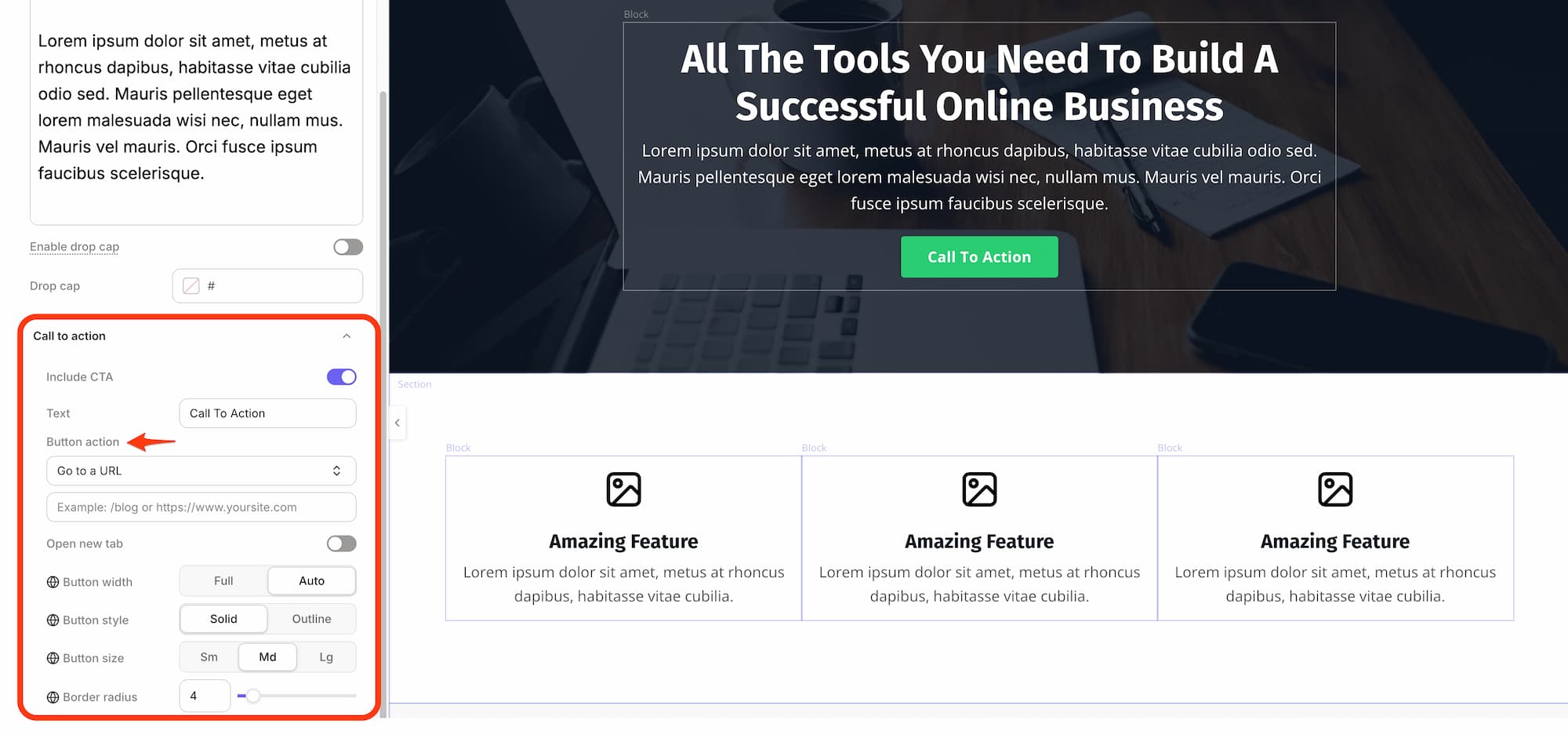
- Choose the section you want to link to.
Linking a CTA button to a specific Text Block (anchor tag workaround)
The “Go to a section on this page” CTA action only lists page sections in its dropdown — individual Text Blocks are not selectable. If you need a button to jump directly to a specific Text Block, use an HTML anchor tag: Step 1: Add an anchor to your destination Text Block- Open Website → Pages, select your page, and click Customize.
- Click into the Text Block you want to link to.
- Click the
<>(code view) icon in the Text Editor toolbar. - Insert this at the very start of the code, replacing
Section1with your own name:<a name="Section1"></a> - Save.
- Select your CTA button and edit its action.
- Choose the option to link to a URL (not “Go to a section on this page”).
- Enter your page URL with the anchor appended:
https://yourdomain.com/your-page#Section1
Important: Anchor names are case-sensitive.
<a name="Section1"> must be linked as #Section1 — #section1 will not work.